Vendor Meals
Most vendors require a meal. Couples should also plan meals for bartenders and Legacy Lane staff.
Mark each planning task as complete as you go. Your progress saves automatically.
Track RSVPs, meals, groups, and table assignments before you start seating.
Use search and filters together, then switch to Select for bulk RSVP, meal, group, or delete actions.
Changes save automatically as you type. Each document also has a Save button at the bottom if you want an immediate confirmation.
Basic information for your wedding weekend.
Schedule for check-in day from 10:00 AM through 10:00 PM in 15-minute increments.
| Time | Activity Notes |
|---|
Capture the full wedding day schedule in 15-minute increments.
| Time | Activity Notes |
|---|
Schedule for check-out day from 7:00 AM through 12:00 PM in 15-minute increments.
| Time | Activity Notes |
|---|
Primary day-of contacts for your wedding team
| Role | Name | Phone Number | Email Address | Comments |
|---|
| Role | Name | Phone Number | Email Address | Comments |
|---|
| Role | Name | Phone Number | Email Address | Comments |
|---|
Provide the primary vendor contacts and arrival times for wedding day coordination.
| Vendor Type | Company Name | Contact Name | Contact Phone | Contact Email | Arrival Time | Comments |
|---|
Document the wedding party, processional, and reception dinner introductions.
| # | First Name | Last Name | Phone Number | Comments |
|---|
| # | First Name | Last Name | Phone Number | Comments |
|---|
| First Name | Last Name | Age | Comments |
|---|---|---|---|
| First Name | Last Name | Age | Comments |
|---|---|---|---|
List each pair in the order they walk.
| # | Name 1 | Name 2 | Comments |
|---|
| # | Person / People | Comments |
|---|
Plan the moments before the ceremony so your timeline, photo coverage, and coordinator notes all stay aligned.
Capture arrival timing and rehearsal logistics.
Provide the rehearsal dinner plan, attendance, and setup needs.
Confirm what each caterer provides during cocktail hour and reception.
Cocktail Hour Caterer will provide:
Reception Caterer will provide:
Confirm the ceremony setup, timing, and music plan.
Describe the cocktail hour experience, music, and service style.
Plan the reception timeline, dances, and sendoff moments.
Tell us what you're providing and what your bartender needs to know. We'll share this summary with your bartender during the week of your wedding.
Capture hospitality notes, extras, and personal preferences.
Please complete this form by listing the first and last names of all overnight guests. The completed and signed form must be submitted no later than one week before the wedding date.
As outlined in the contract, the property accommodates a maximum of 30 overnight guests. If additional arrangements have been approved and payment has been received, the total number of overnight guests may be increased to a maximum of 36.
Please include all children in the guest list and enter their age in the Age column.
Capacity: 12 Guests | 1 King Bed | 4 Queen Beds | 2 Air Mattresses Available
| # | First Name | Last Name | Phone Number | Age | Air mattress | Notes |
|---|
Capacity: 10 Guests | 4 Queen Beds | 2 Air Mattresses Available
| # | First Name | Last Name | Phone Number | Age | Air mattress | Notes |
|---|
Capacity: 4 Guests | 1 Queen Bed | 1 Sleeper Sofa
| # | First Name | Last Name | Phone Number | Age | Notes |
|---|
Capacity: 8 Guests | 3 Queen Beds | 2 Air Mattresses Available
| # | First Name | Last Name | Phone Number | Age | Air mattress | Notes |
|---|
Capacity: 2 Adult Guests | 1 Queen Bed
| # | First Name | Last Name | Phone Number | Age | Notes |
|---|
Additional accommodations only if purchased. Capacity: 6 Guests | 3 Queen Beds | 2 Baths
| # | First Name | Last Name | Phone Number | Age | Notes |
|---|
Please list each vehicle that will stay overnight on the property. Please provide the primary contact for each vehicle and their phone number.
| # | Contact | Make | Model | Color | Plate # | State | Phone # | Notes |
|---|
Air mattress accommodations are available upon request for an additional fee ($25 per set, sheets and pillow included). Request them on Miscellaneous, then tick the Air mattress box beside each guest who will sleep on one so we know who is where.
By signing below, I confirm that the individuals listed on this form are the only guests authorized to stay overnight on the property during the contracted wedding weekend, including the night of the wedding.
Overnight stays are limited strictly to those listed. No unlisted individuals are permitted to remain on the property overnight under any circumstances. Guests attending the wedding or rehearsal who are not included on this list may be on the property only during the scheduled events and must leave once the events have ended.
I understand that any violation of these terms may result in unauthorized individuals being required to leave the property, additional charges, and responsibility for any damages or issues that arise. Violations may result in the event or rental agreement being terminated without refund.
Your signature covers the names on this list. If you add, remove or change a guest’s name after signing, you’ll be asked to sign again. Phone numbers, ages, notes and vehicles can be updated without signing again.
Everything you need to plan a seamless and memorable wedding day at Legacy Lane.
A polished flow based on a 4:00 PM ceremony start.
Legacy Lane works with a curated list of preferred vendors who are familiar with the venue and consistently provide exceptional service.
Legacy Lane provides built-in coordination support, with optional additional planning help available.
Caterers are responsible for full food service, dining equipment, staffing, and non-alcoholic beverage service during dinner.
Entertainment should be planned with the venue layout and noise ordinance in mind.
Book enough coverage time to capture the day well, and align both teams on the same schedule.
Couples may use Legacy Lane decor and silk florals or work with a live florist of their choice.
Legacy Lane provides bartender service, while couples provide the beverages.
Keep these venue guidelines in mind as you finalize your plans.
Most vendors require a meal. Couples should also plan meals for bartenders and Legacy Lane staff.
Gratuity is appreciated but optional and always at the couple's discretion.
All music must conclude by 10:00 PM.
A relaxed evening to gather and rehearse with your closest guests.
Legacy Lane offers two rehearsal dinner options. Couples should contact their coordinator for package details, pricing, and the best fit for their group.
Use these tips on invitations or your wedding website to help guests plan.
Milestones that keep planning clear, collaborative, and on track.
Thank you for choosing Legacy Lane Weddings. It is our privilege to be part of your celebration. Our team is committed to making your wedding day beautiful, seamless, and unforgettable.
Track insurance documents for each vendor being used for your event. Each row shows the vendor category, the vendor entered on your Vendor Information page, upload status, and available file actions.
Select optional services and review your running total.
Your payment schedule, invoices, and remaining balance.
View and download your signed contract and related documents.
Send a message to your coordinator when you have a question or update.
Keep thoughts, reminders, questions, decisions, and wedding details in one easy place.
At Legacy Lane Weddings, we believe a successful wedding day is built on a strong partnership between the venue and trusted vendors. Our preferred vendors know the property, the parking flow, and the pace of the day, and they already meet our insurance and professional standards.
Choosing from this list simplifies planning and helps ensure high-quality service and products. Outside vendors are welcome, but unfamiliar logistics or missing insurance requirements can create avoidable challenges for your event.
Required vendor categories are labeled below so you can plan with confidence.
Legacy Lane Weddings
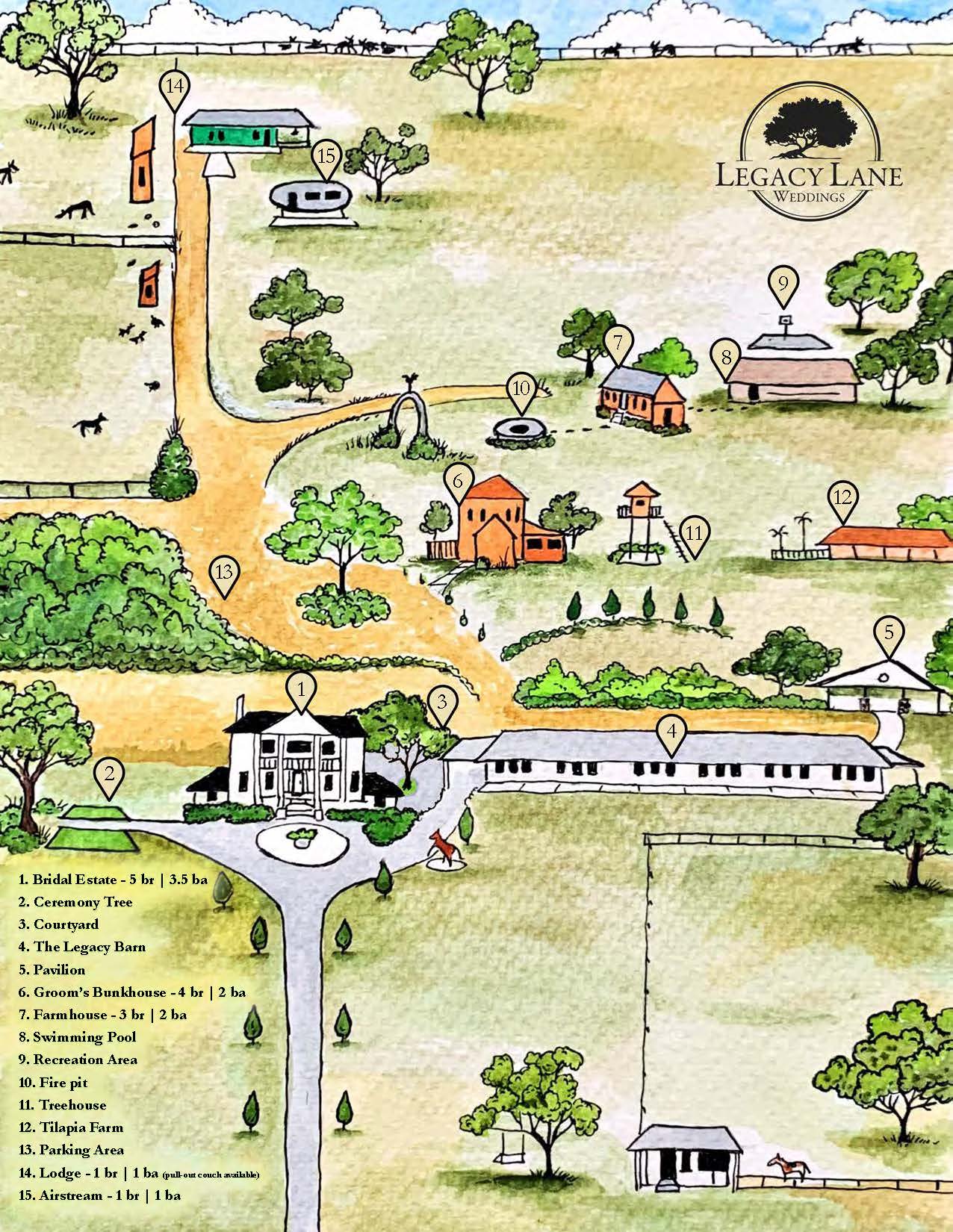
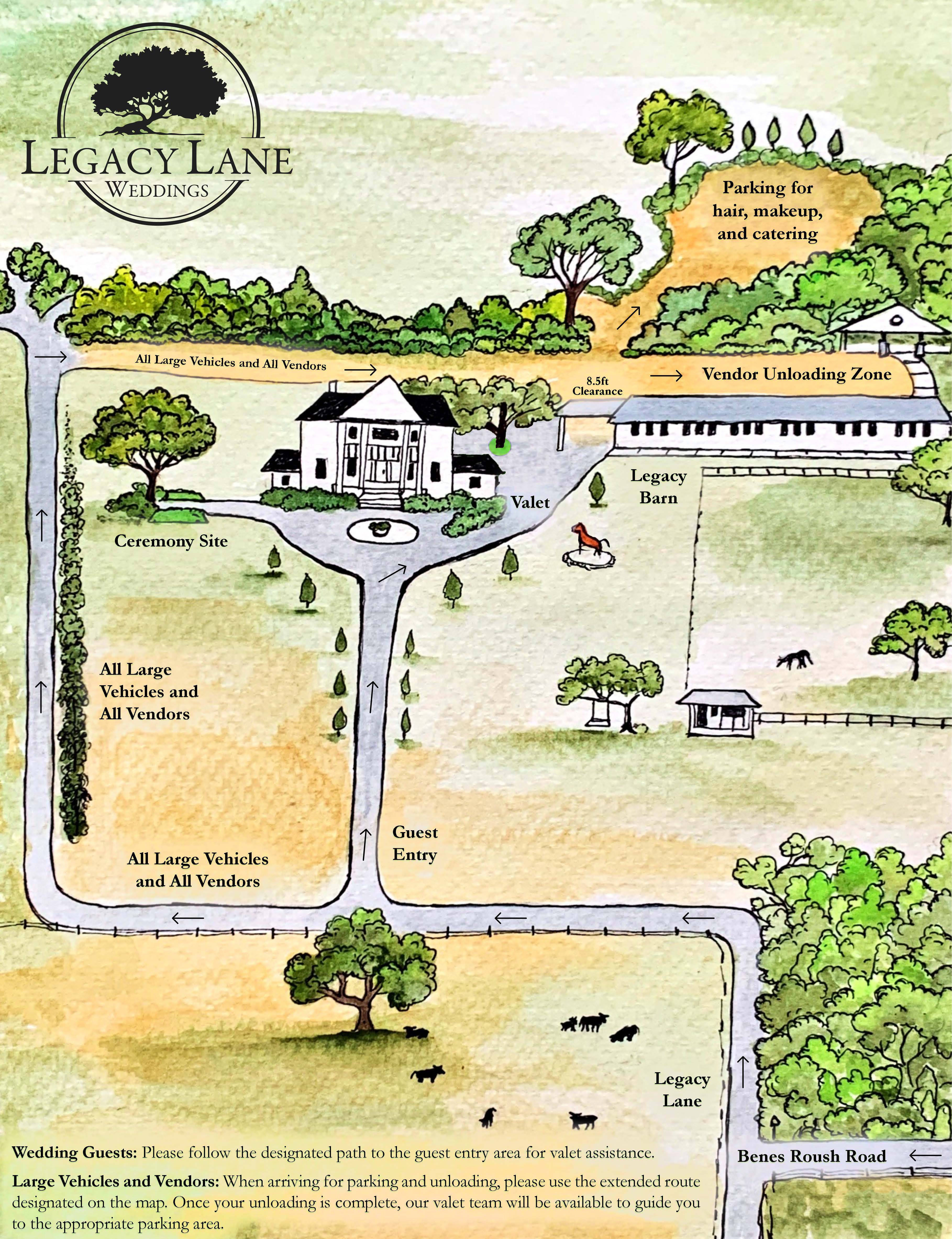
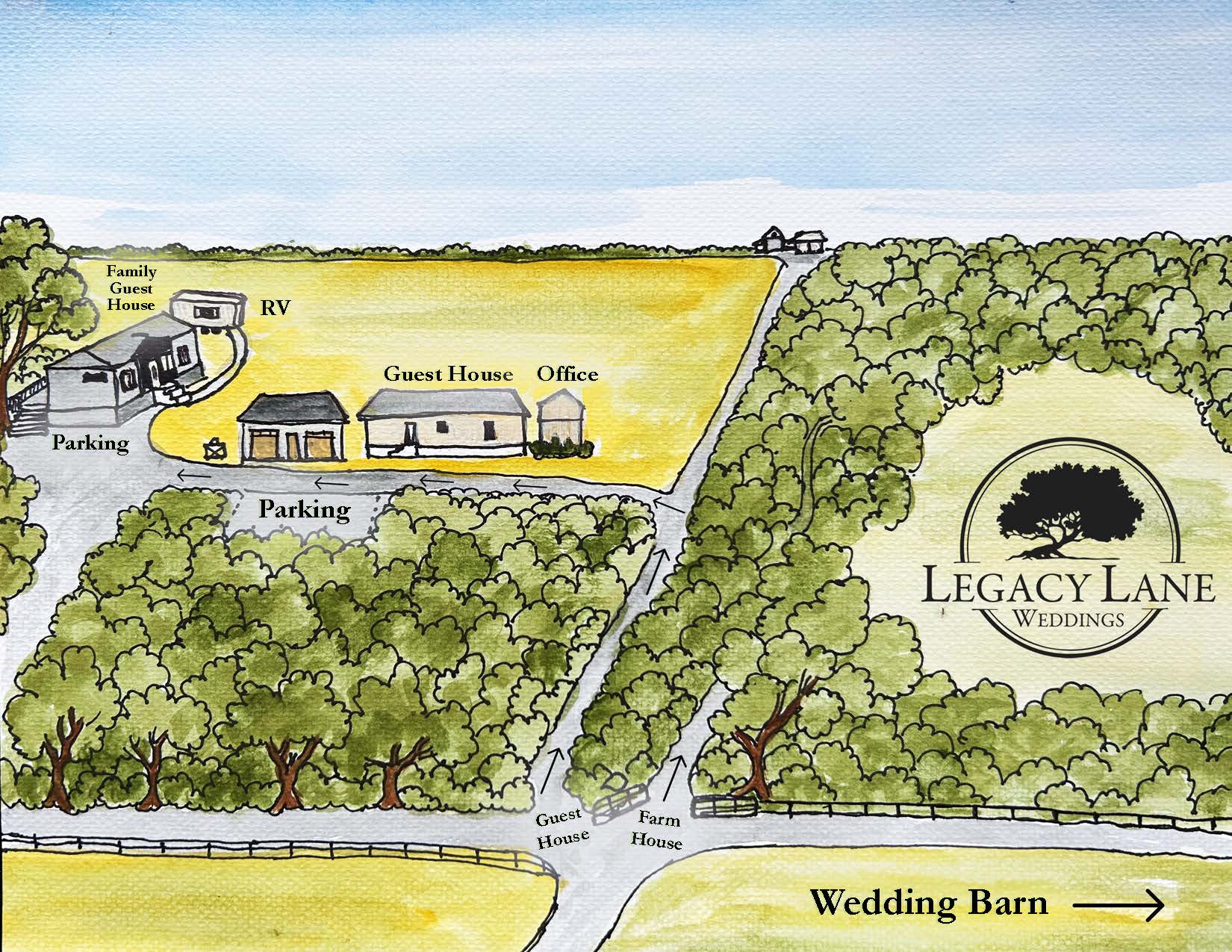
Use these maps to navigate the property, direct your guests and vendors to the right spaces, and find your way to the guest house.
Your exclusive three-day, two-night getaway — private use of the entire Legacy Lane property for you and your overnight guests.
A stunning bridal suite with dedicated make-up stations, a living room, family room, kitchen, five full bedrooms, and three and a half bathrooms — the perfect retreat for the bride and her party.
A spacious retreat for the groom and his party, featuring four bedrooms, two bathrooms, large flat-screen TVs, a large screened-in porch, living areas, and an outdoor grilling area.
A cozy three-bedroom home with two bathrooms, a full kitchen, a television, and a sizable screened-in porch — a comfortable home base for family or close friends.
A quaint and charming space with one bedroom, one bathroom, a sleeper sofa, and a television — ideal for a couple or a small group looking for a quiet retreat.
A luxurious Airstream trailer with a private bedroom, bathroom, and television — a one-of-a-kind getaway perfect for two adults who want something a little different.
All overnight guests have access to the following throughout the rental period.
Pools & hot tub are available to overnight guests only. They close 1 hour before the ceremony begins and reopen at 7:00 AM the following morning. No alcohol or glass permitted in pool areas.
Whether you need a last-minute store run, a restaurant for guests, quick delivery, or something local to explore, these are the nearby go-to spots around Legacy Lane with direct Google Maps links.
Arrange tables and fixtures, then switch to Seating Visual when you are ready to assign guests on the canvas.
Fine-tune the room, selection, and object list from one compact tray.
Adjust the canvas size to match your venue.
Select an object on the canvas to edit it.
All placed items. Select one to edit.
Seat guests by table, review warnings, and keep assignments synced with your floor plan.
Quick Seat finds guests by name. Auto-Fill seats accepted guests safely. Refresh reloads saved guest and layout data.
Design your wedding décor moment by moment — browse inspiration photos and make selections in one place.
A preview of everything available to make your wedding day uniquely yours.
The purpose of this Event Styling Guide is to provide a preview of the décor selections available and offer inspiration from past weddings before your scheduled décor meeting. We encourage each couple to design their wedding in a way that reflects their unique vision. You are welcome to use any of our in-house items or bring in outside rentals, florals, or custom pieces for a more personalized design. We welcome your ideas and are here to help bring your vision to life.
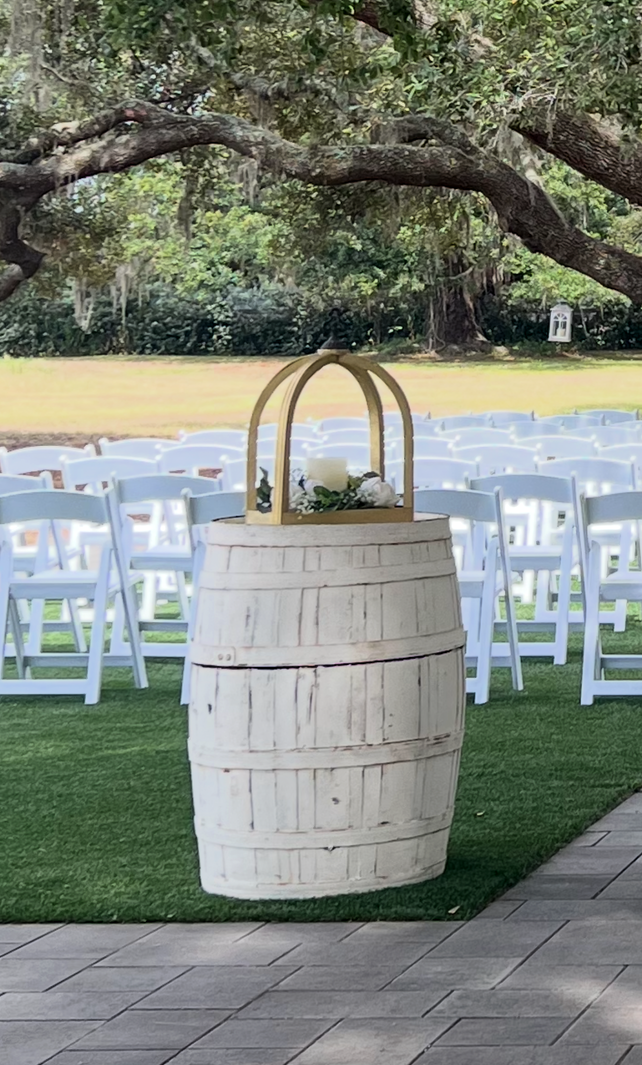
A variety of arch styles, rustic barrels, lanterns, and generic signage. Bring your own personalized signage, unique arch designs, or work with your florist for a fully custom setup.
Your choice of linens for high-top and low-top tables, plus a selection of votives, candles, faux greenery, and silk florals for a simple, elegant table design.
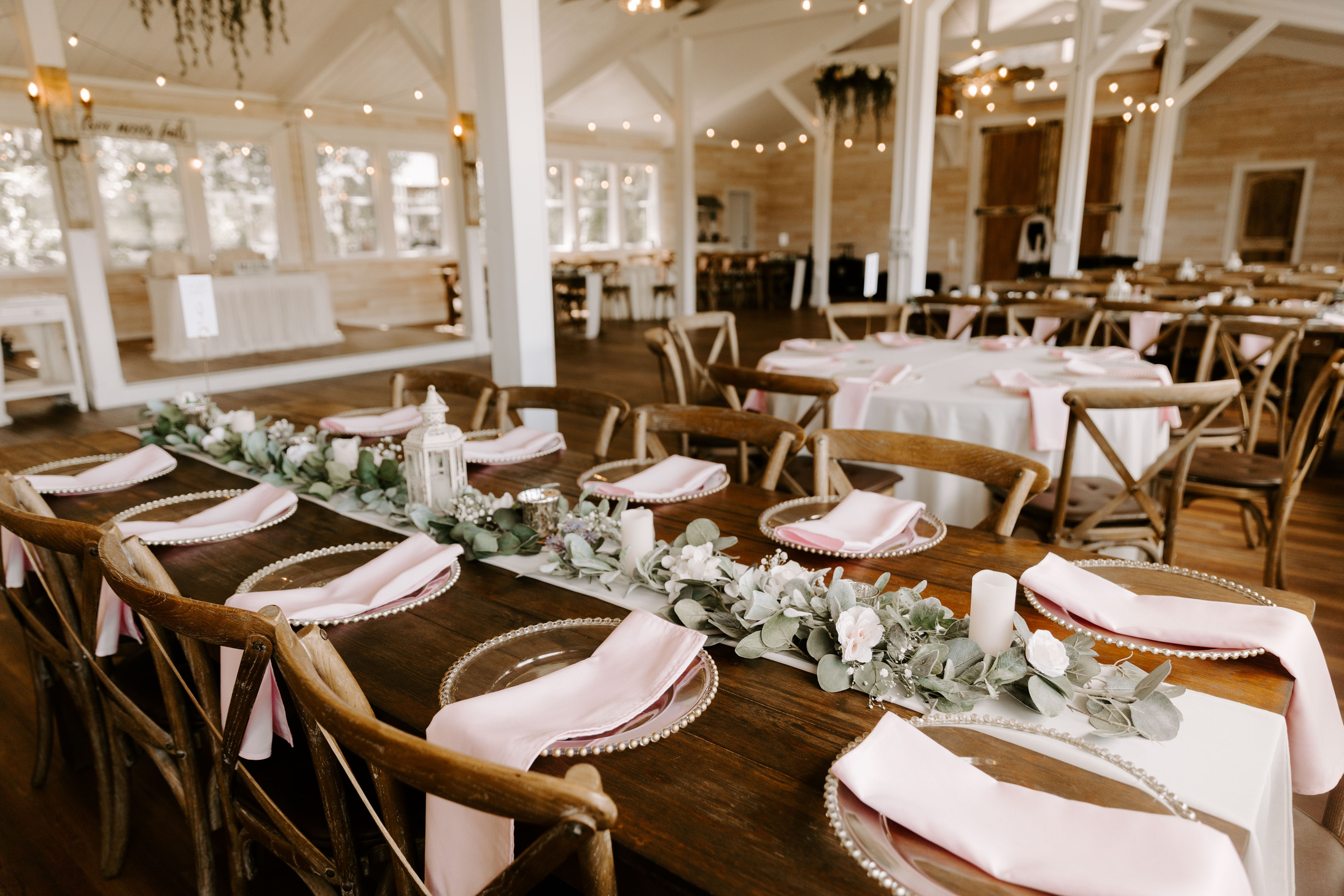
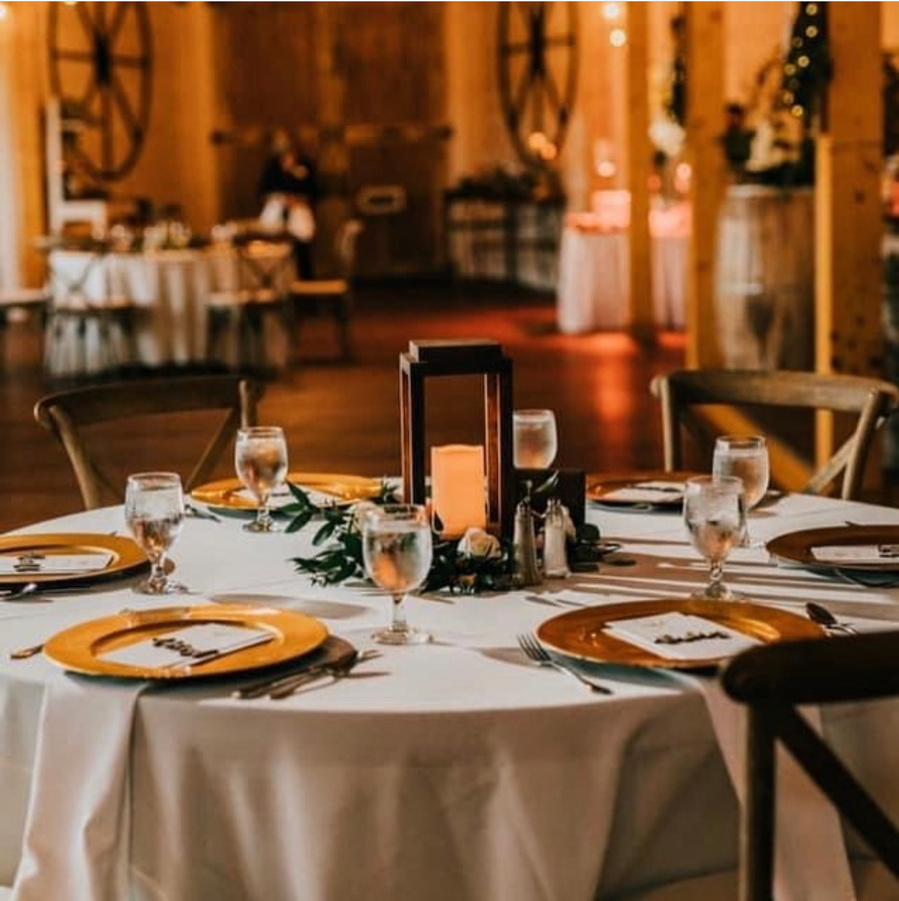
Table runners, faux greenery, silk florals, LED candles, lanterns, vases, and accent pieces. Choose from round table linens, linen napkin colors, and charger plate options.
Dance floors, draping, floral installations, and more through our preferred vendors. Check with your coordinator in advance to ensure additions align with venue guidelines.
What's included and what you can personalize for your ceremony décor.
For your ceremony, we offer a variety of décor options, including several arch styles, rustic barrels, lanterns, and a selection of generic signage. You are also welcome to bring your own personalized signage, unique arch designs, or work with your florist to create a custom setup that reflects your style. We are happy to incorporate your ideas to make your ceremony truly one of a kind.
Legacy Lane offers three beautiful ceremony settings to choose from.
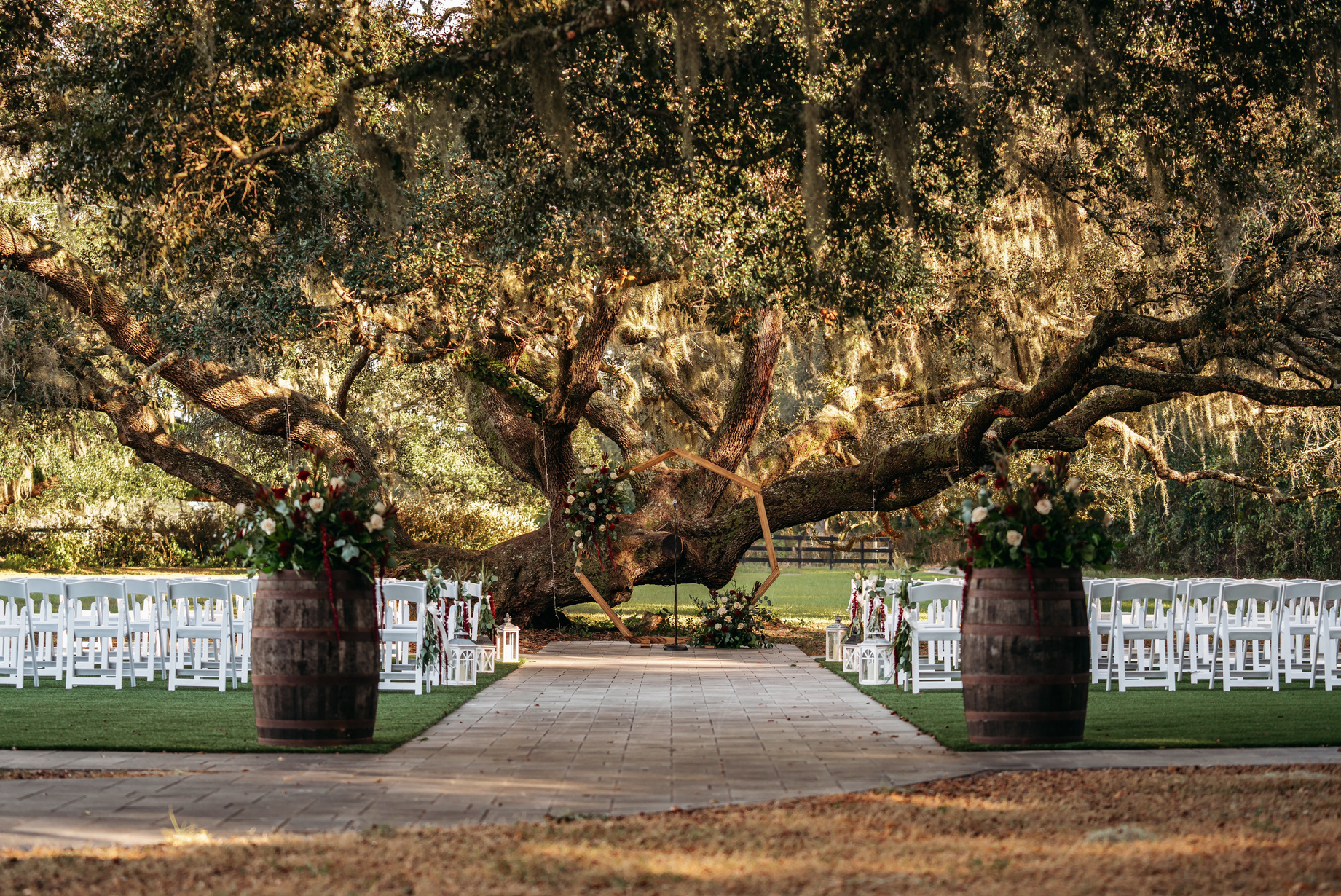
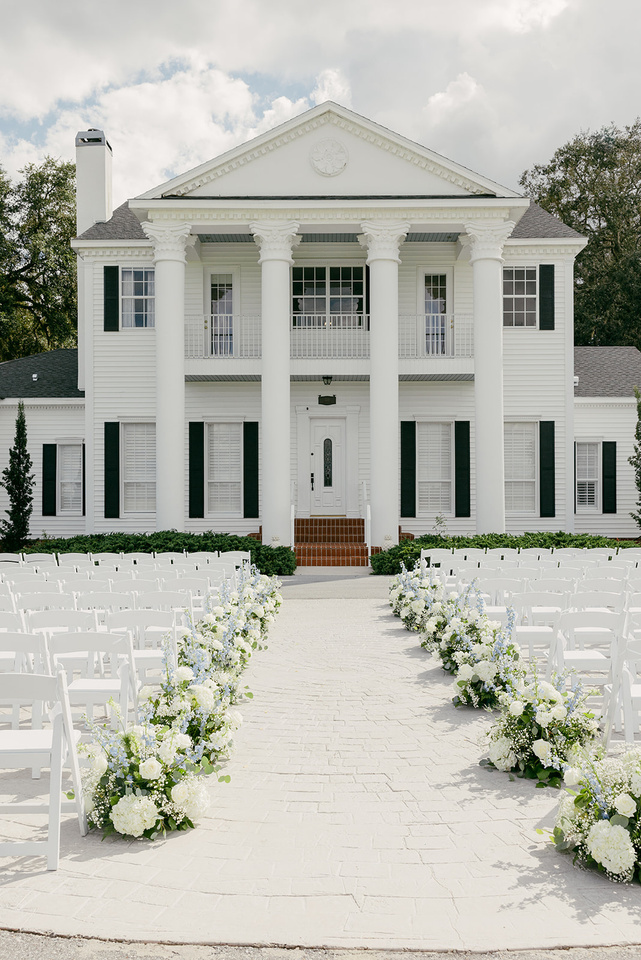
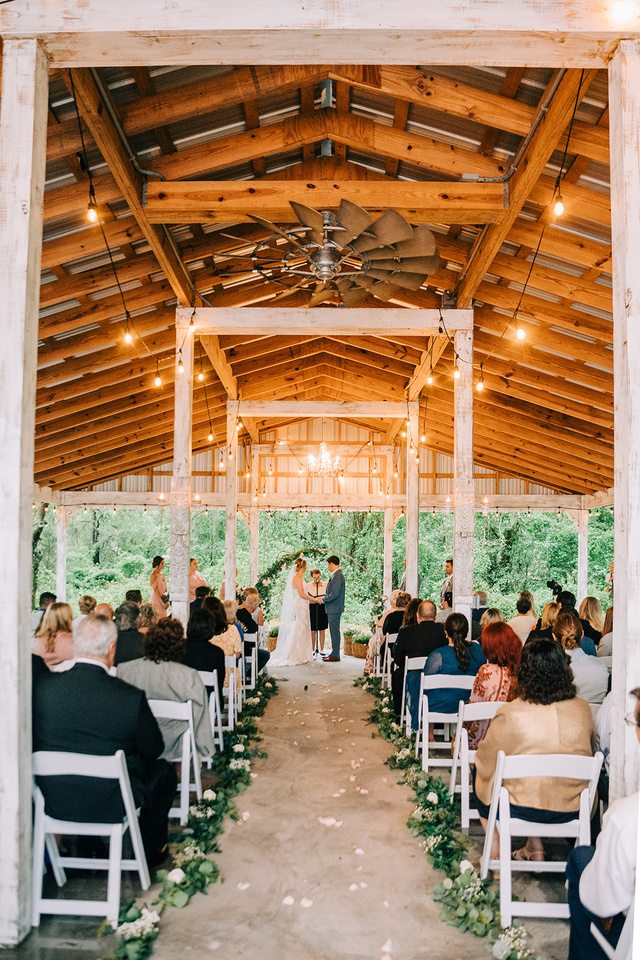
All arches are provided undressed and can be decorated by your florist, or you may choose to use our pre-made white and ivory floral pieces.
Round arches are available in gold or white. All arches arrive undressed — work with your florist for a custom floral arrangement, or choose from our pre-made white and ivory silk floral pieces to dress the arch yourself.
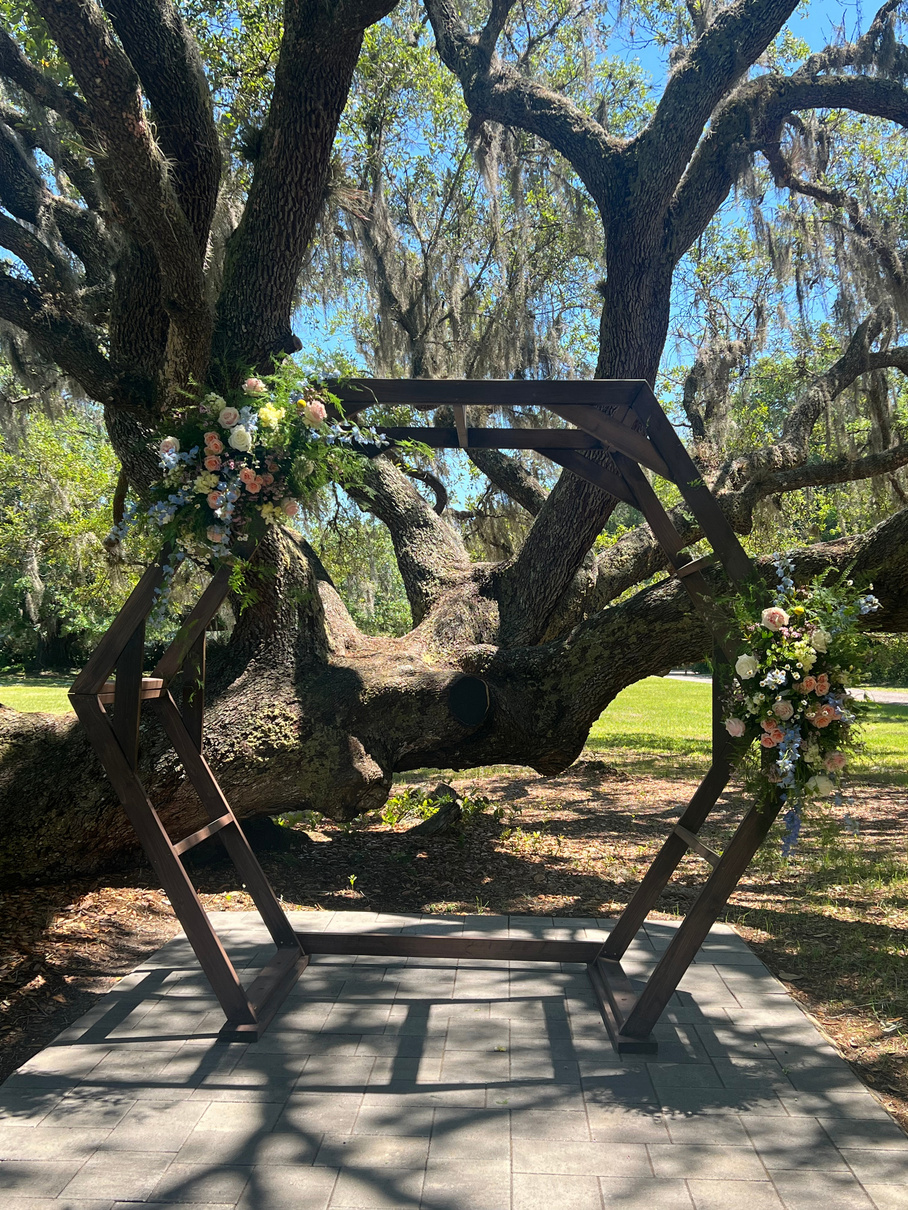
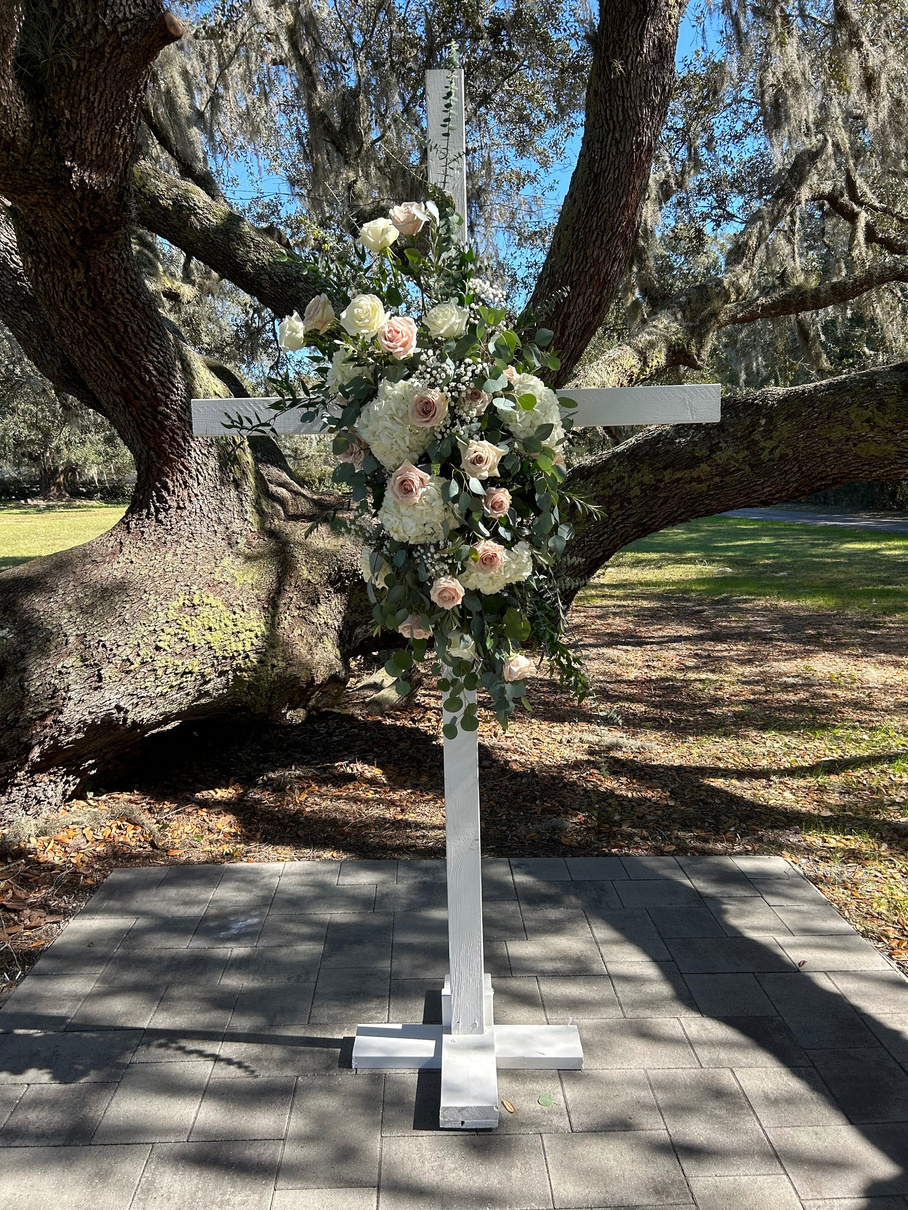
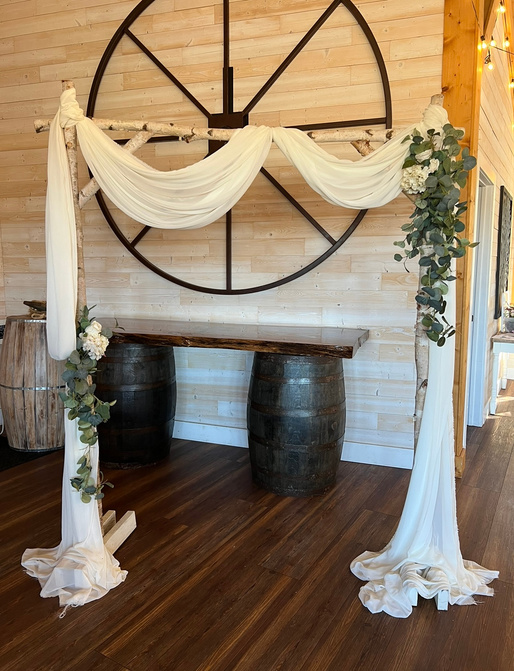
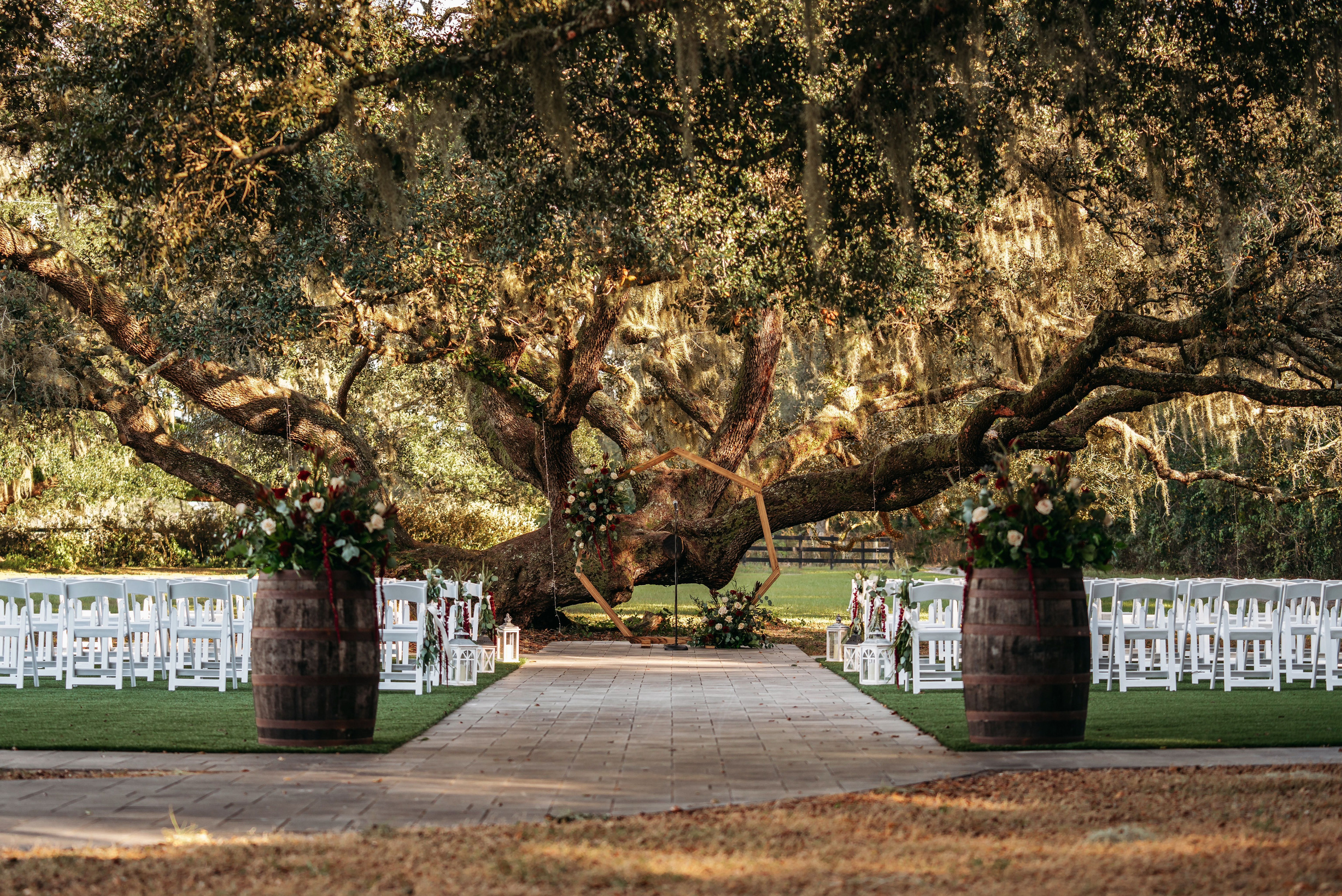
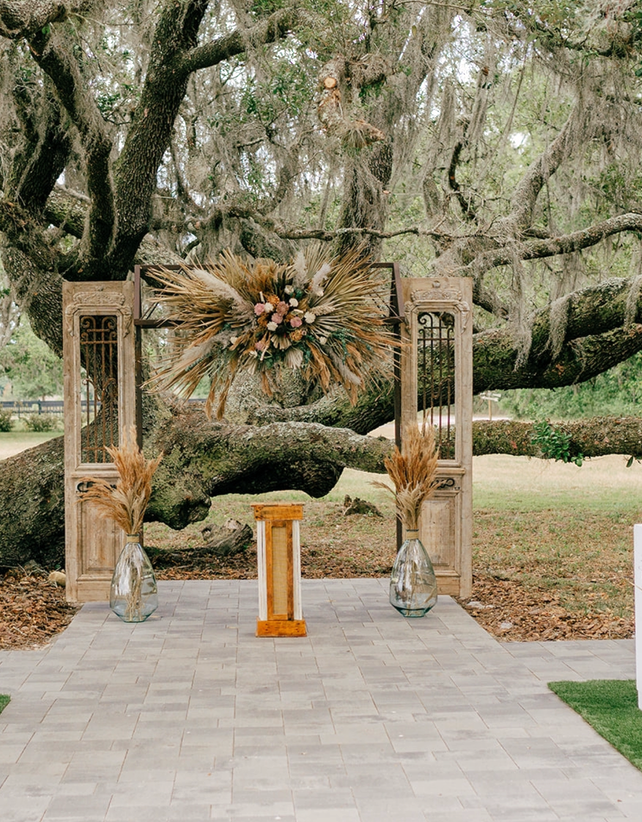
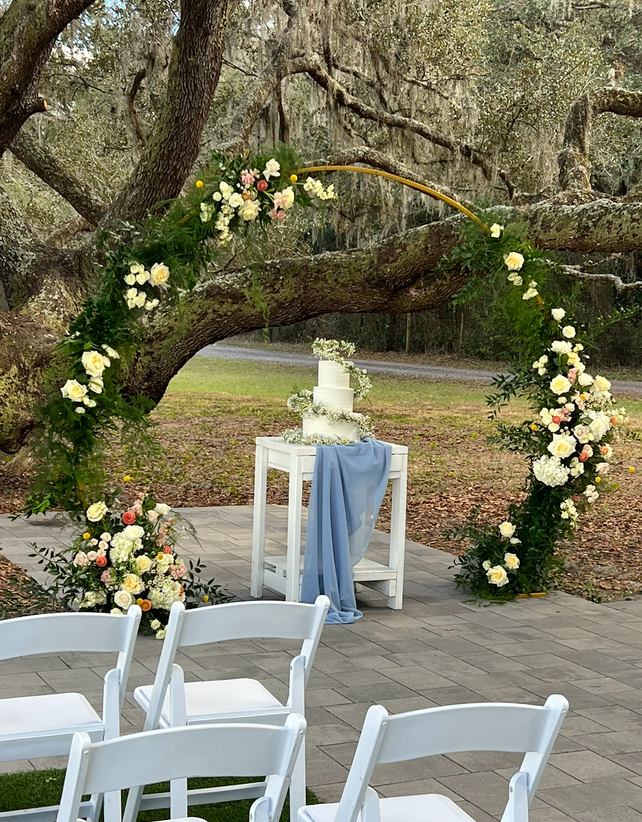
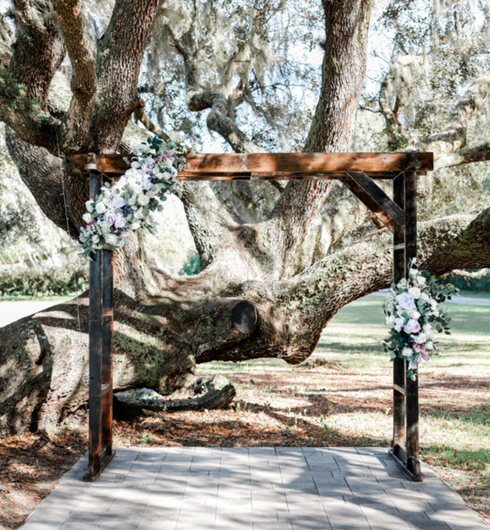
Accent pieces available to enhance your ceremony space.
The following options are available to use to enhance your ceremony décor and can be mixed and matched to complement your overall style.
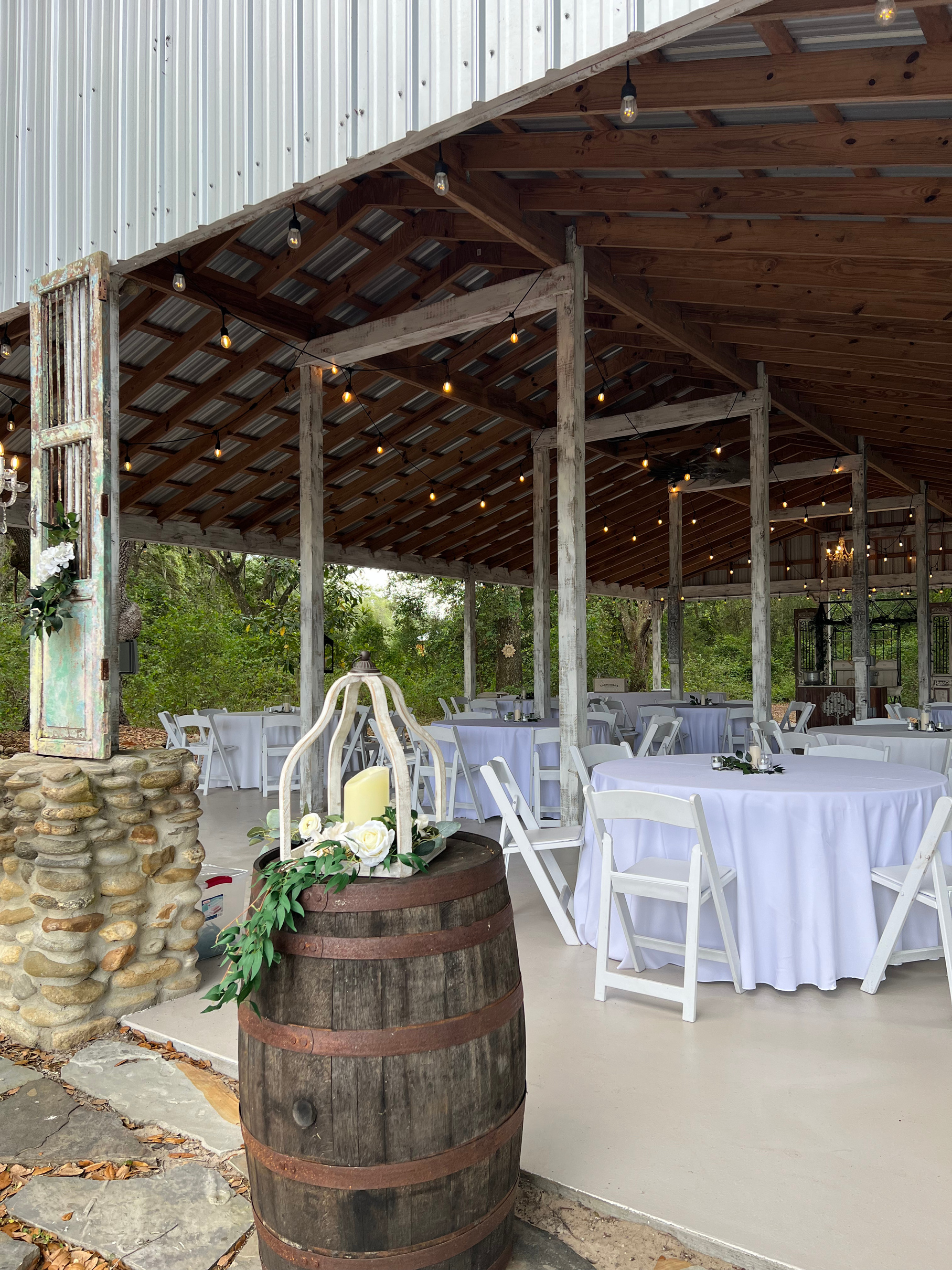
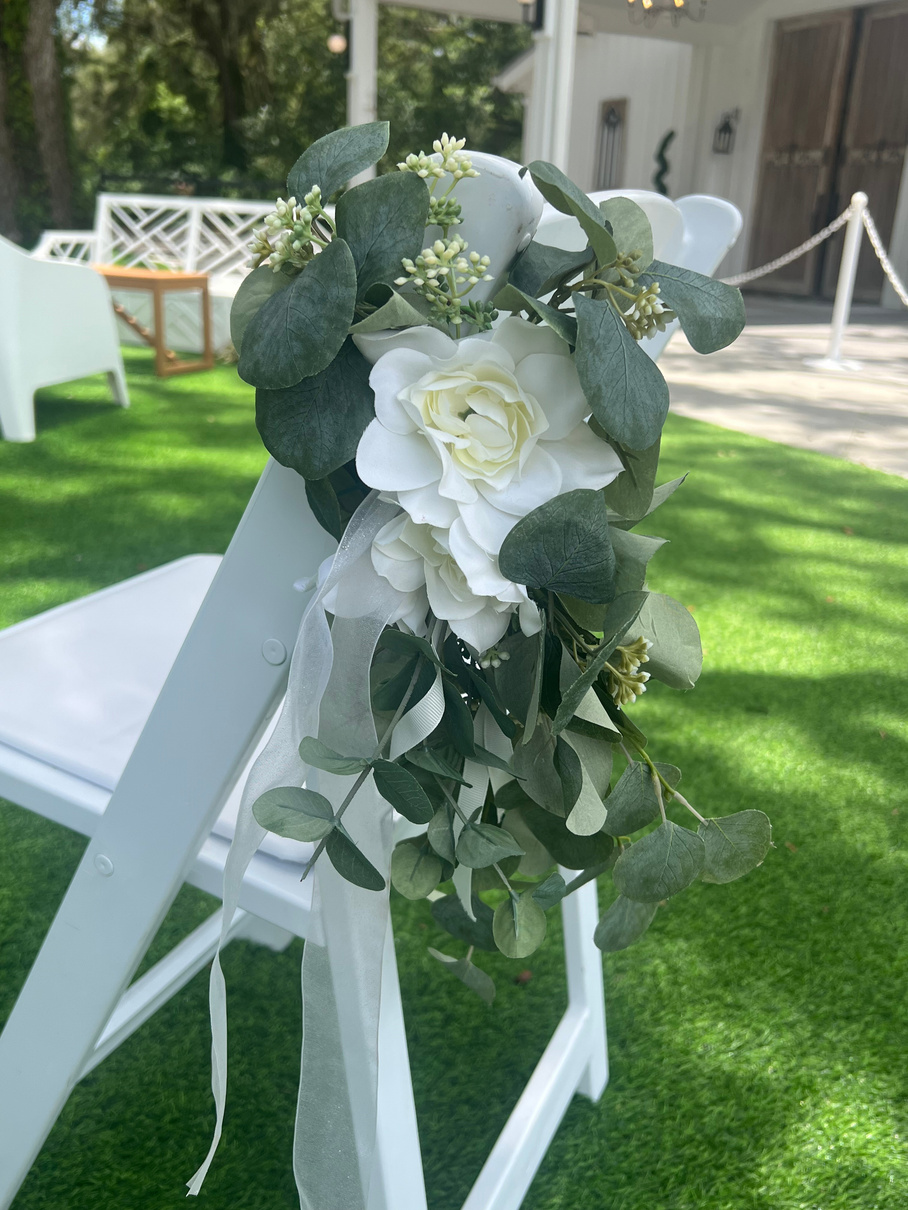
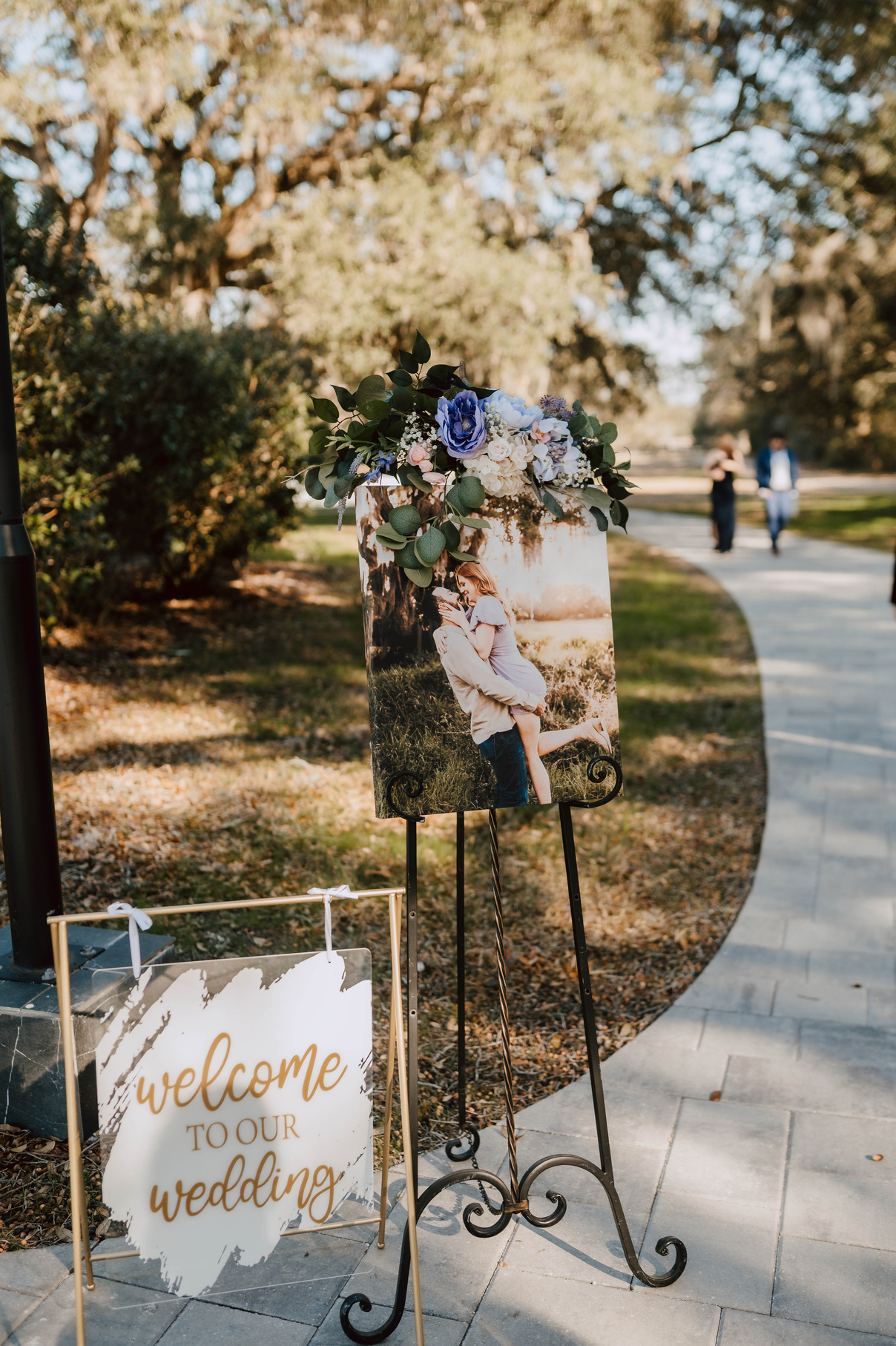
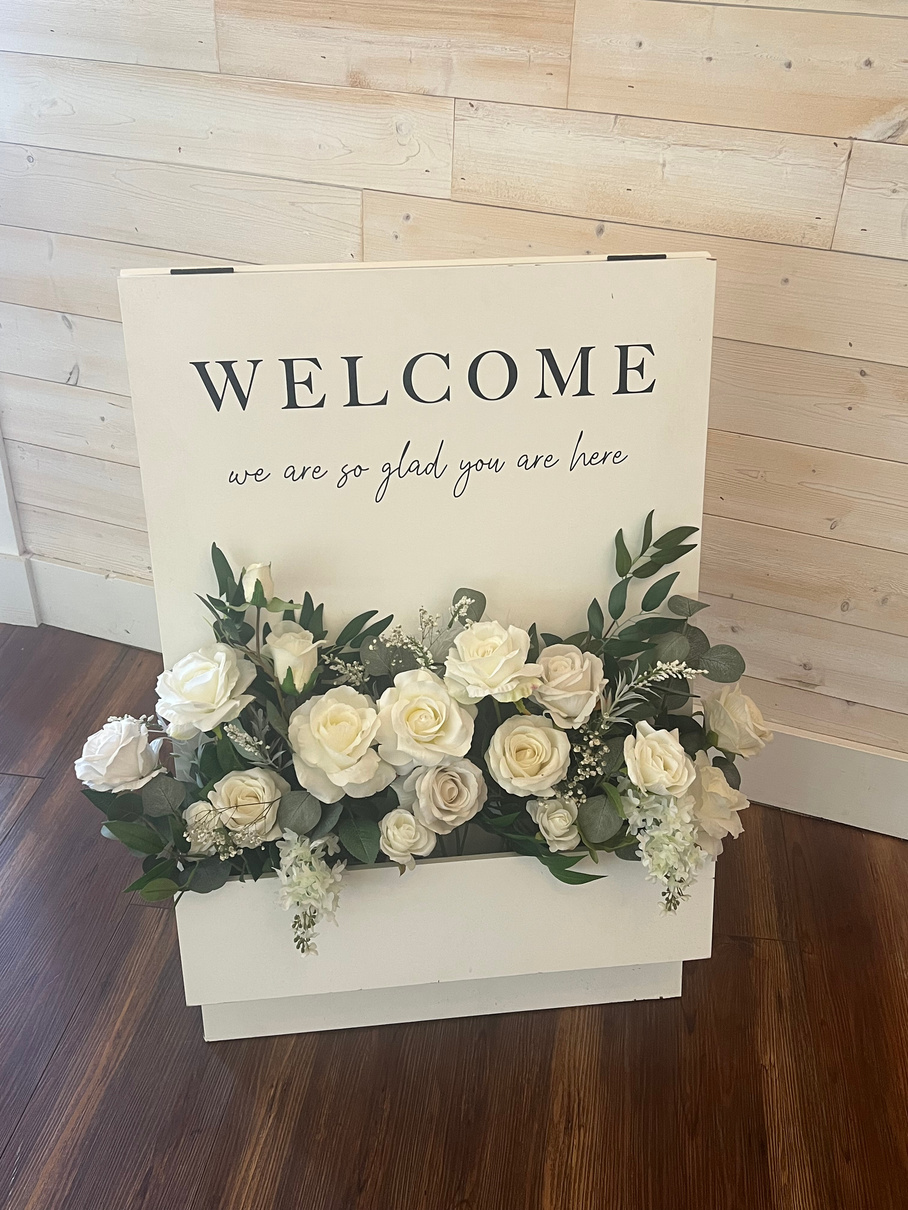
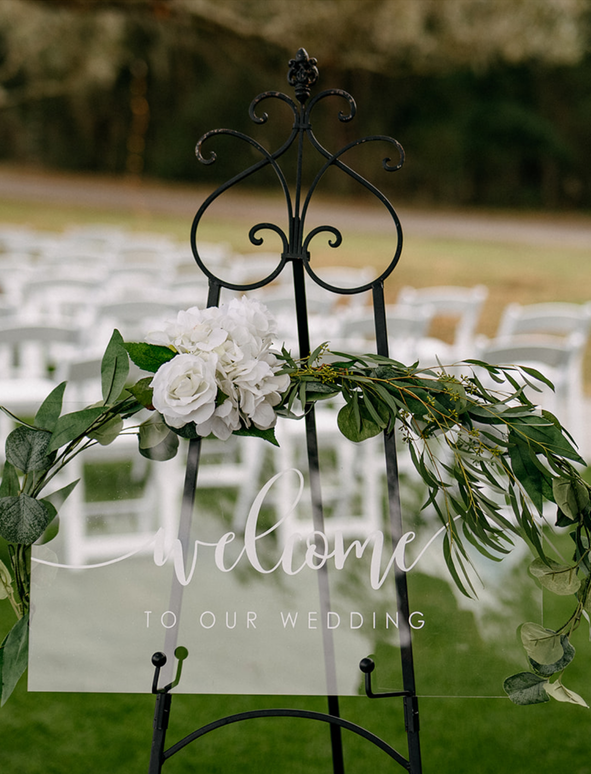
Choose from our in-house welcome sign styles, or bring your own personalized piece.
We offer a selection of generic signage for your use. However, we encourage couples to bring personalized welcome signs to reflect their unique style. If you prefer not to provide your own, you are welcome to choose from the options we have available.
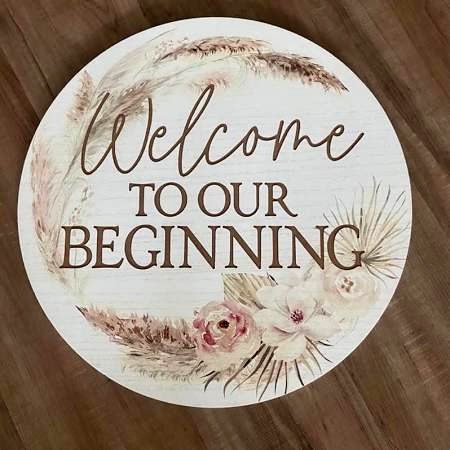
A variety of additional signage available for your wedding. Check with us — we may already have what you need.
Legacy Lane offers a variety of additional signage. If there is a specific piece you would like for your wedding, please check with us, as we may already have it available for you to use.
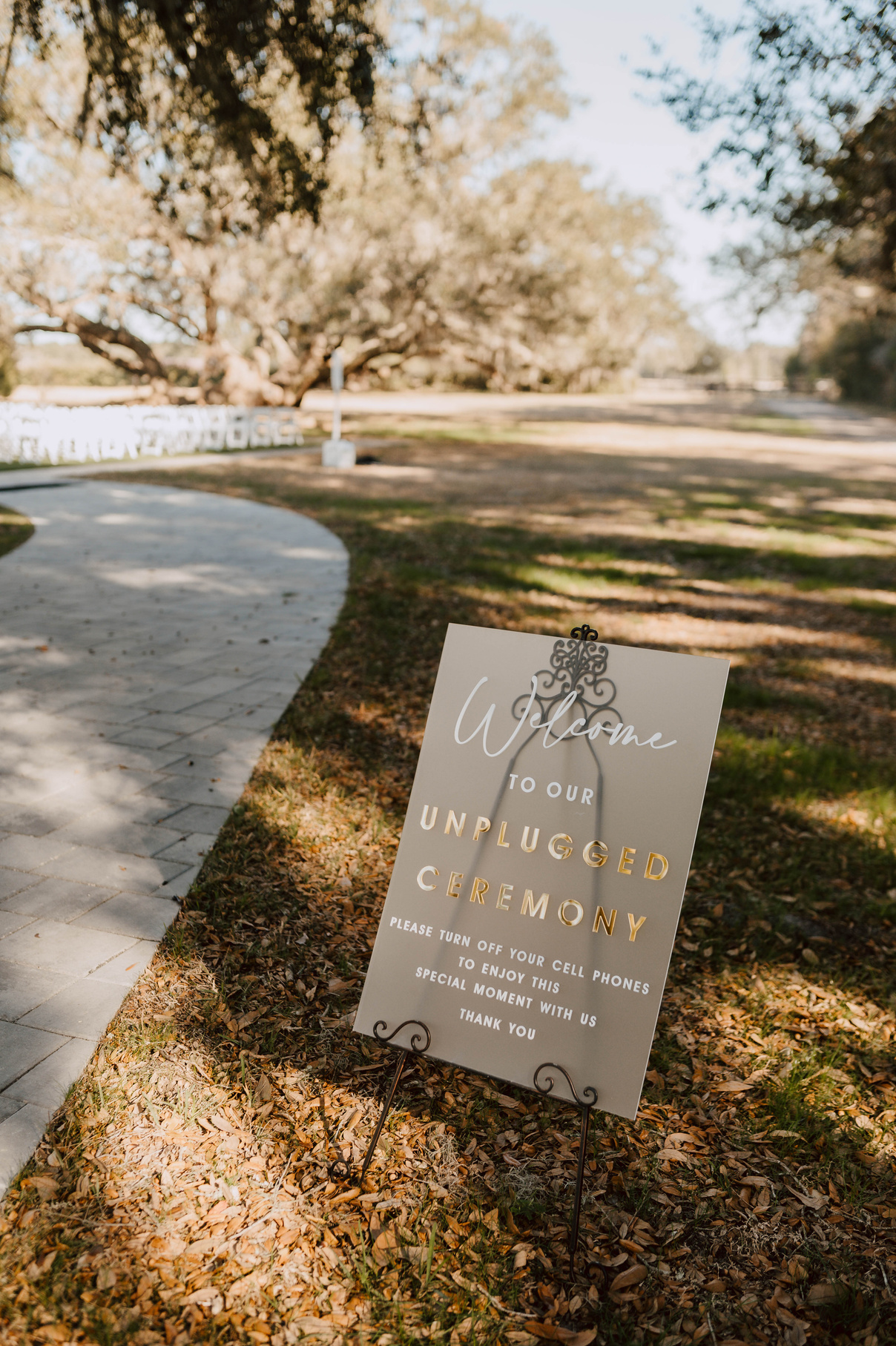
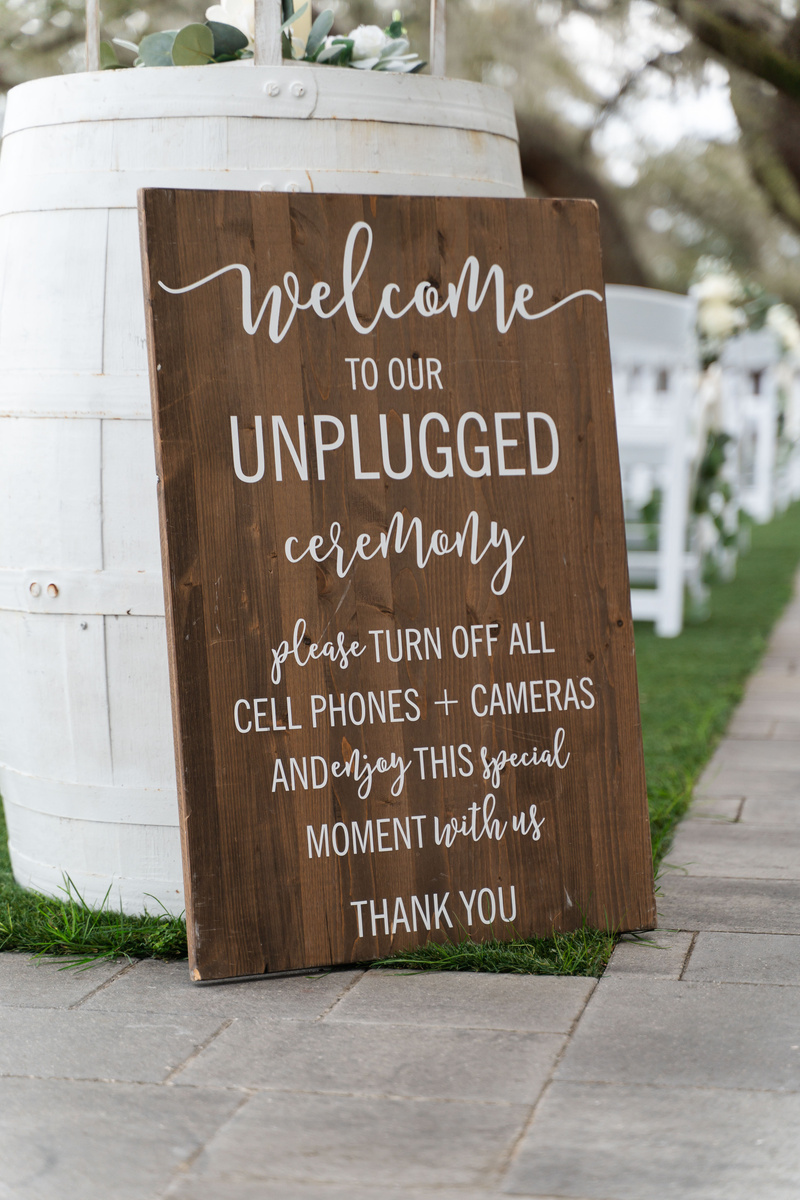
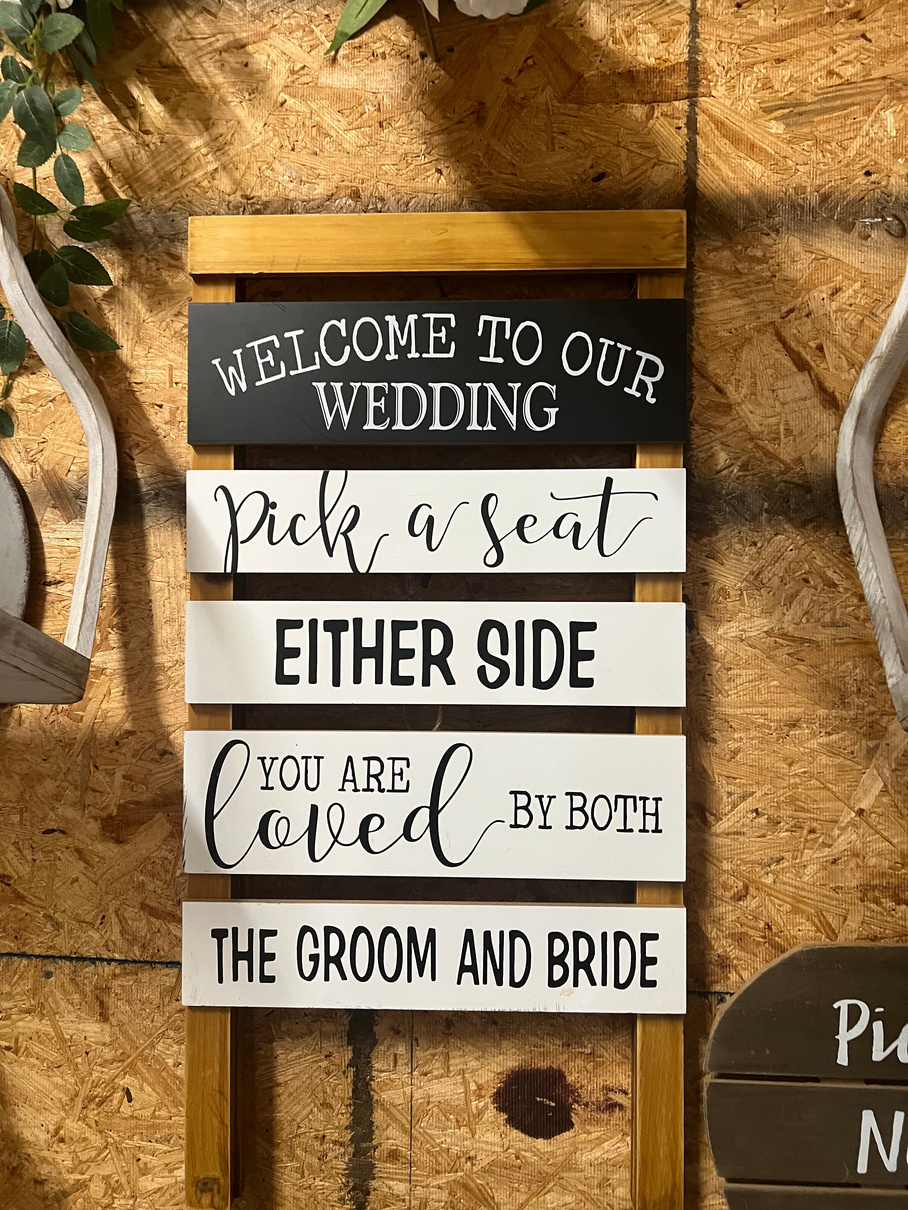
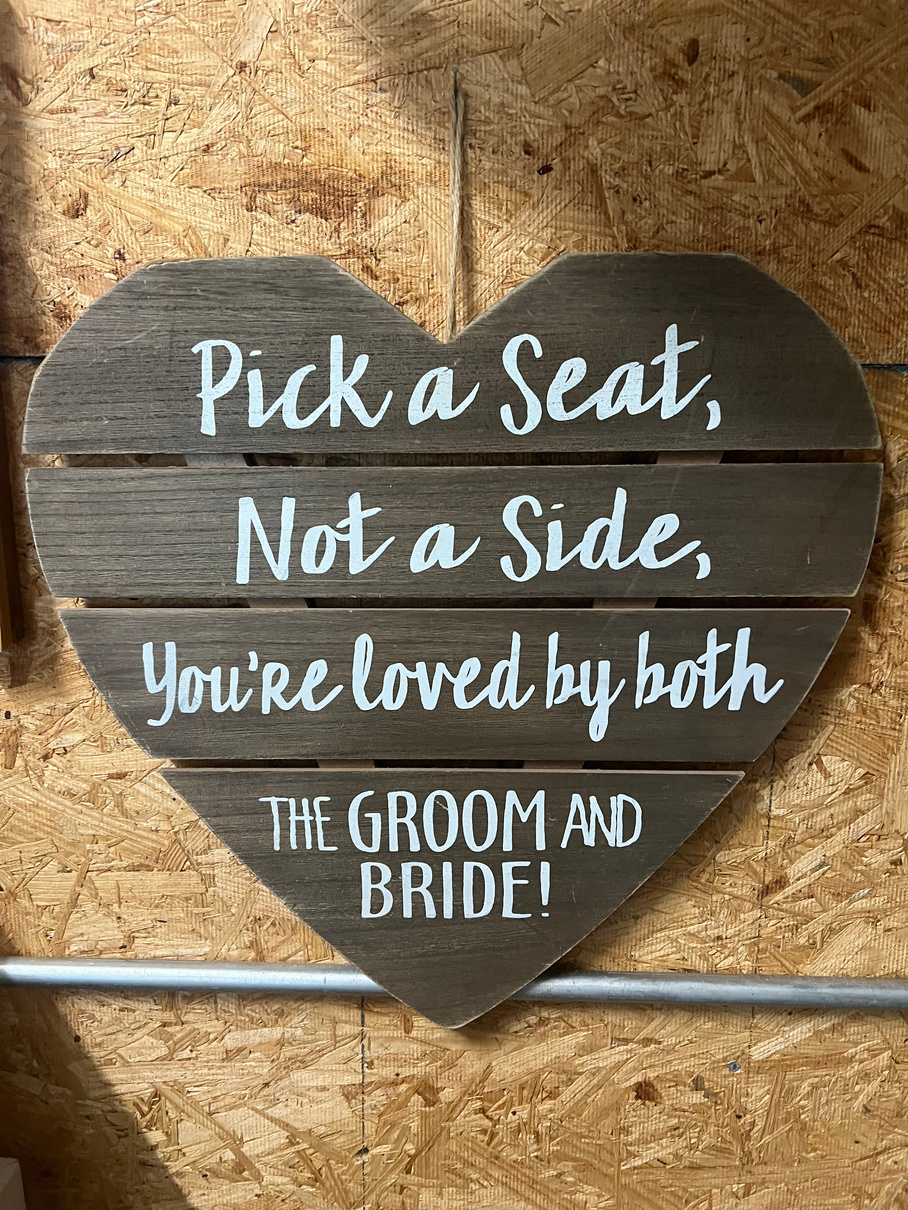
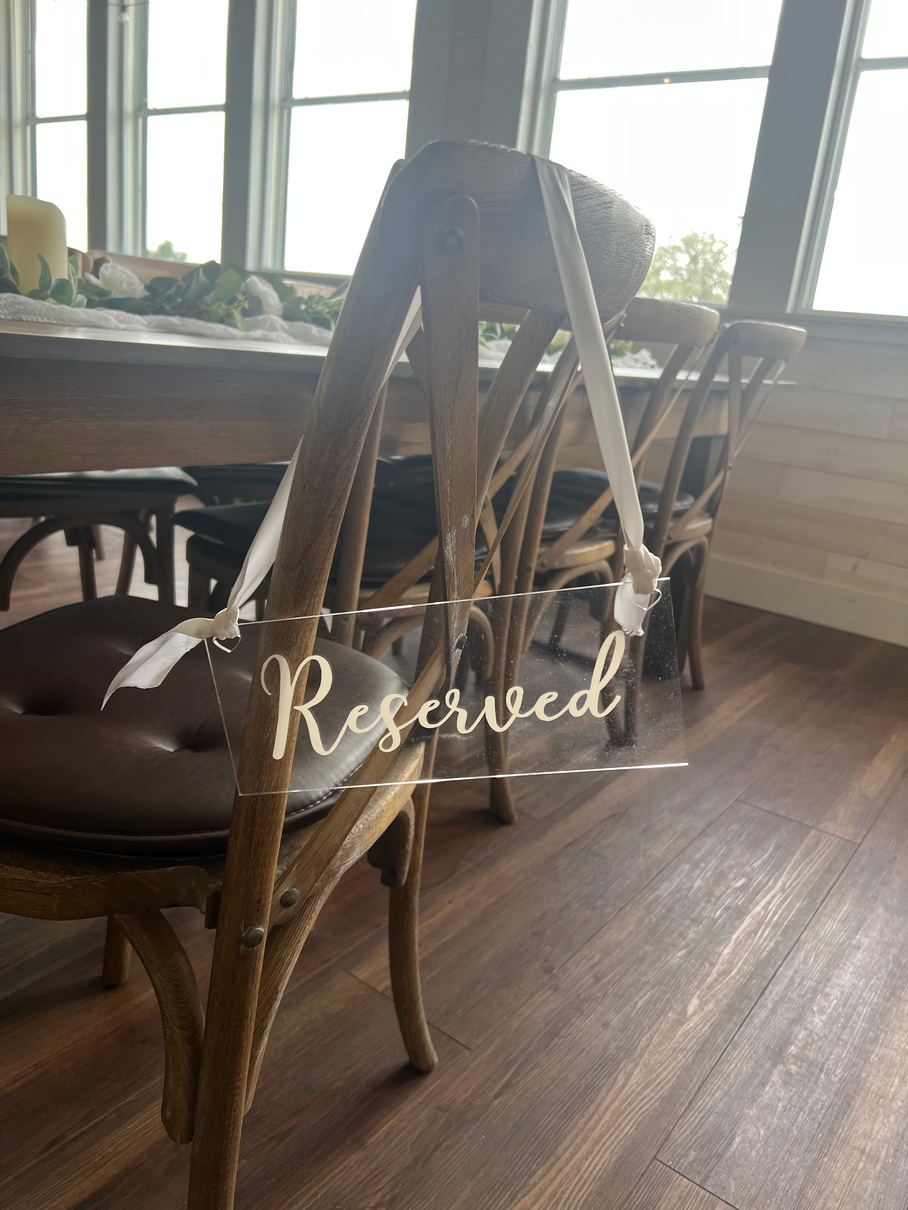
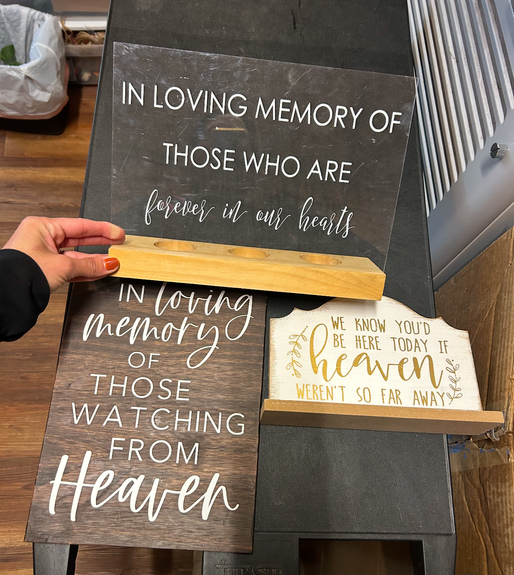
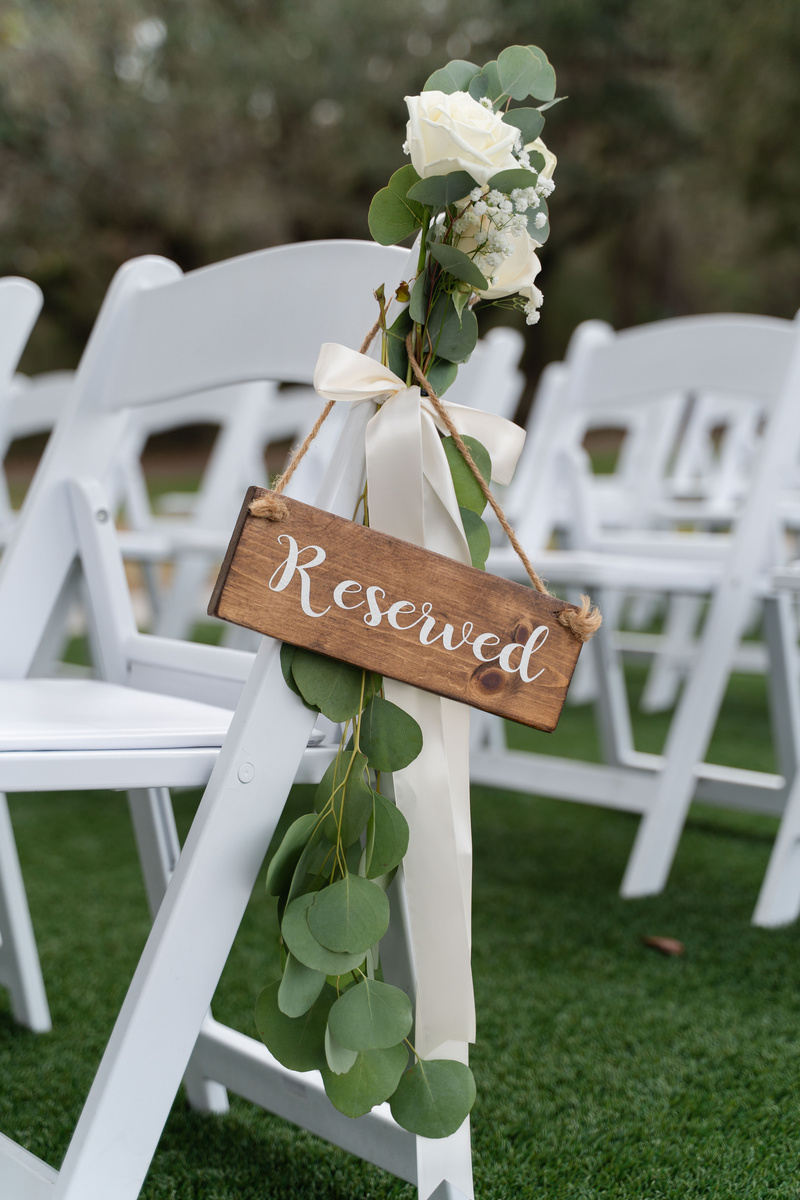
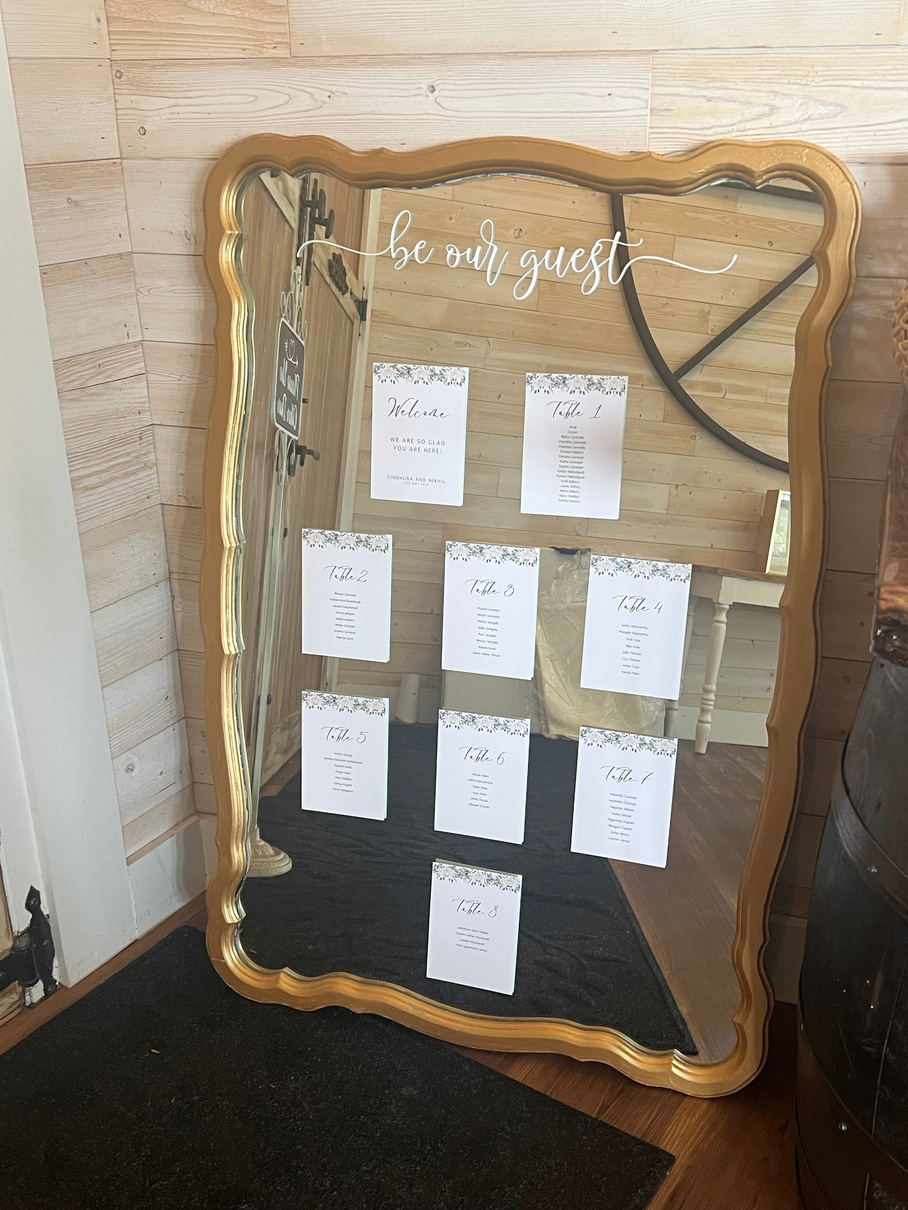
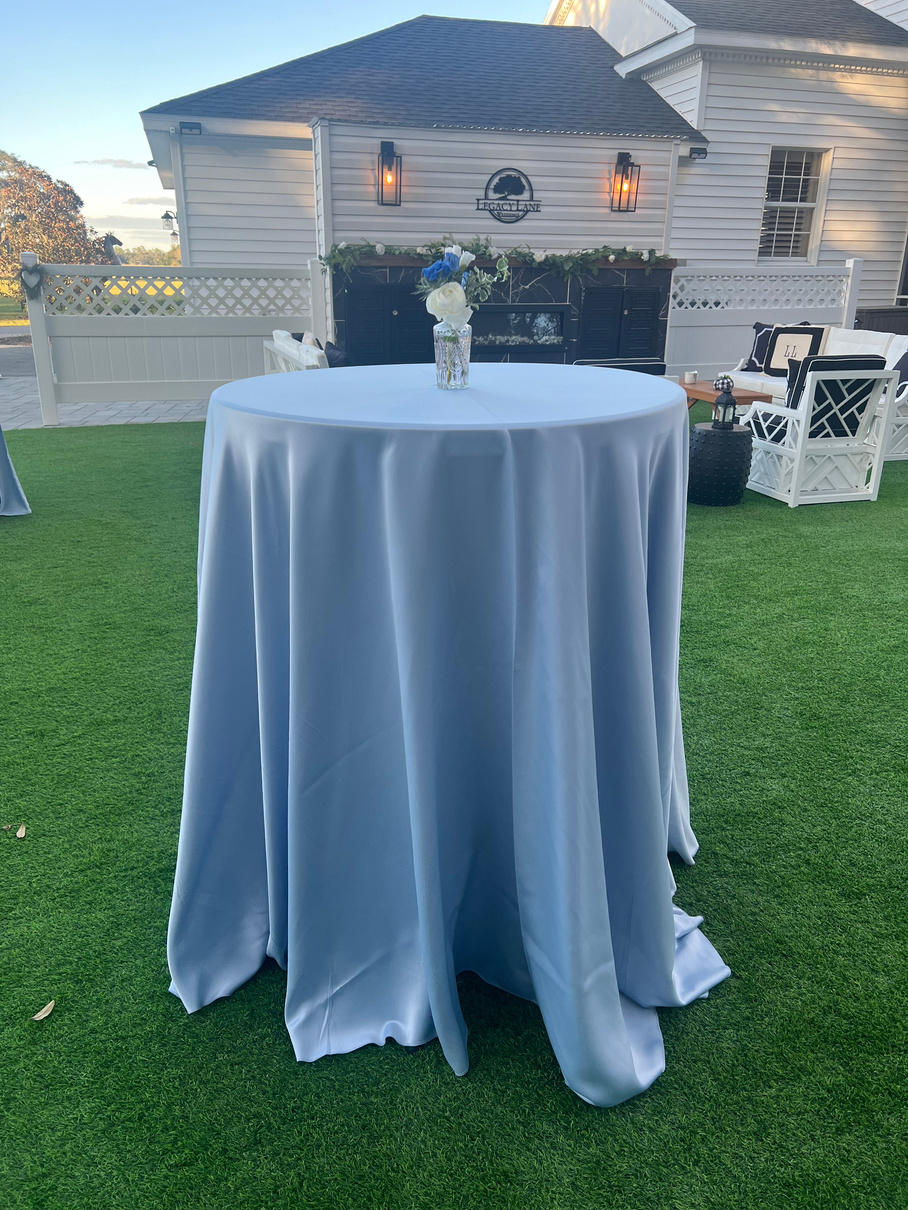
Create an elegant, welcoming atmosphere during cocktail hour with these included décor elements.
Cocktail hour includes high-top and low-top tables, chairs for low-top tables, your choice of poly linen tablecloth color, and a selection of simple table décor. These elements can be mixed and matched to suit your style.
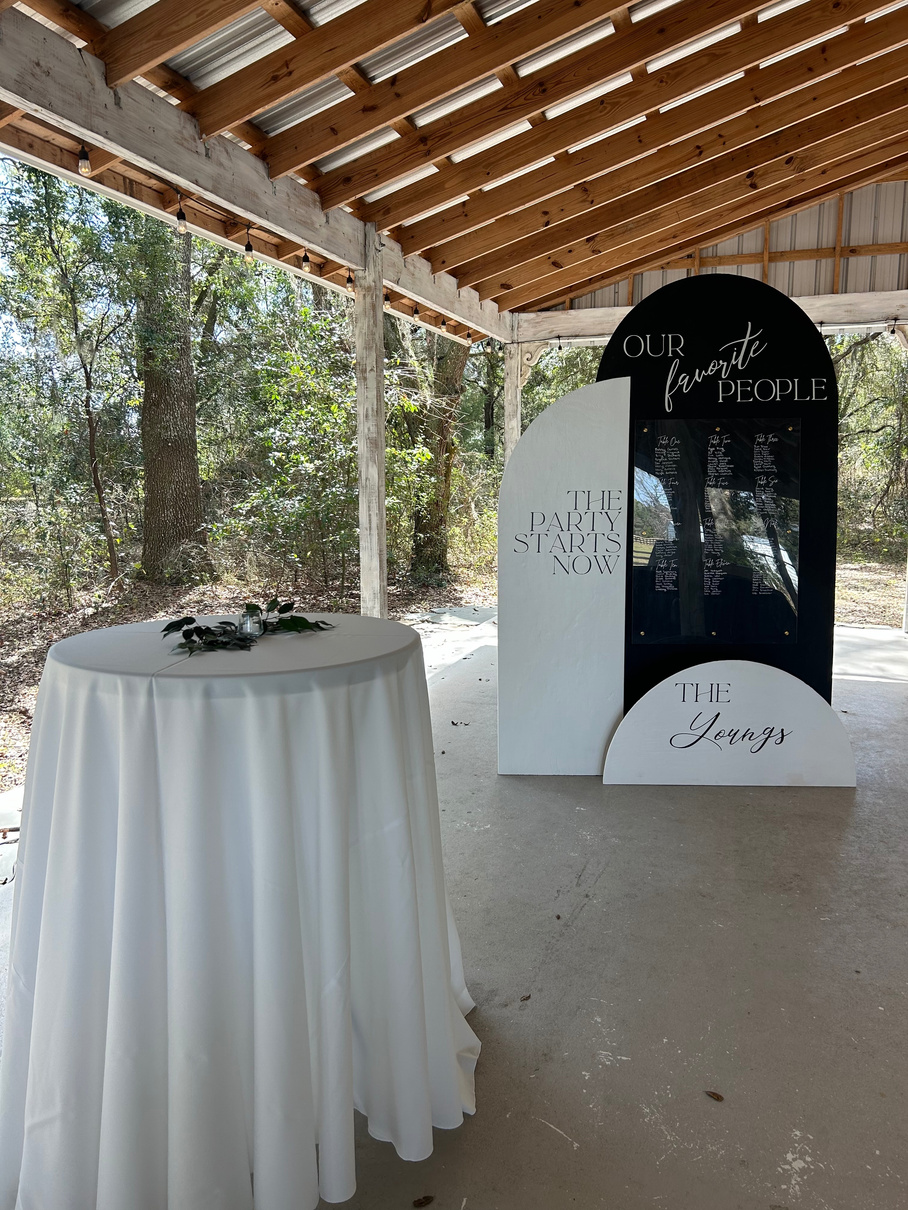
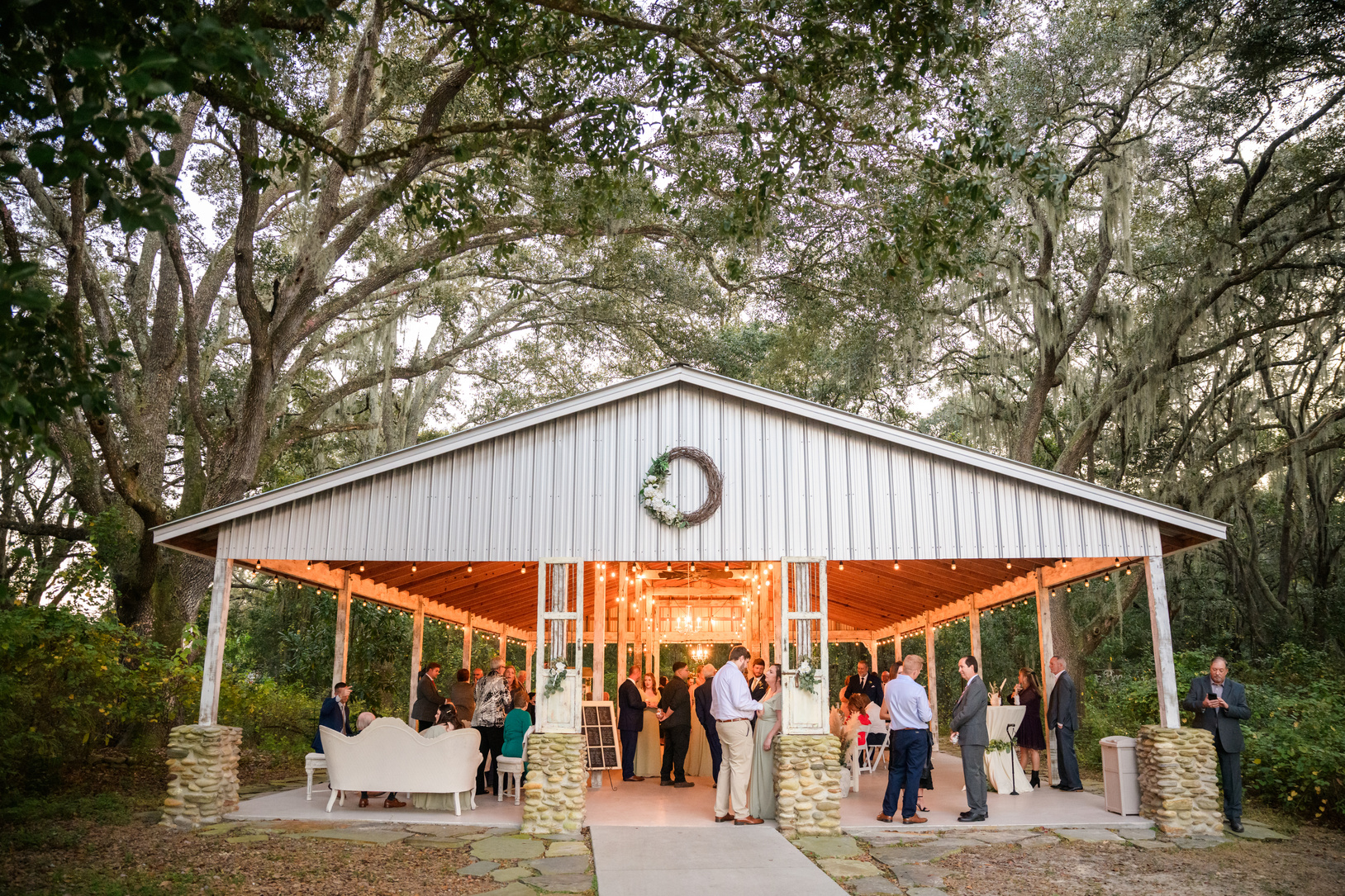
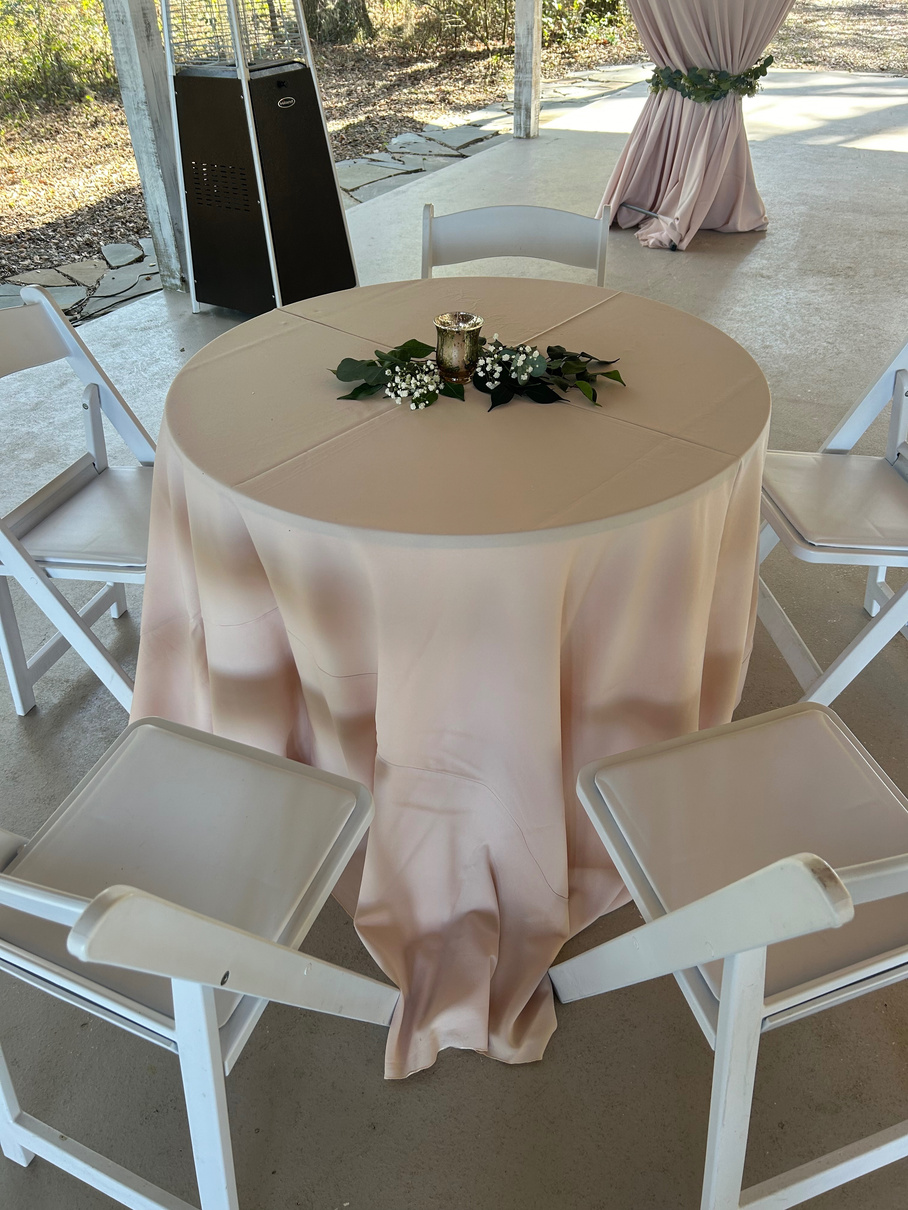
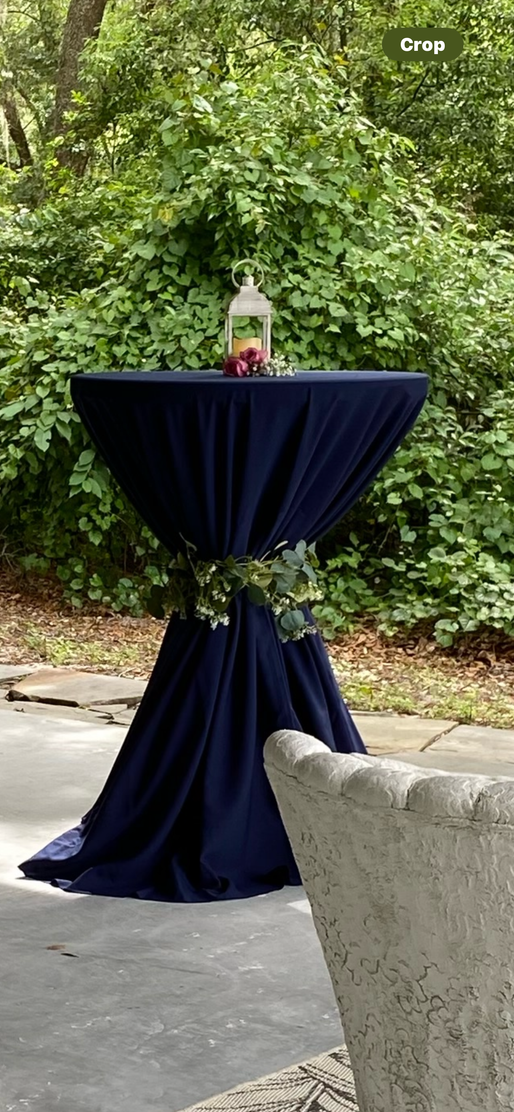
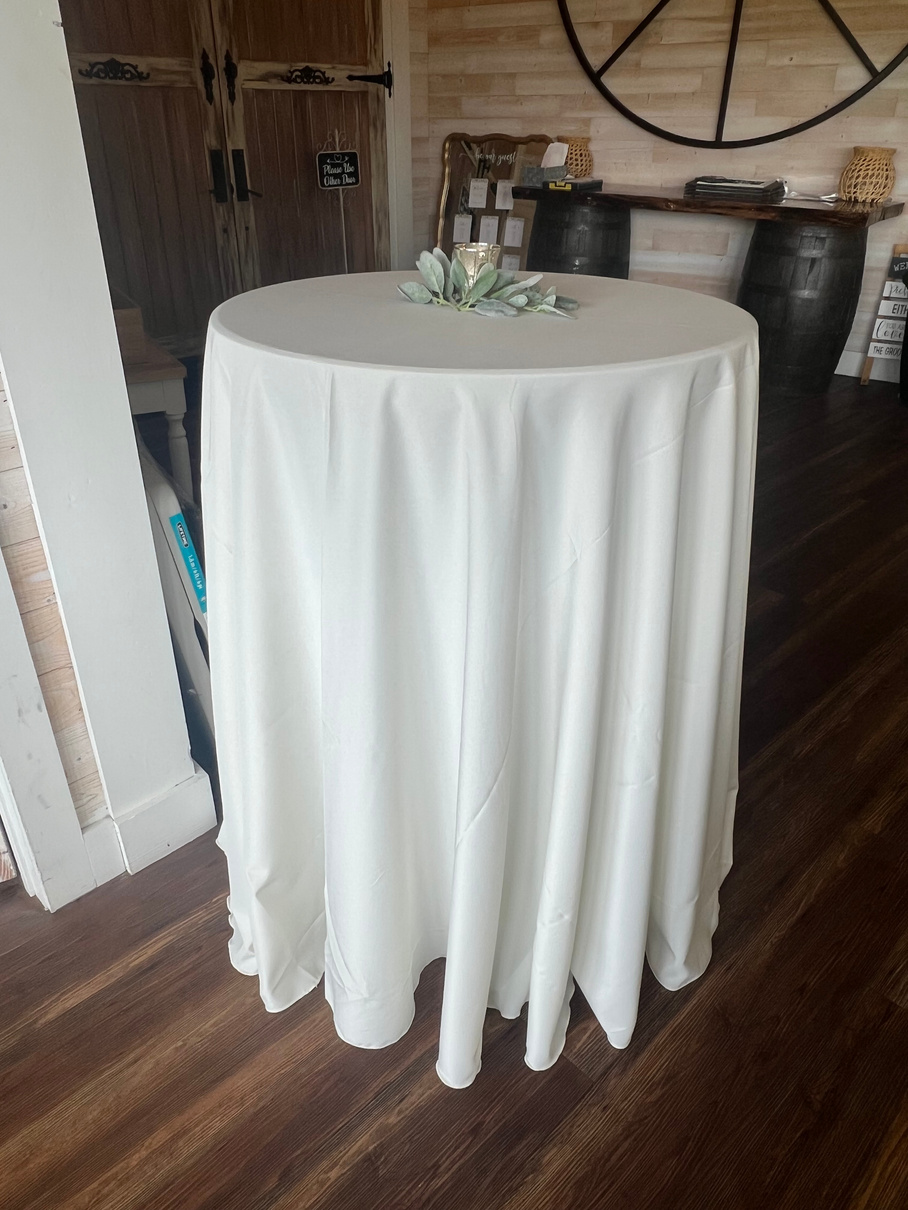
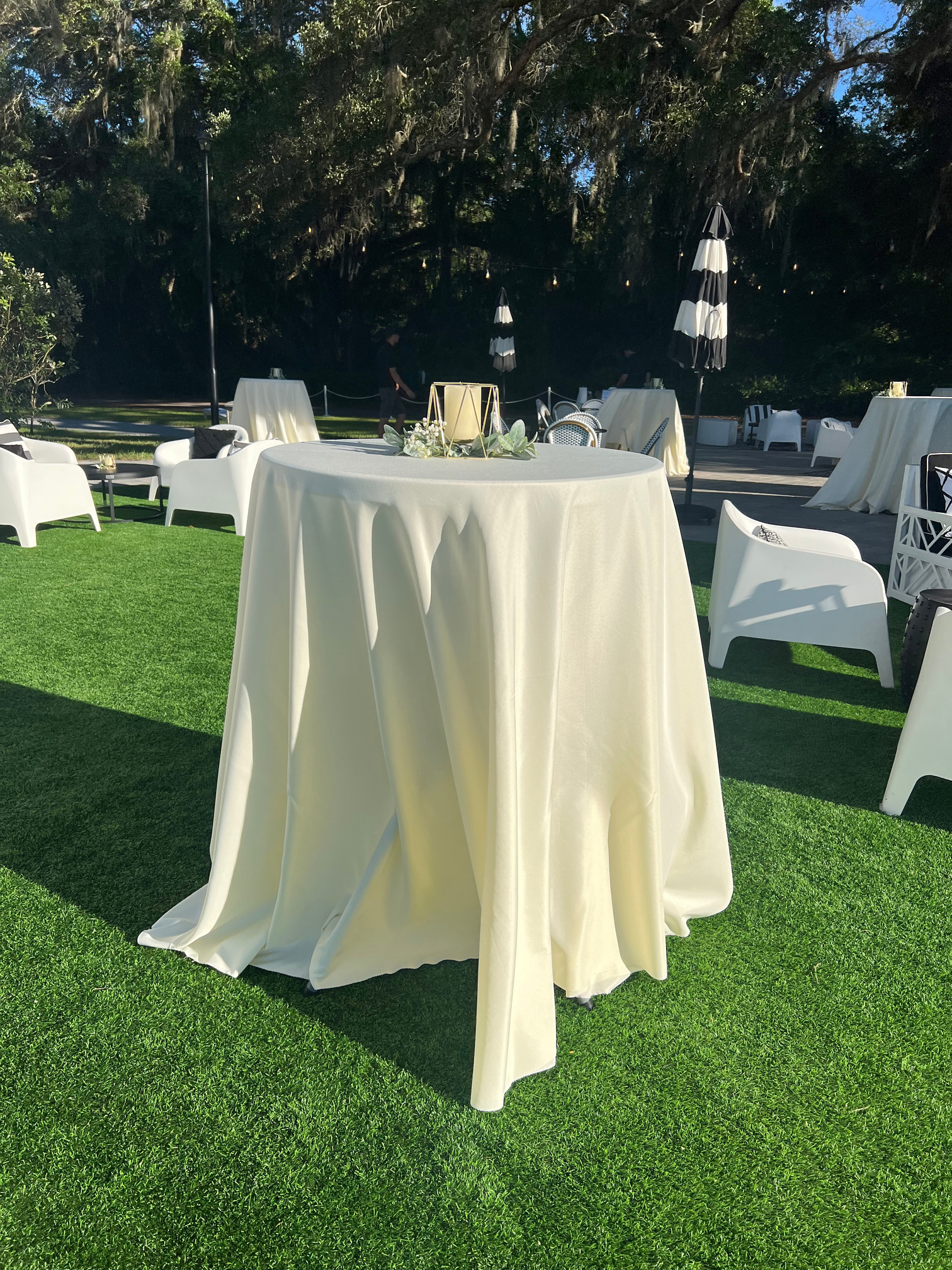
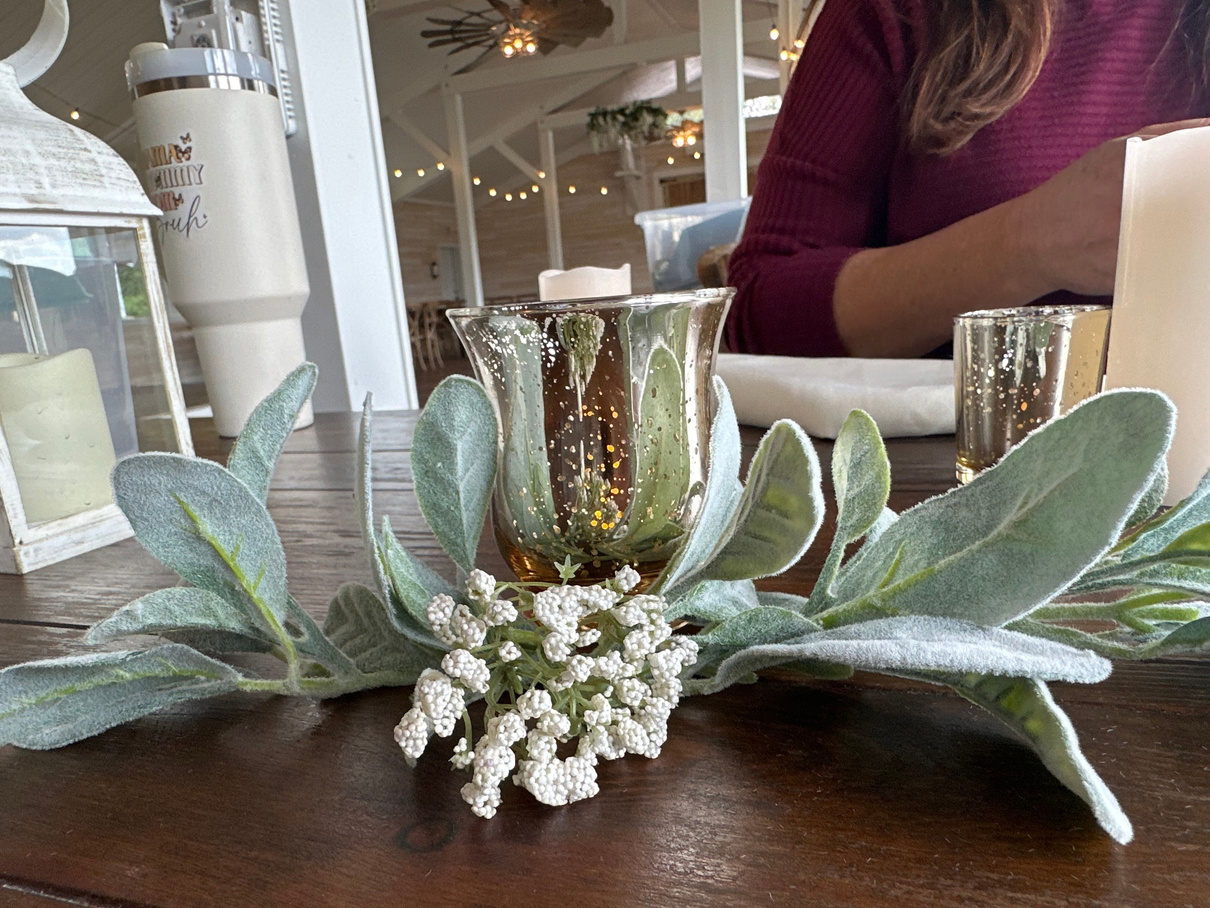
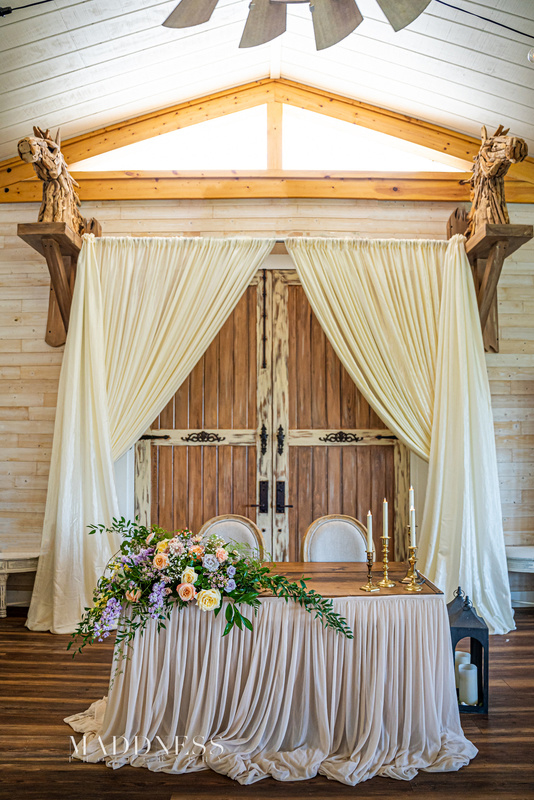
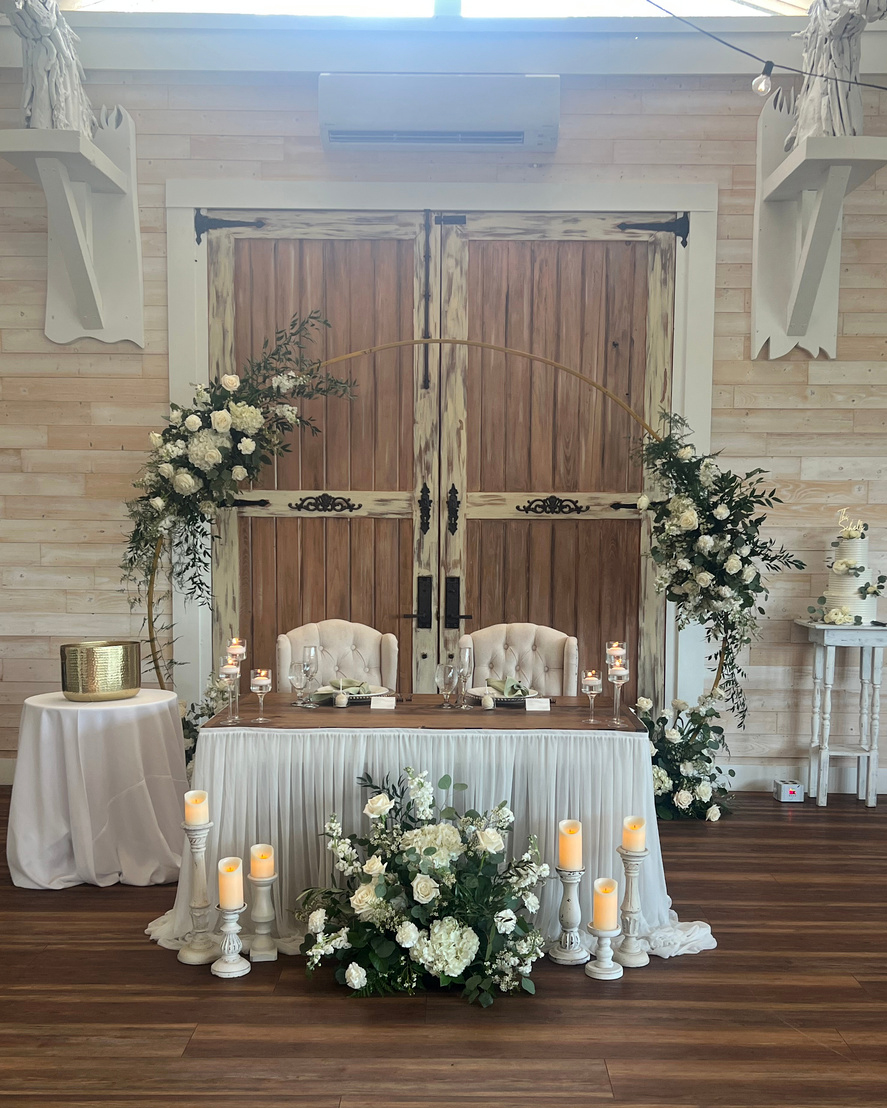
Create an intimate focal point for the couple with these table styles and skirt options.
A sweetheart table with a skirt is included, with skirt options available in white, beige, and ivory. Some ceremony arches and live florals may be repurposed for use at your sweetheart table. Please note that two of our arches are not movable.
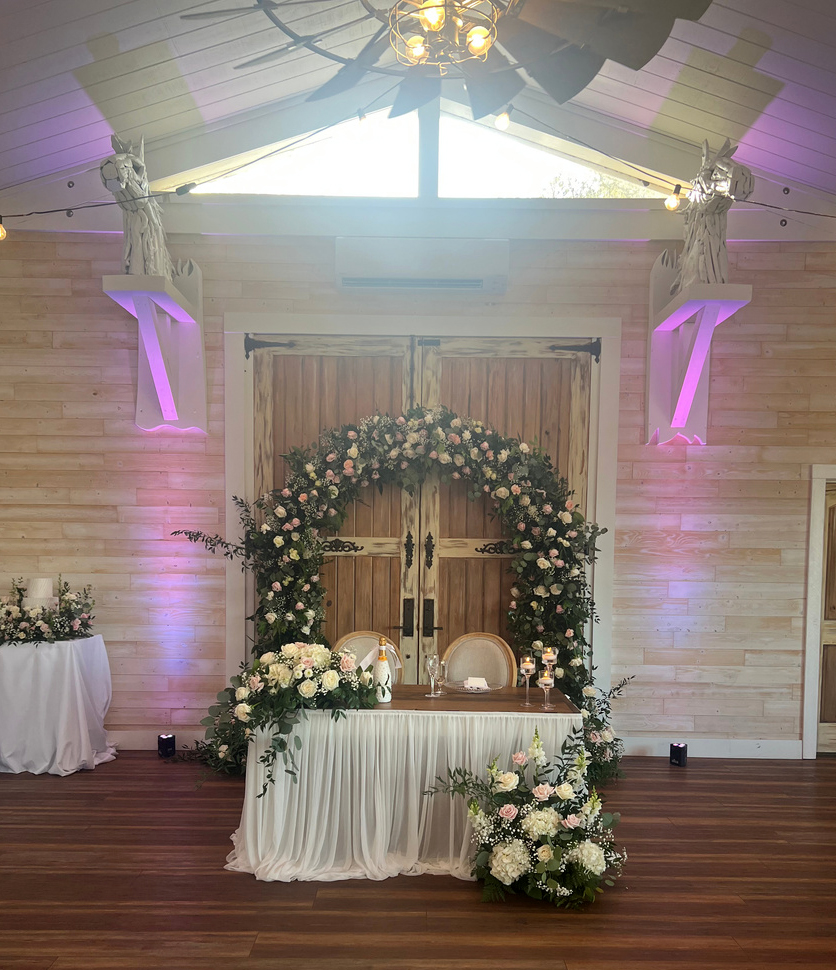
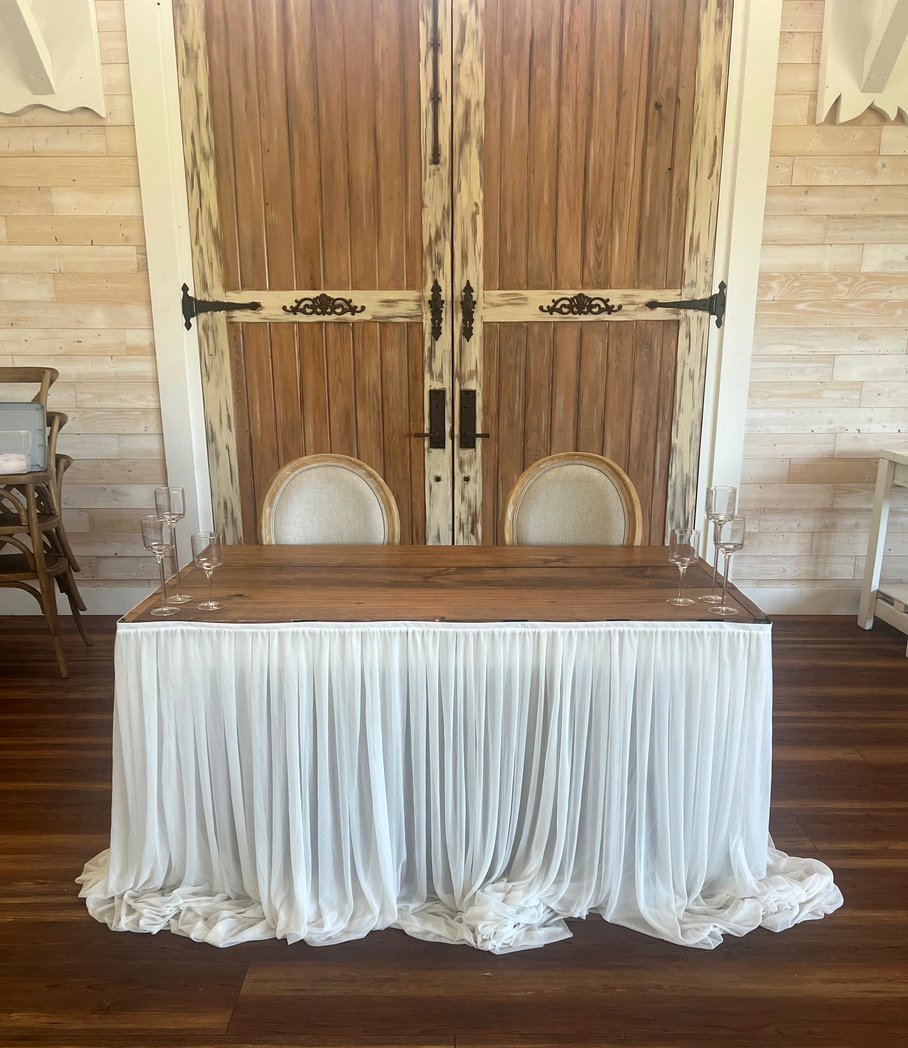
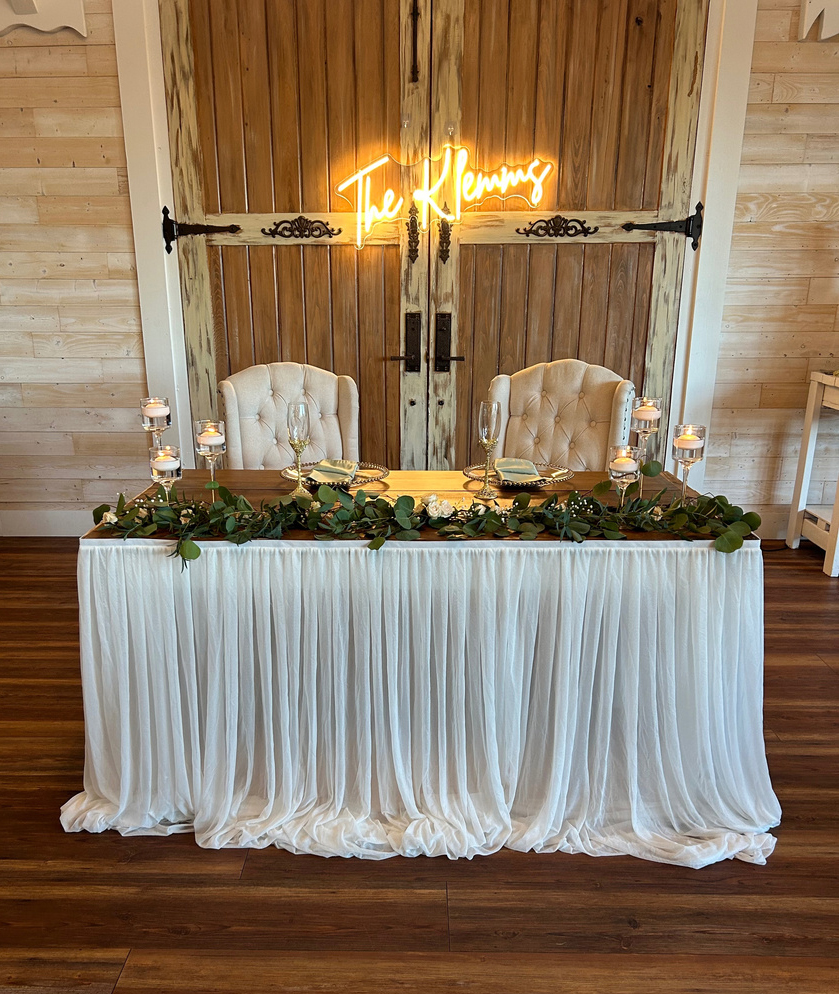
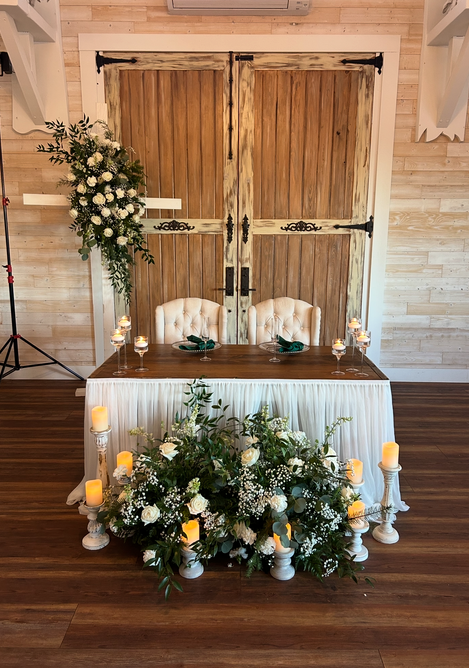
We offer three table options for your sweetheart table.
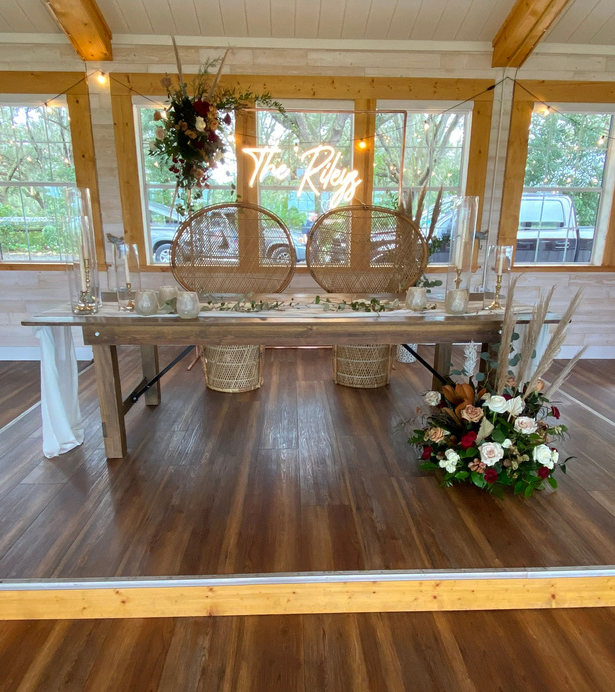
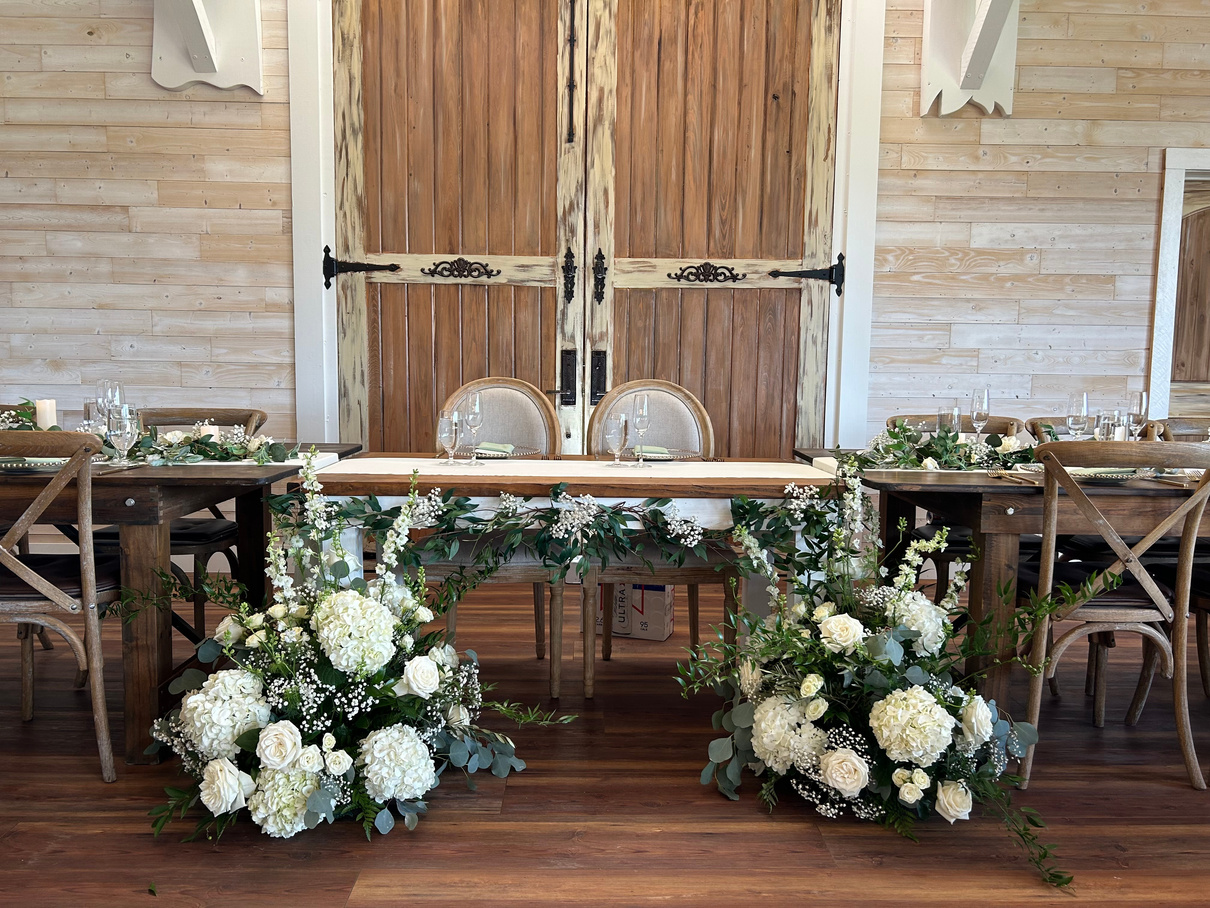
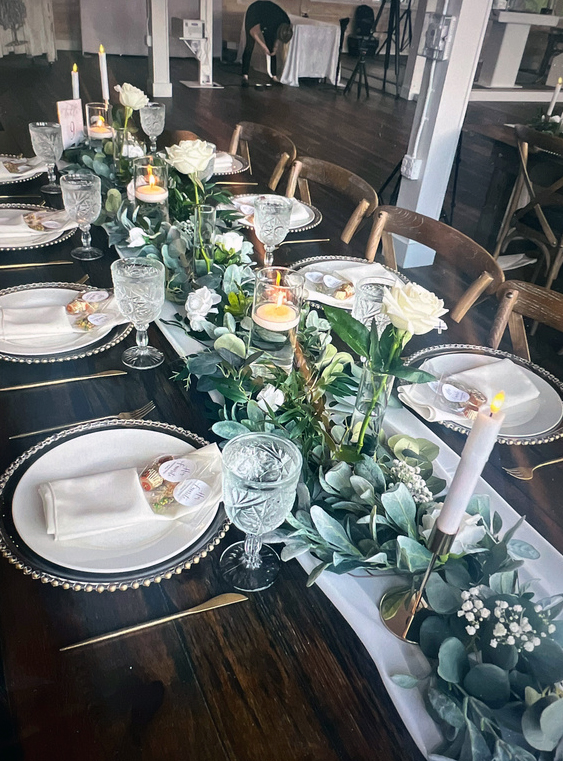
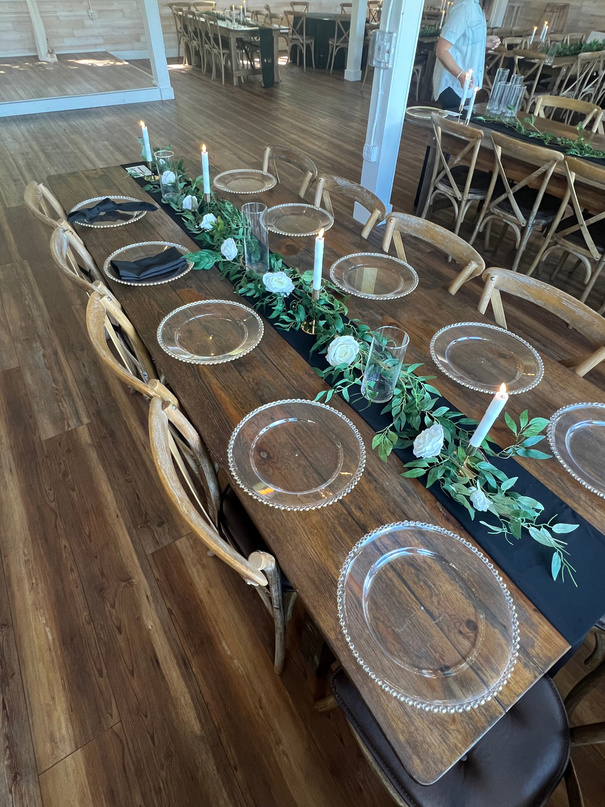
Inspiration for dressing your long farm tables with runners, florals, greenery, and candles.
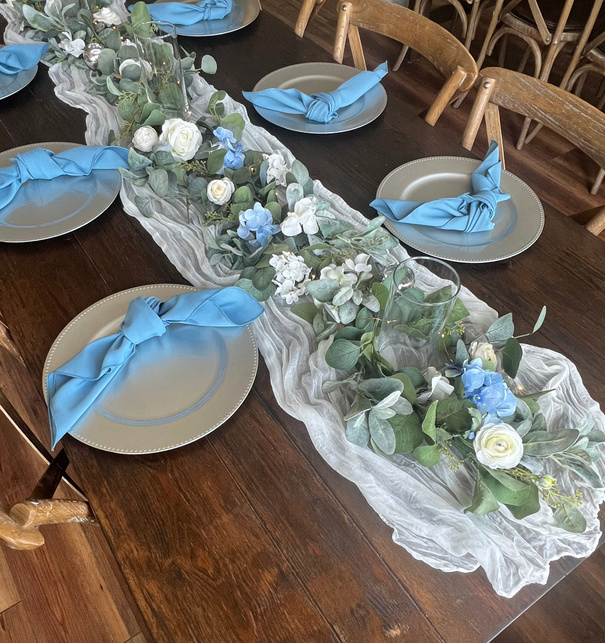
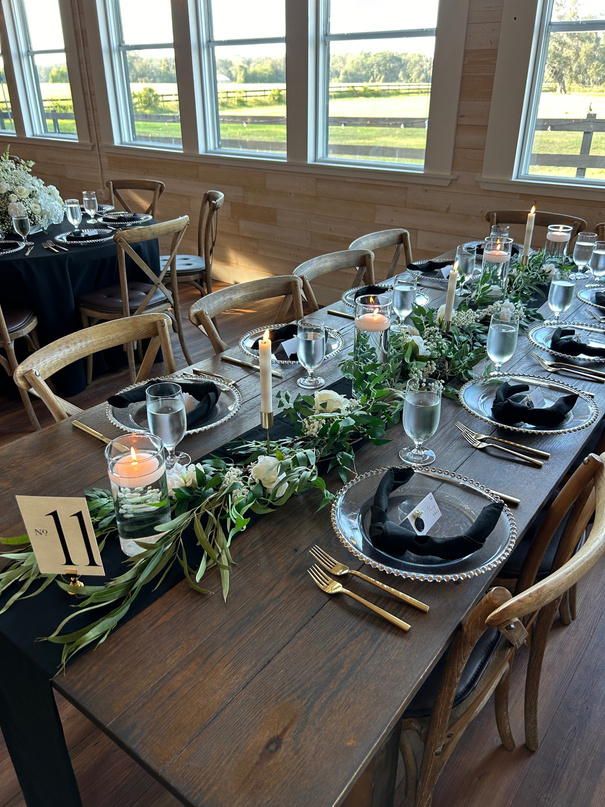
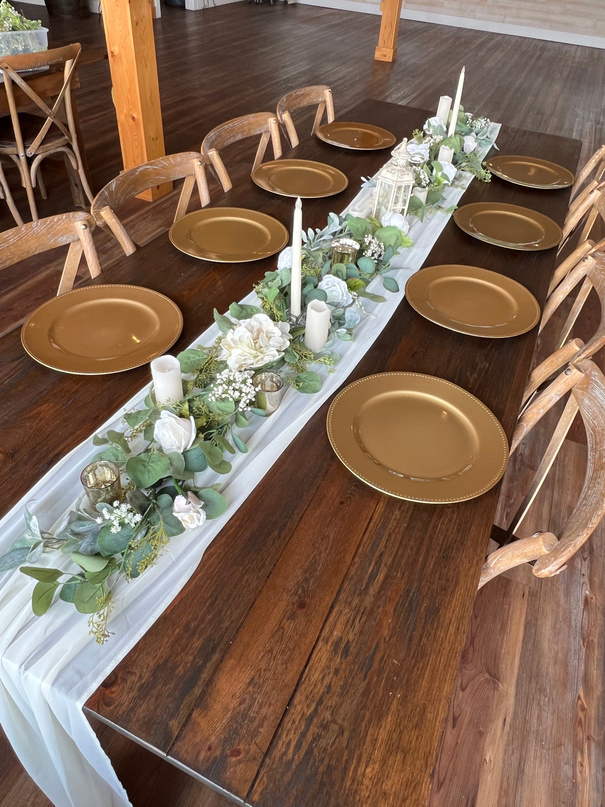
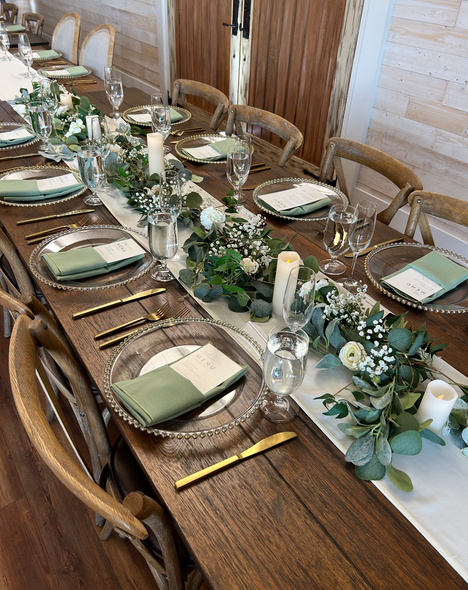
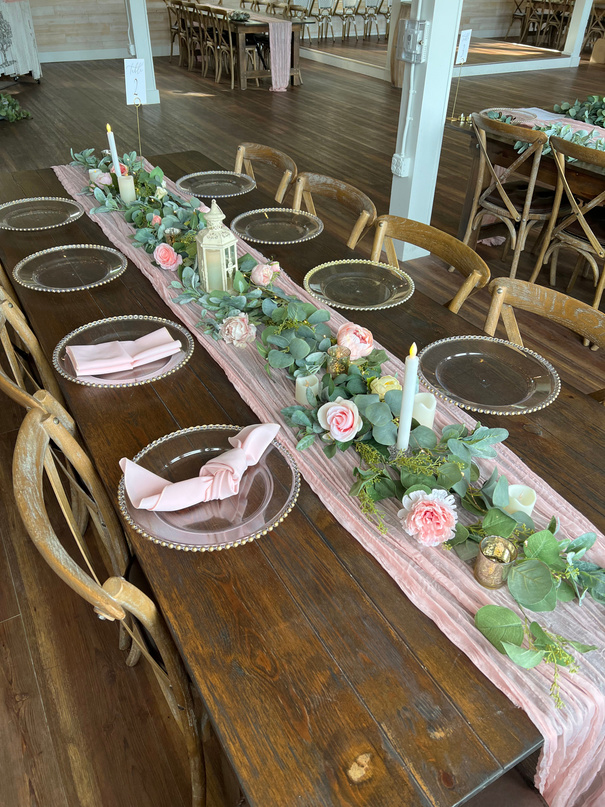
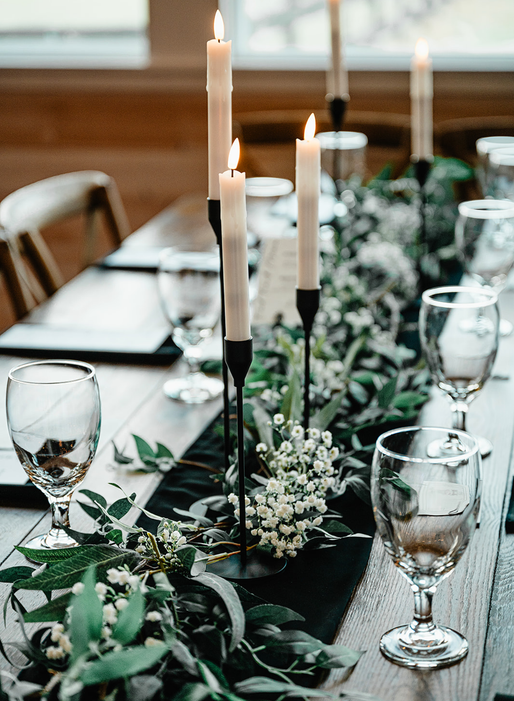
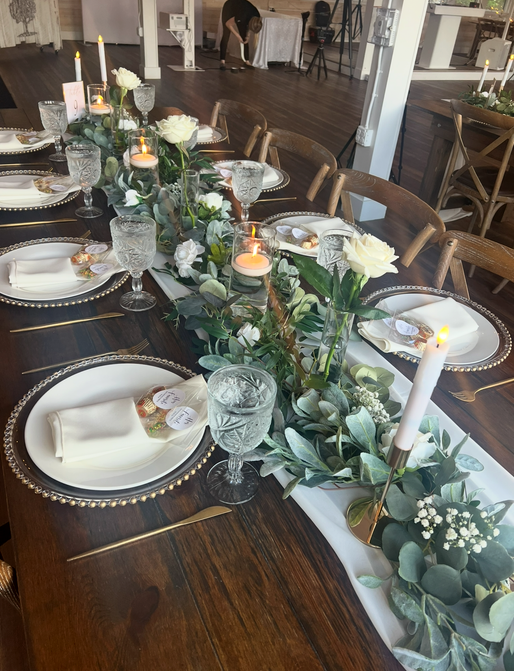
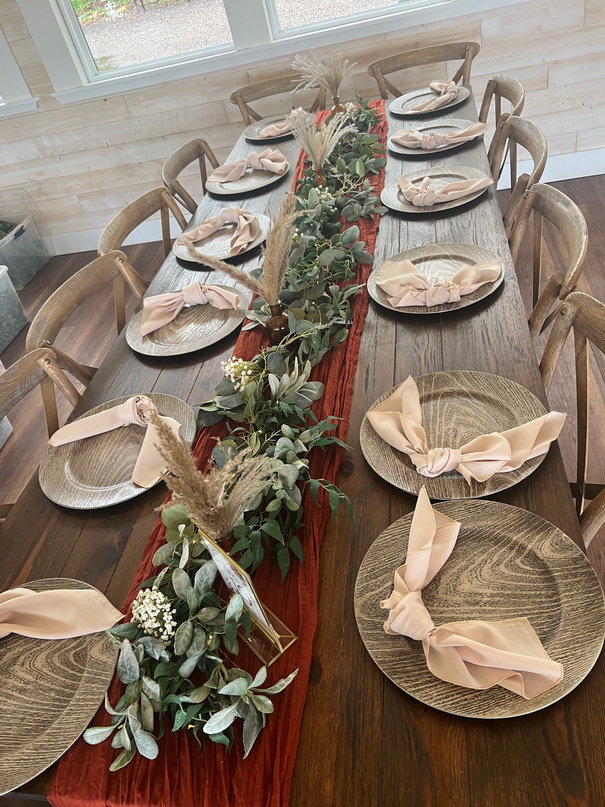
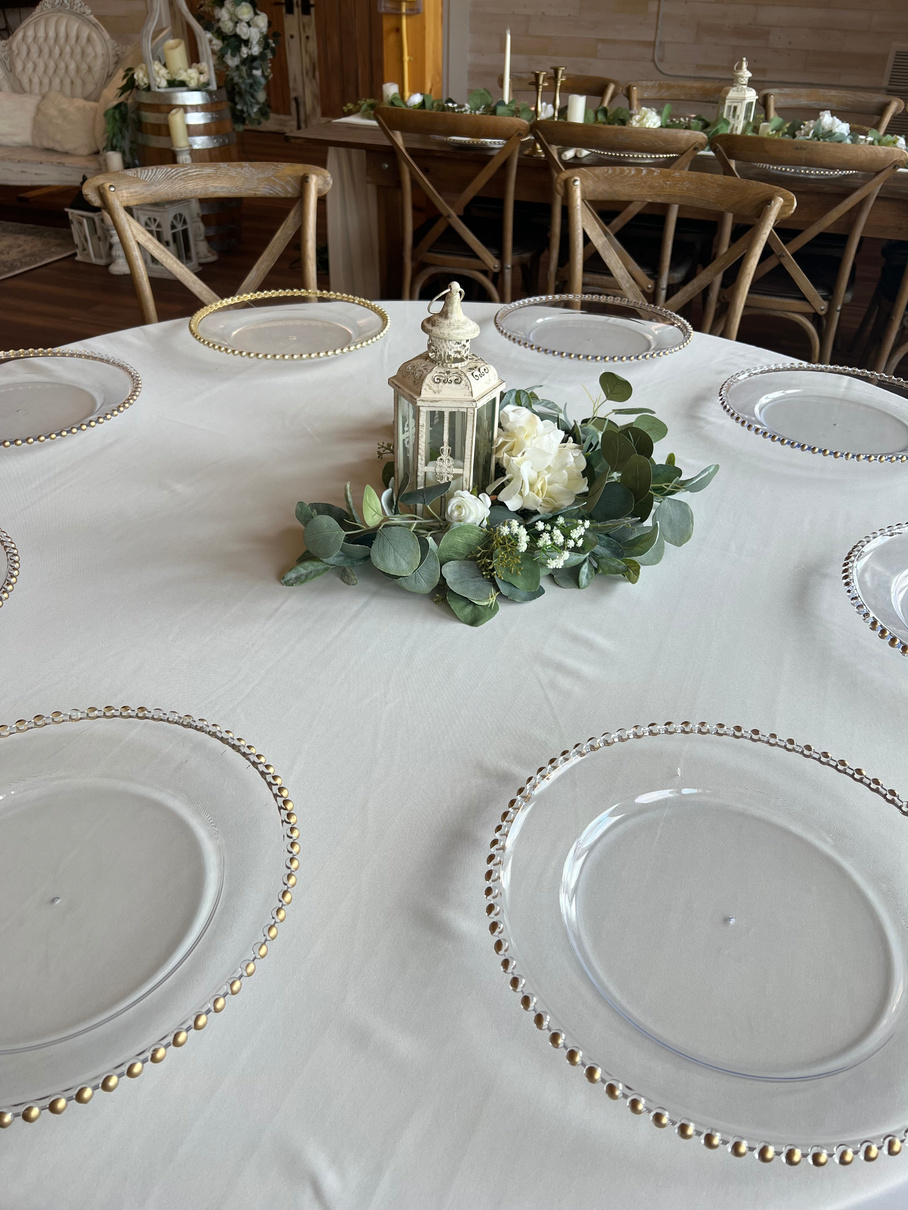
Mix-and-match centerpiece styles for your round reception tables.
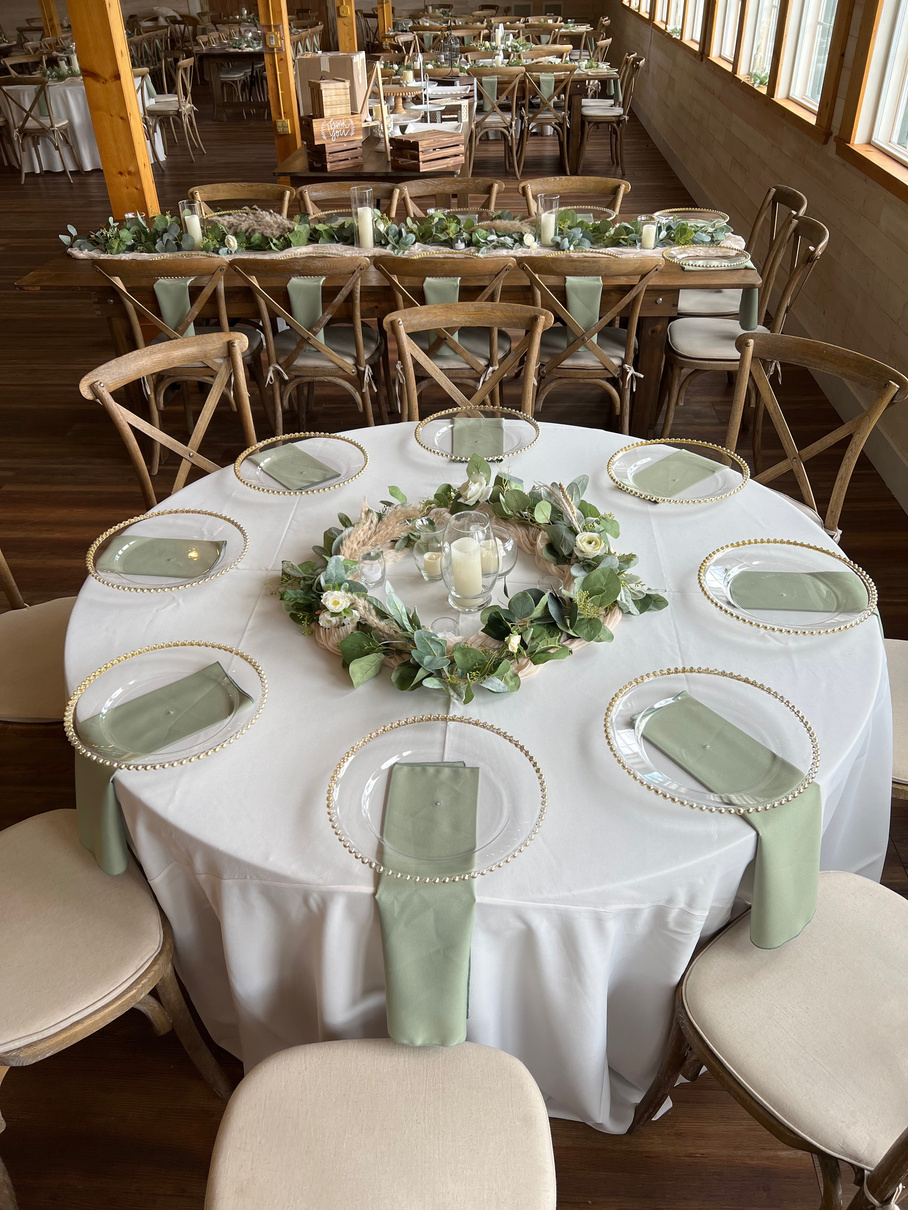
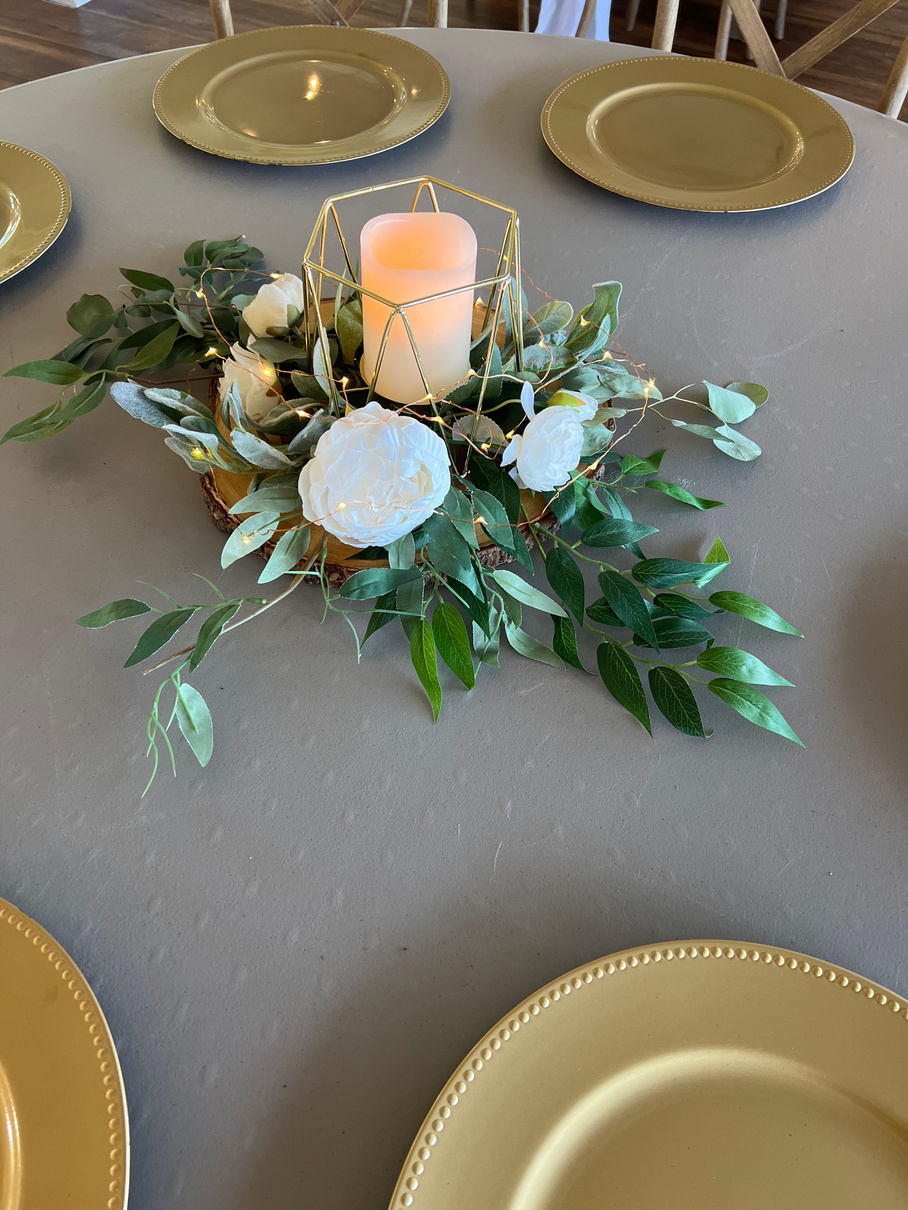
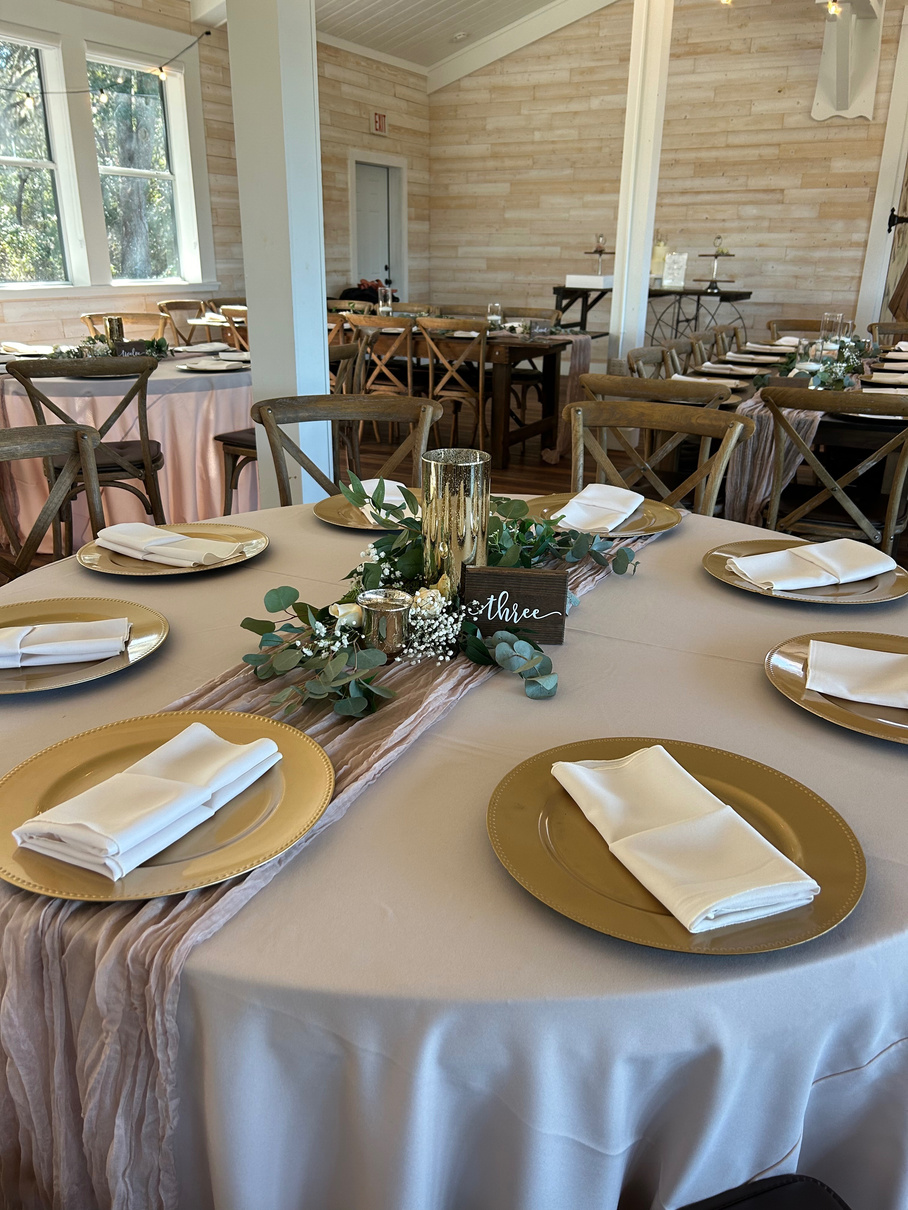
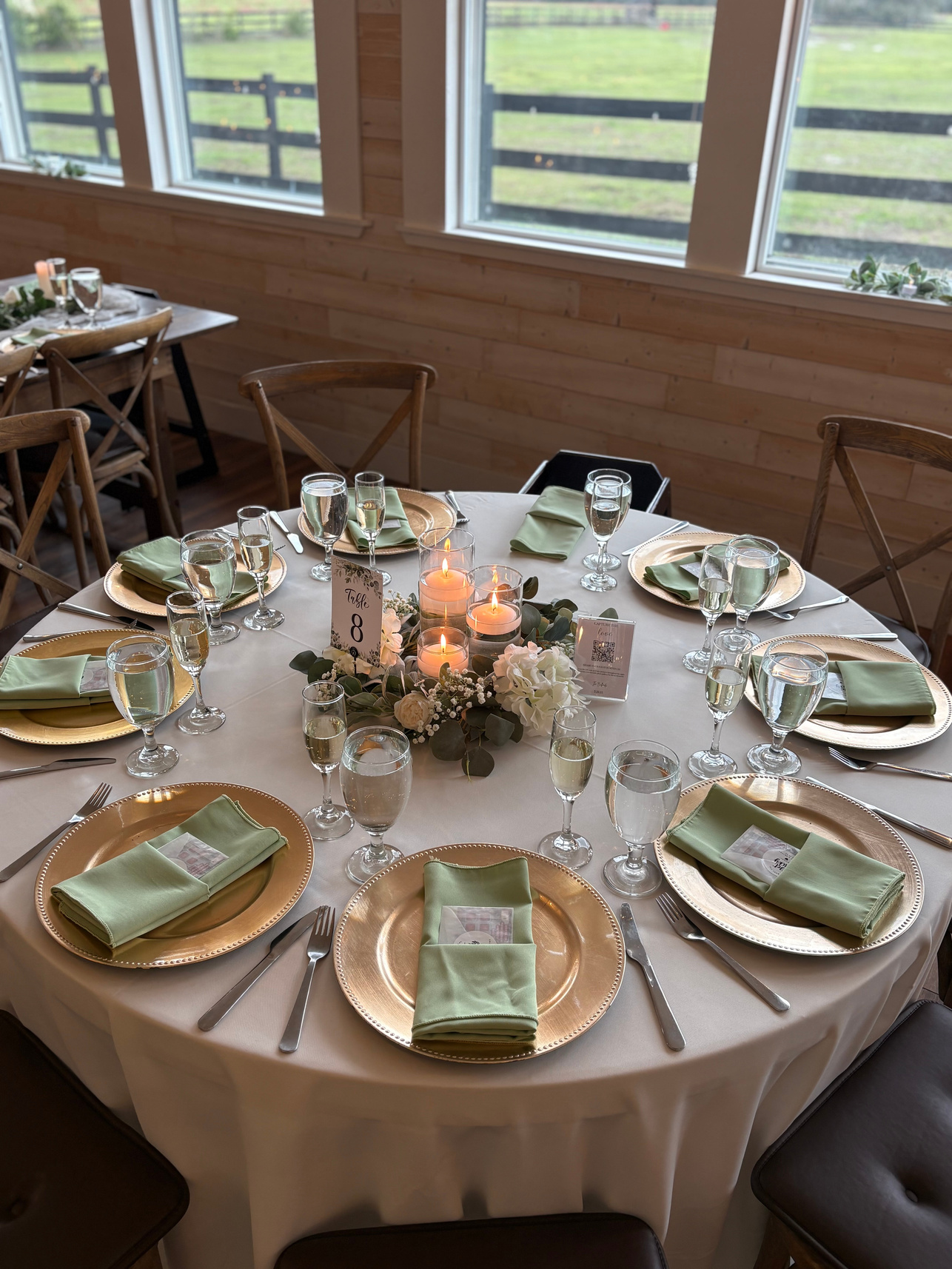
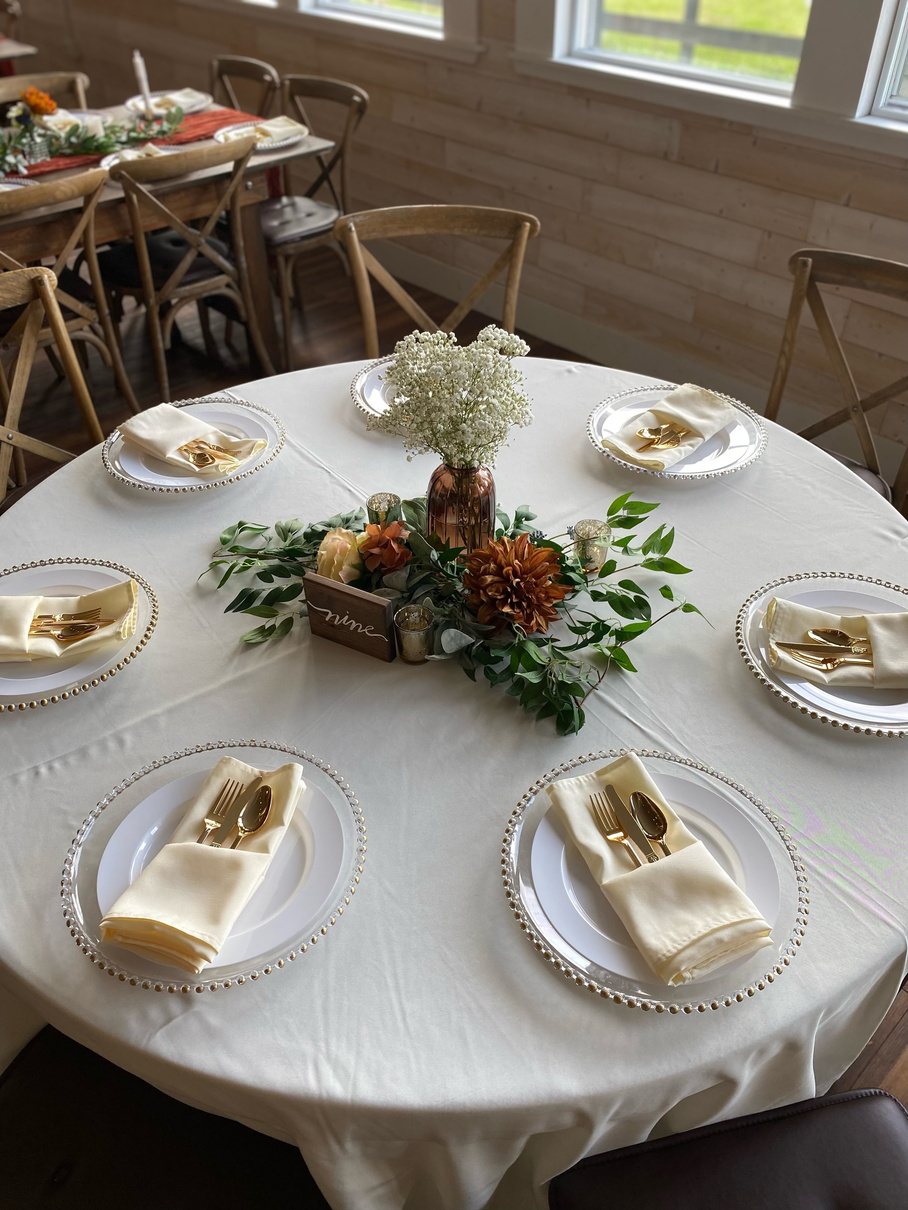
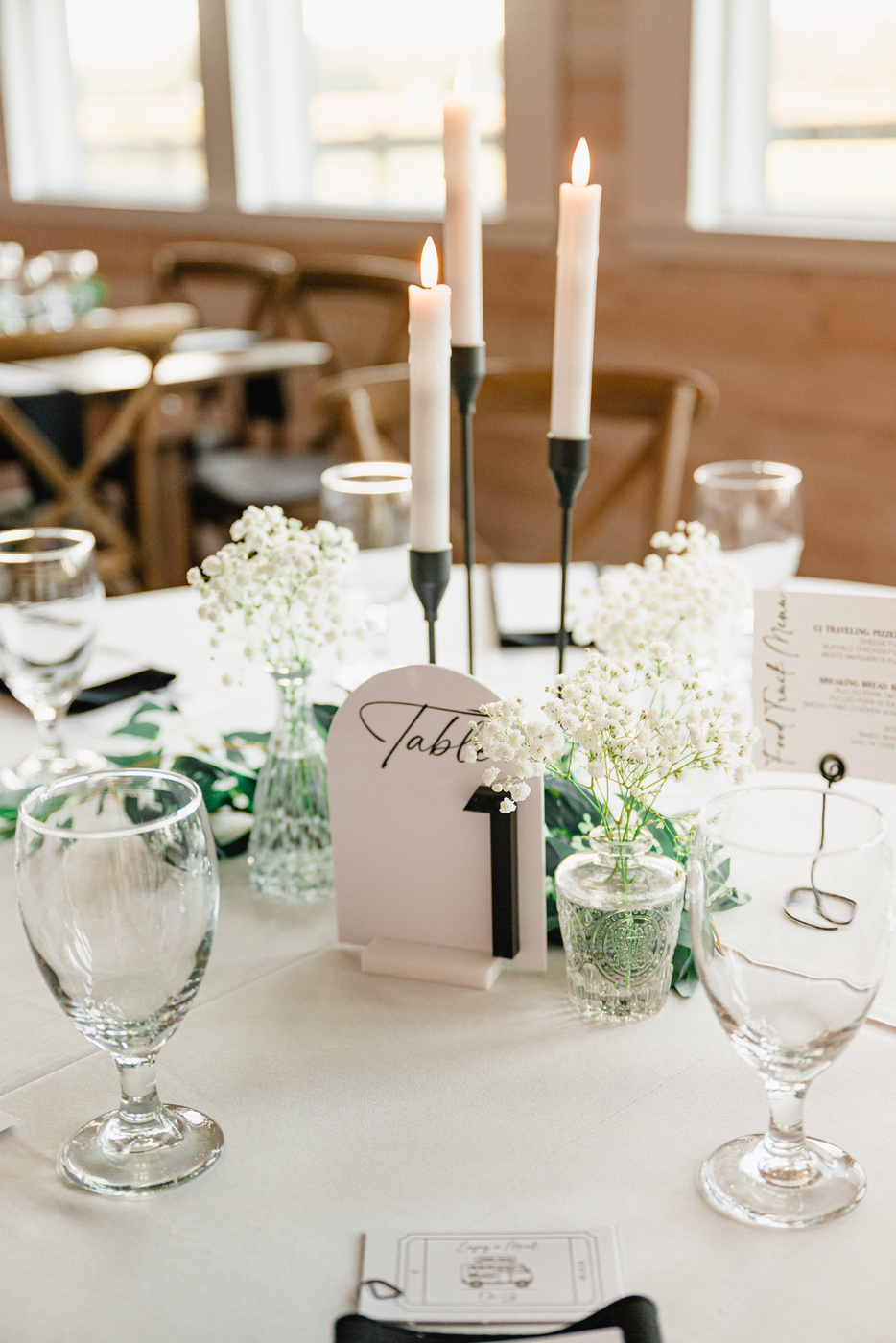
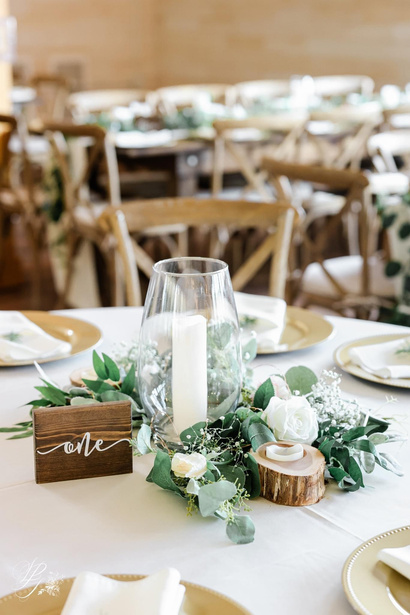
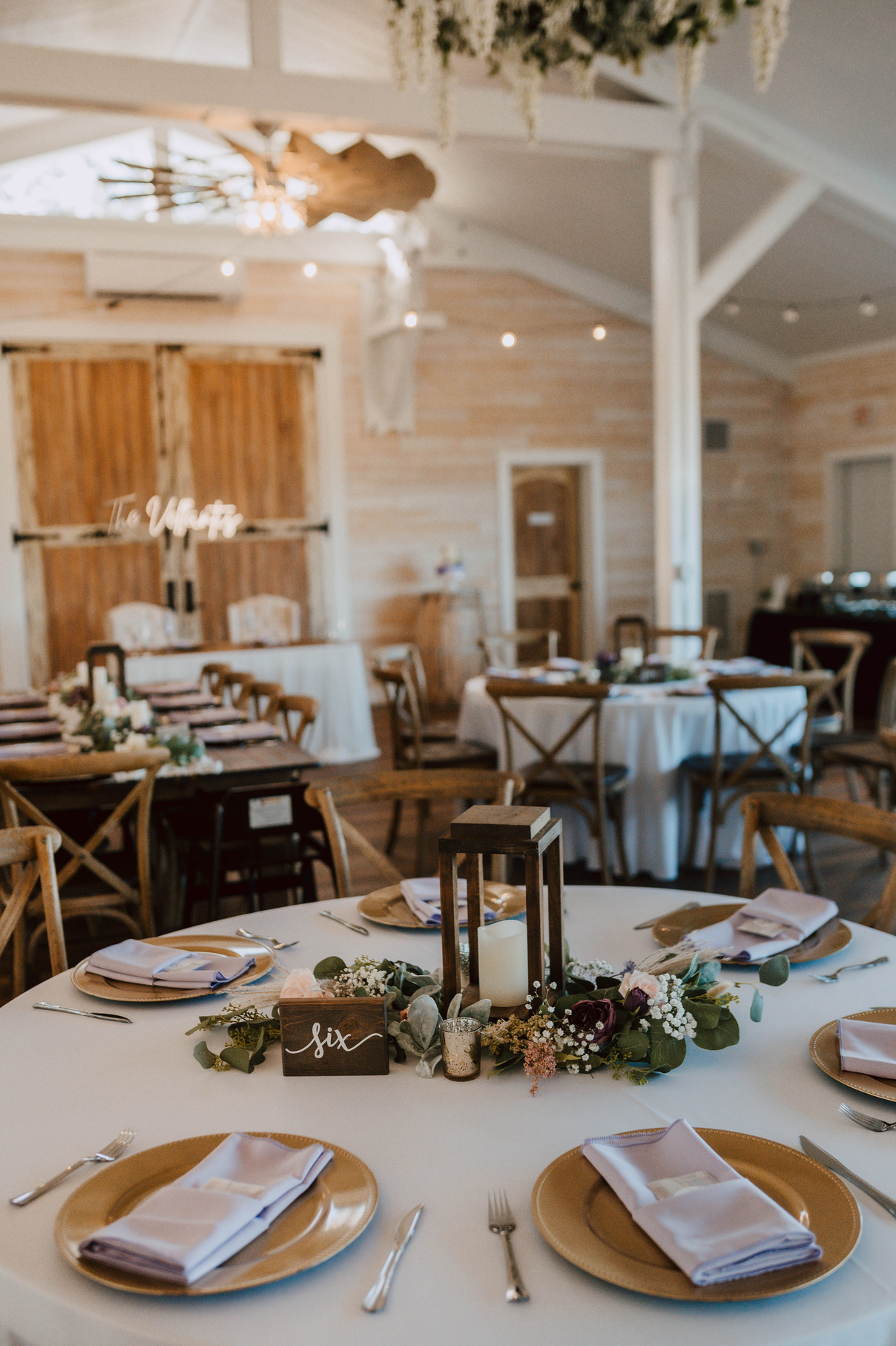
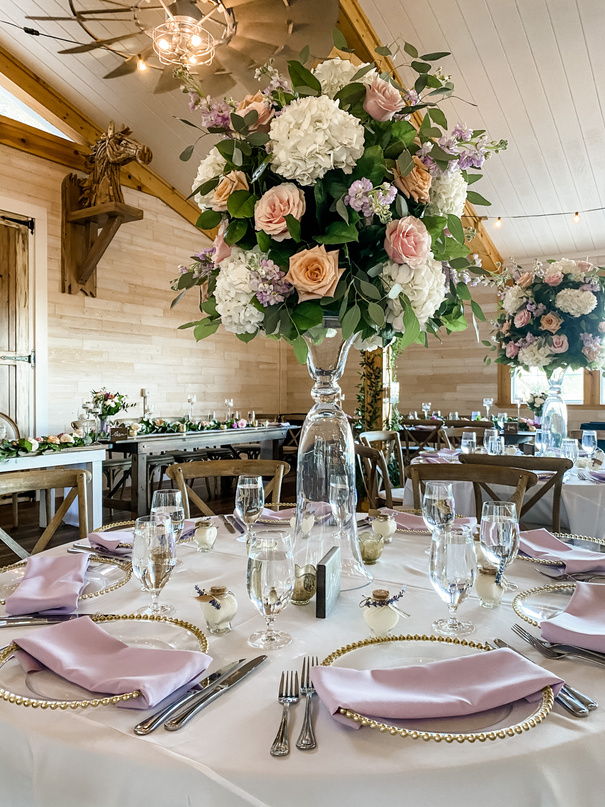
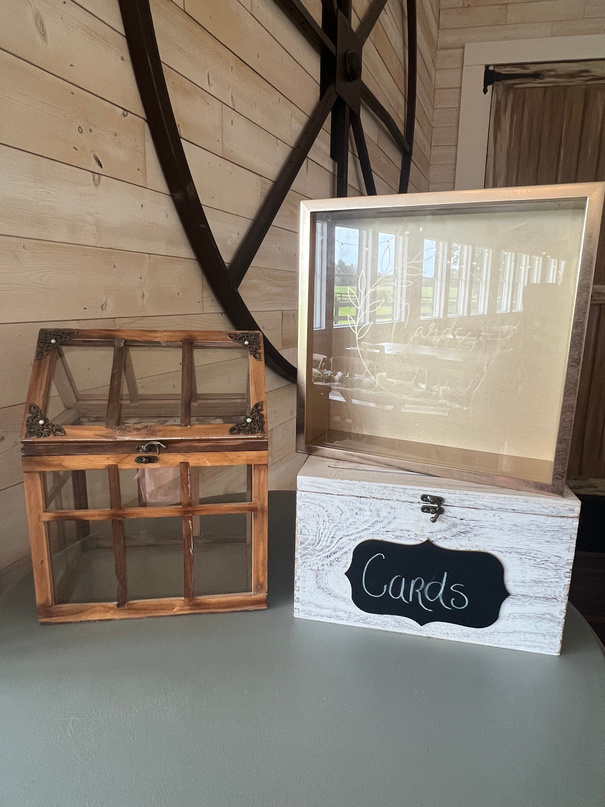
A curated selection of accent pieces, display items, and statement décor available for your event.
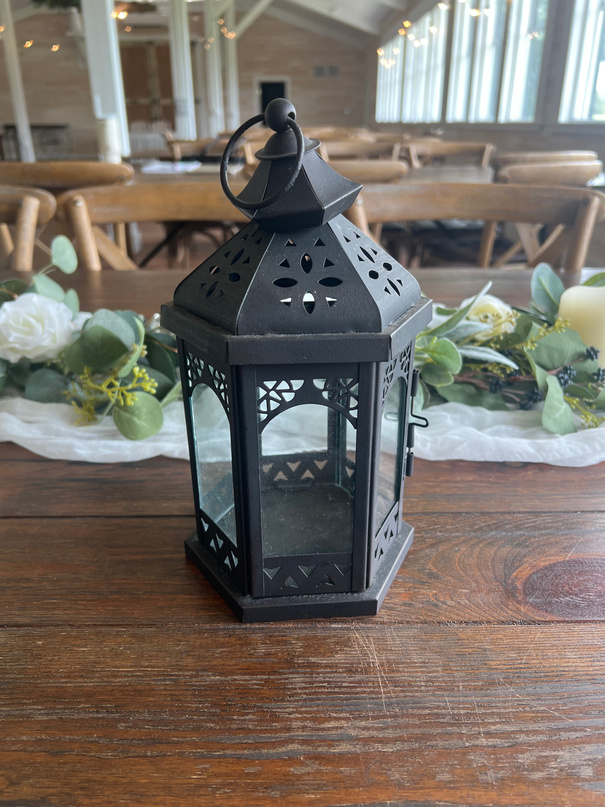
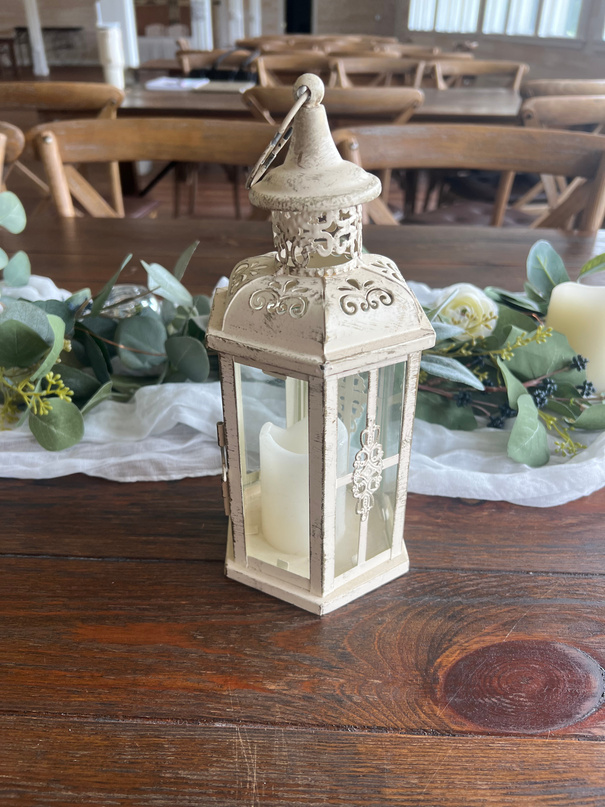
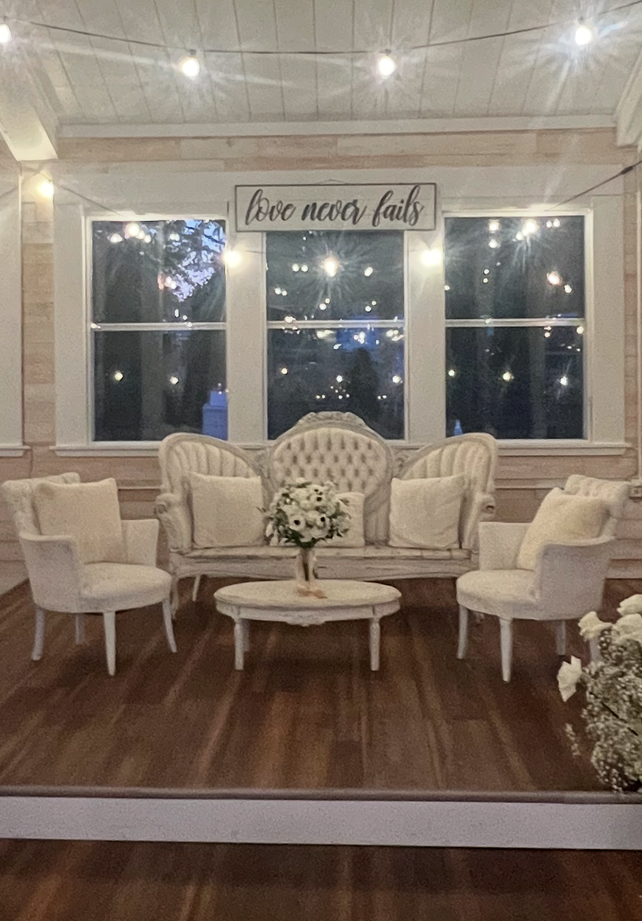

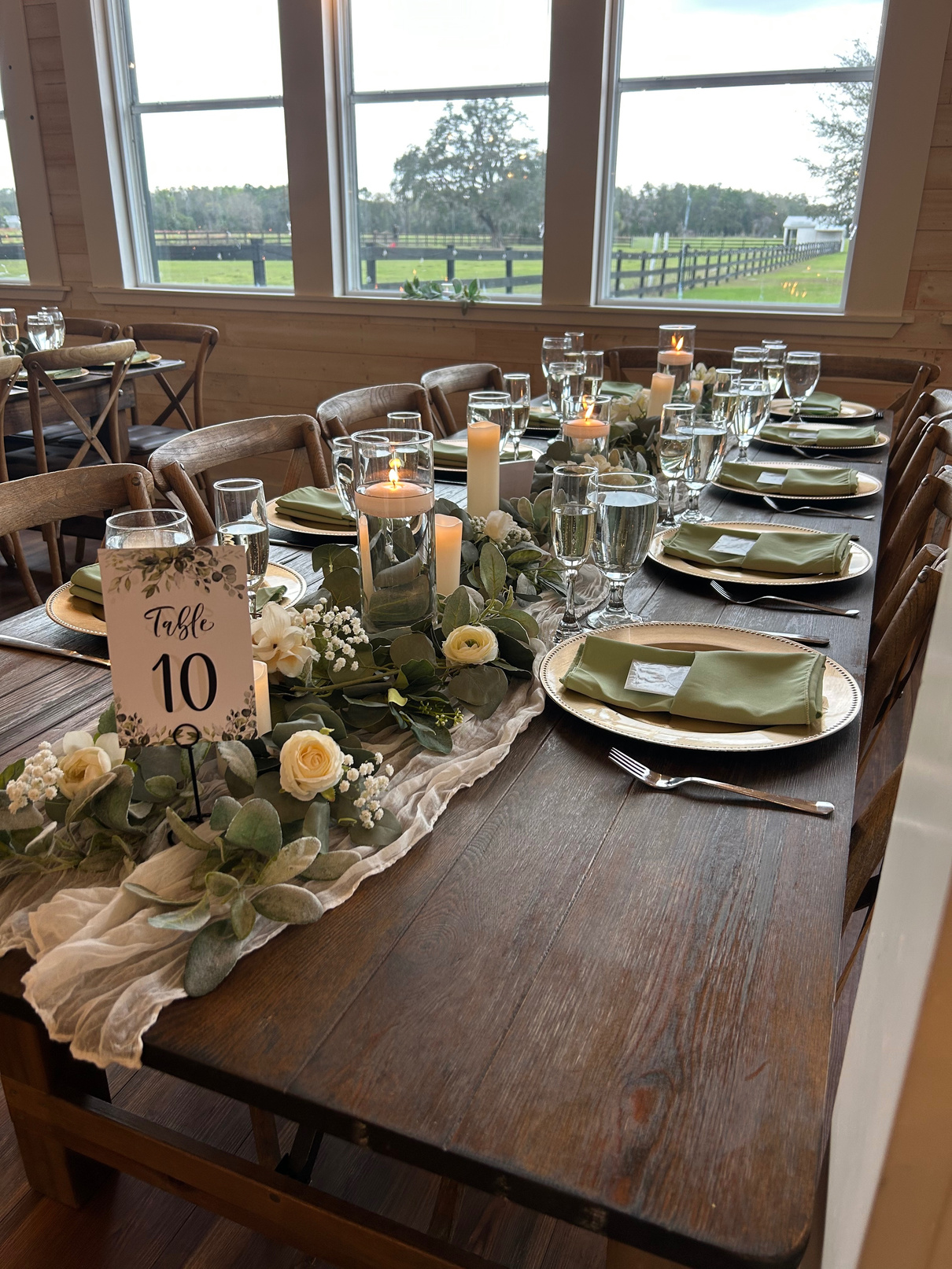
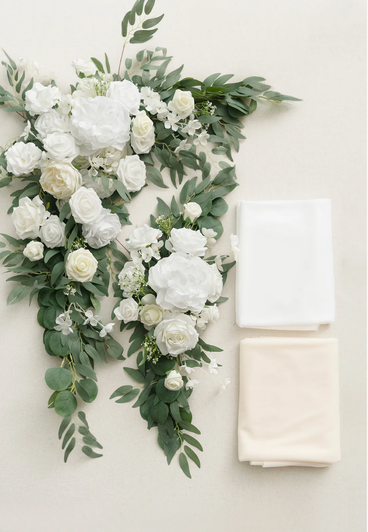
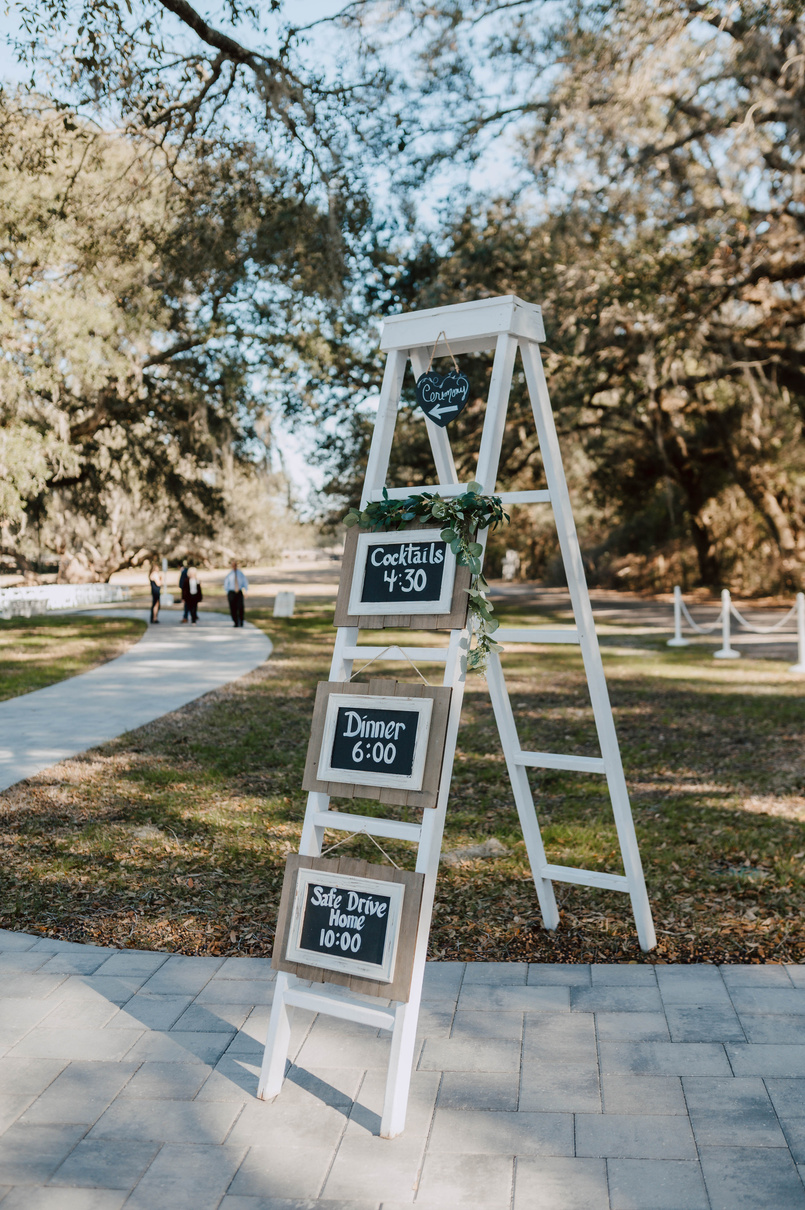
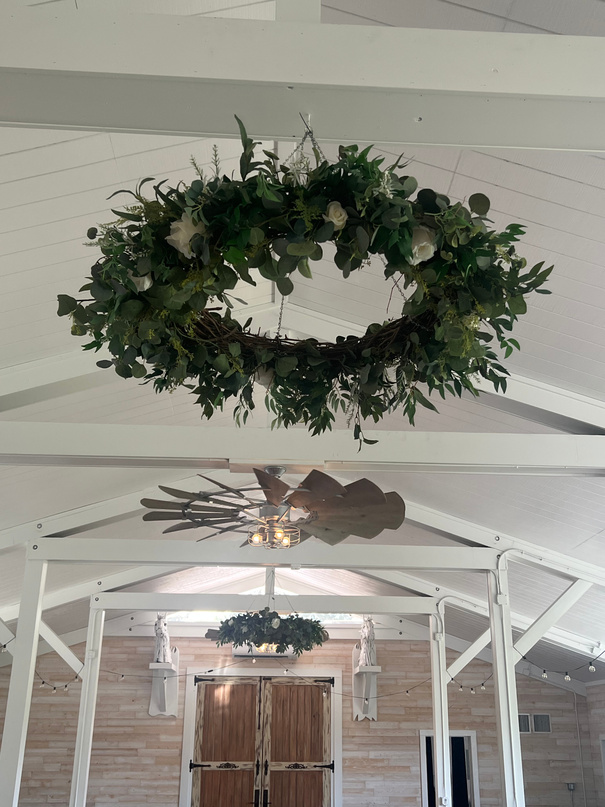
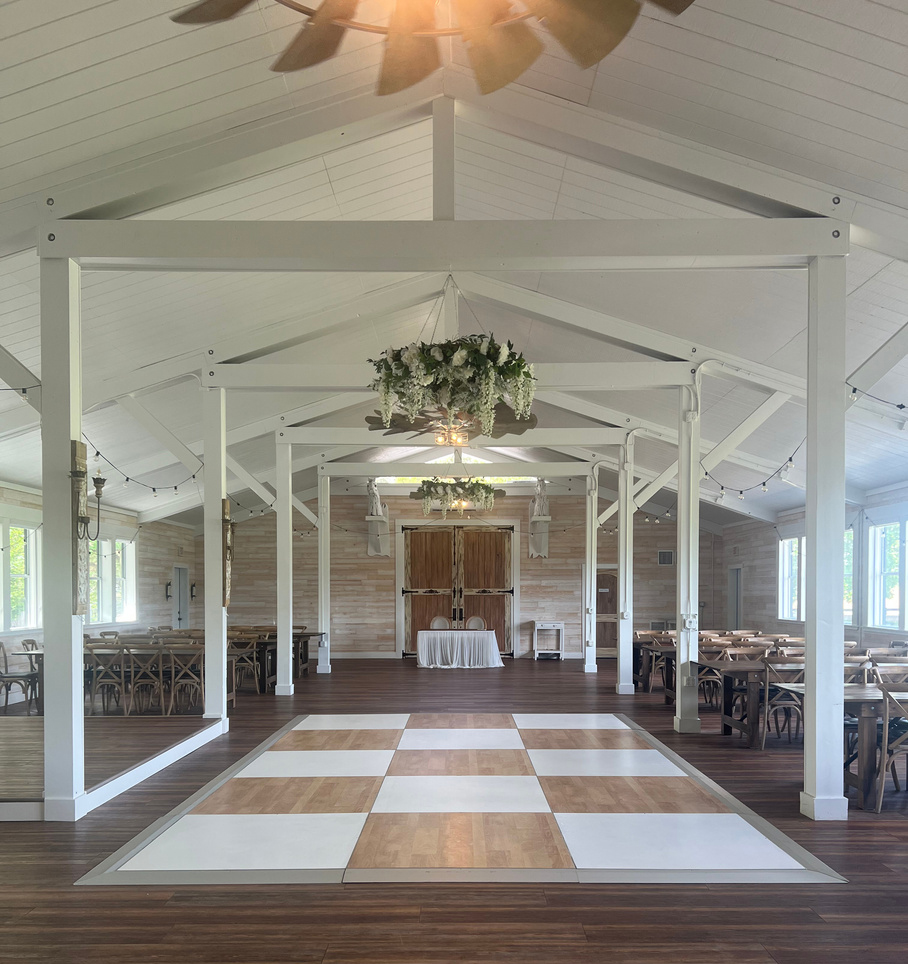
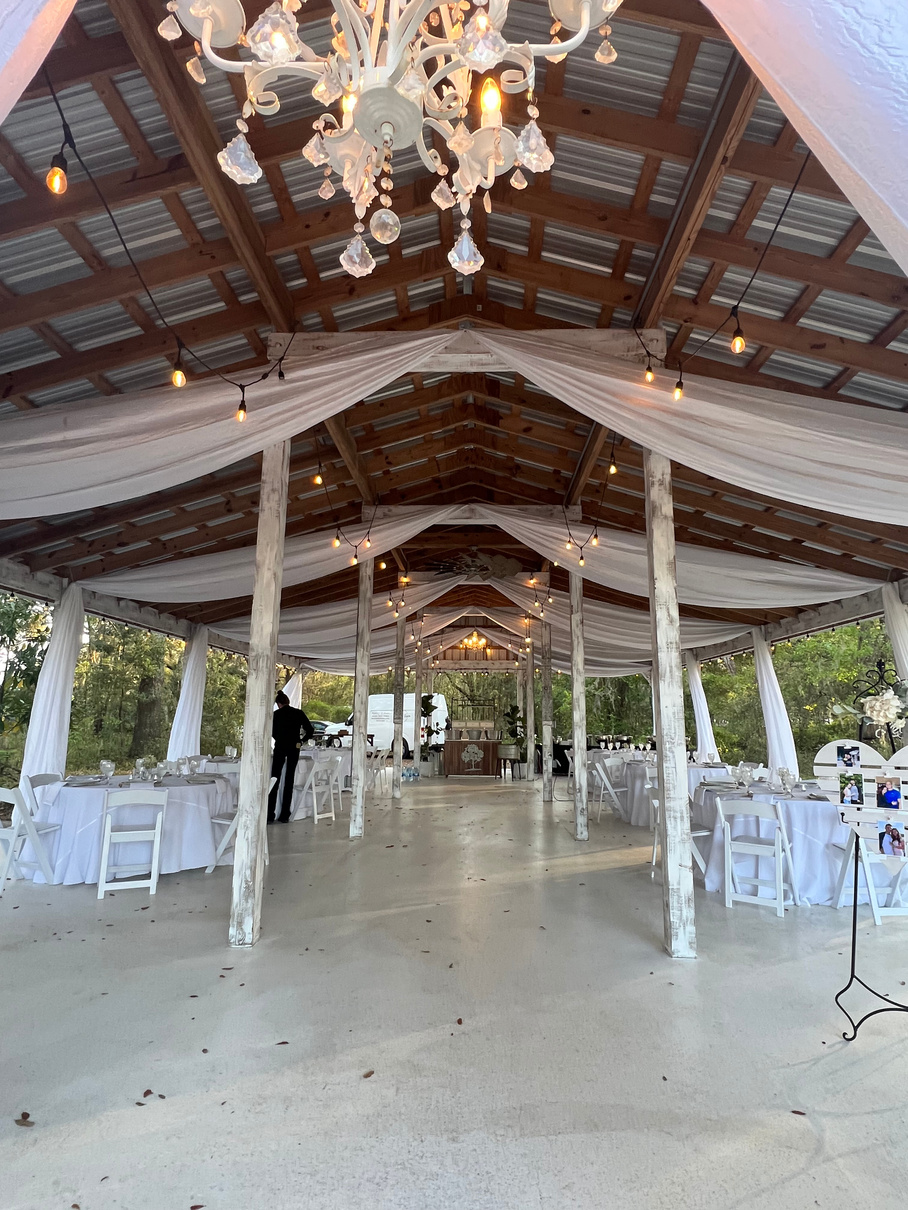
Take your décor further with upgrades coordinated through our trusted preferred vendors.
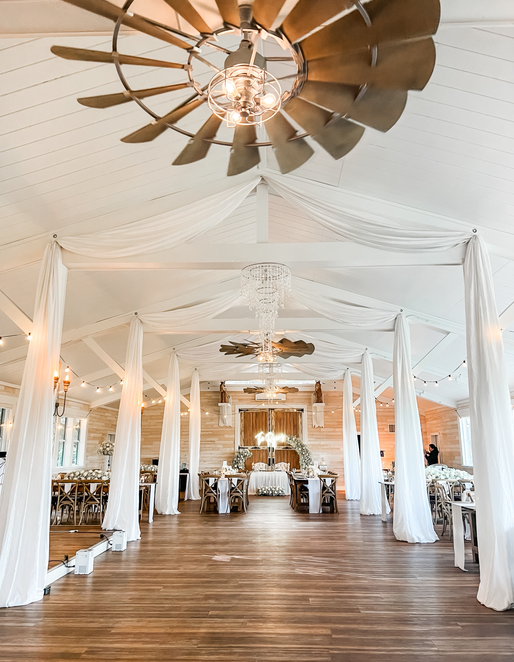
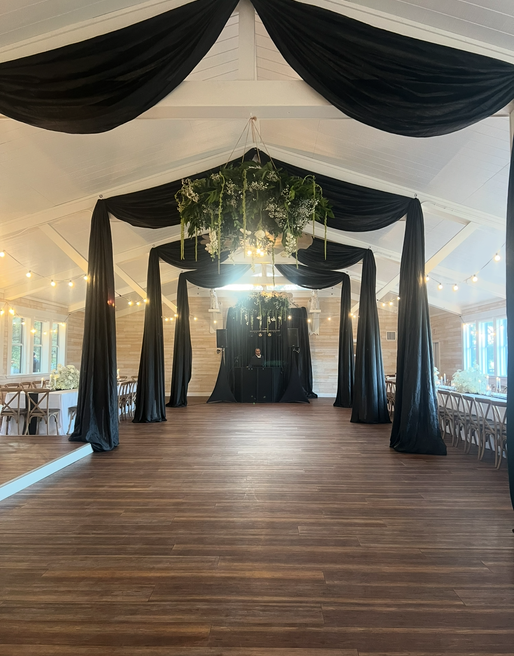
Legacy Lane welcomes décor upgrades such as dance floors, draping, floral installations, and more to further personalize your day. Two popular upgrades are draping and dance floors — both are custom priced based on the amount of draping desired and the size of the dance floor. For trusted professionals who can assist with these enhancements, please refer to our Preferred Vendors List. We also recommend checking with your coordinator in advance to ensure any additions align with venue guidelines and receive prior approval.
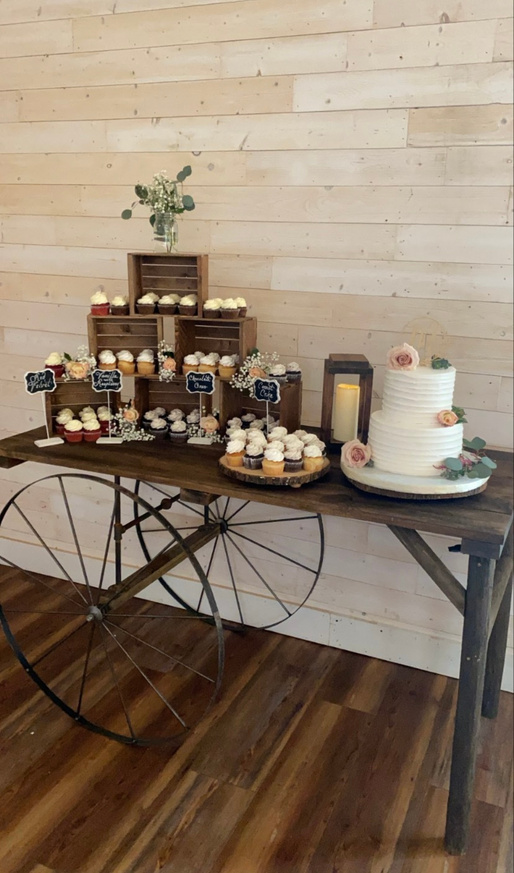
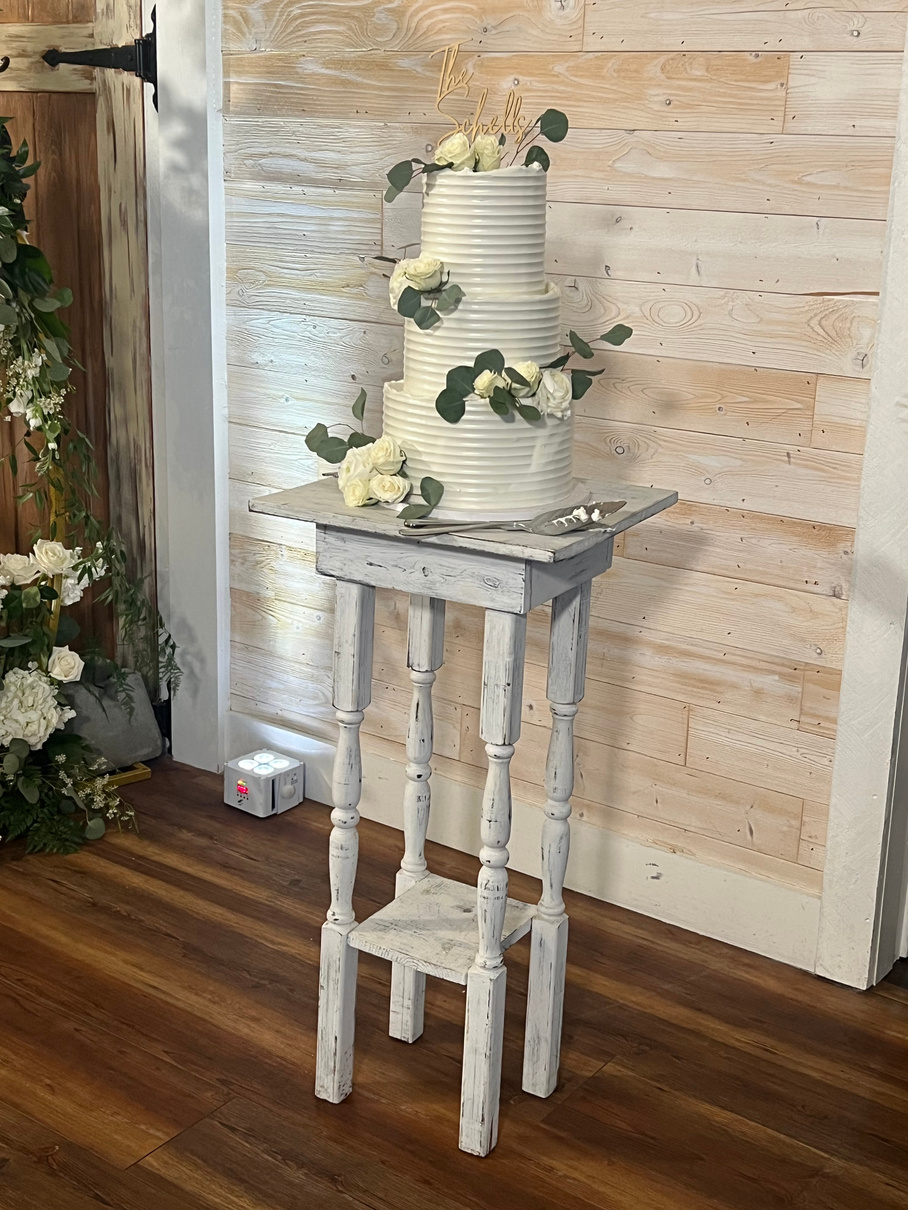
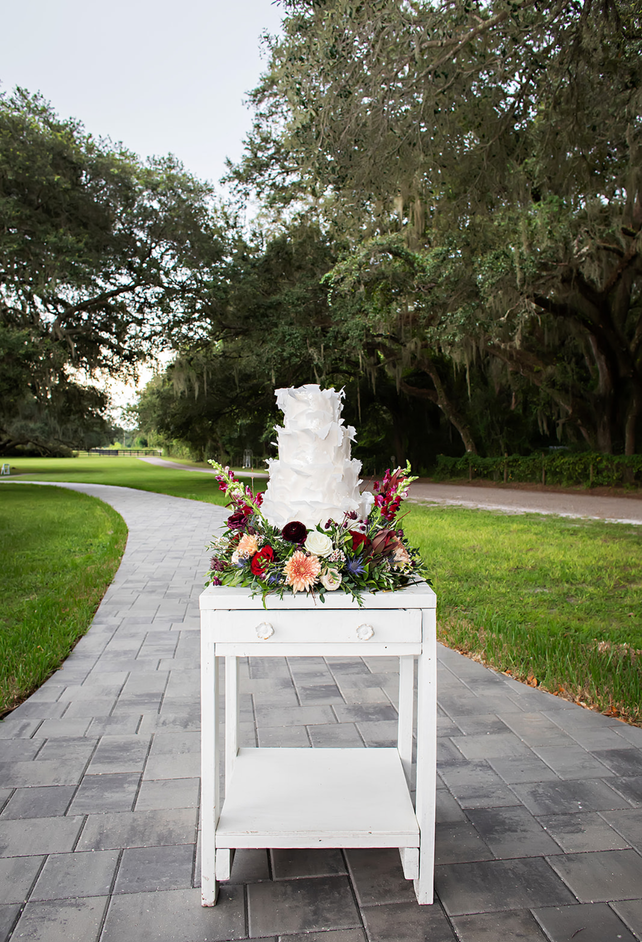
Display your cake and desserts beautifully with one of these table styles.
Here are a few options for cakes and desserts. If you are looking for a less rustic look, tables can be draped with linens.

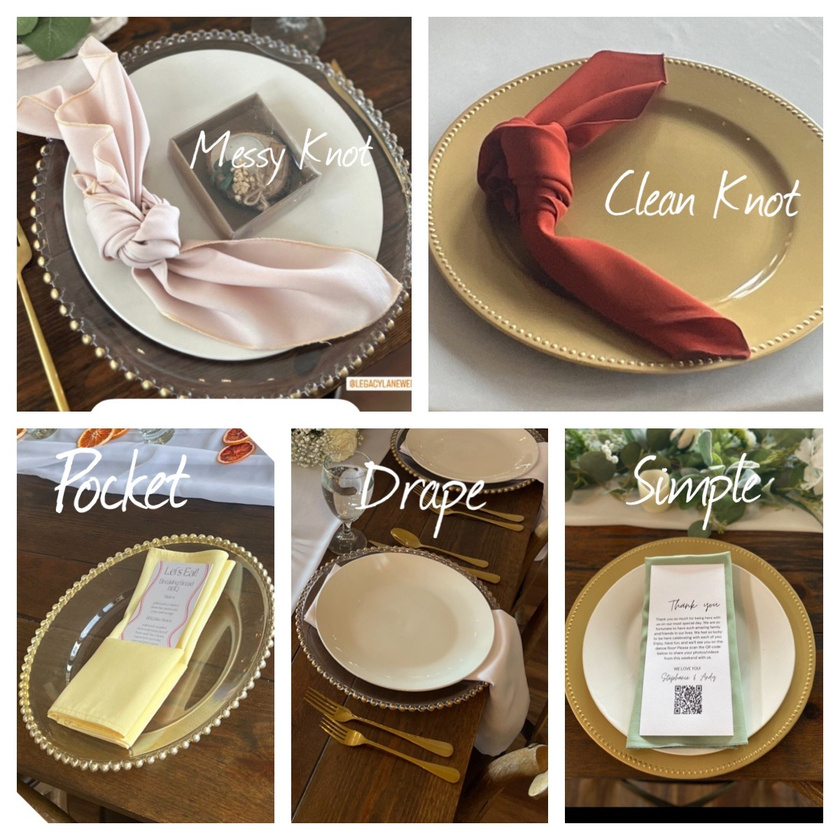
Choose from our charger plate styles and napkin colors and folds to complete your place settings.
Legacy Lane offers a choice of charger plates and a wide variety of linen napkin colors and fold styles. These finishing touches bring your table setting together and complement your overall décor palette.
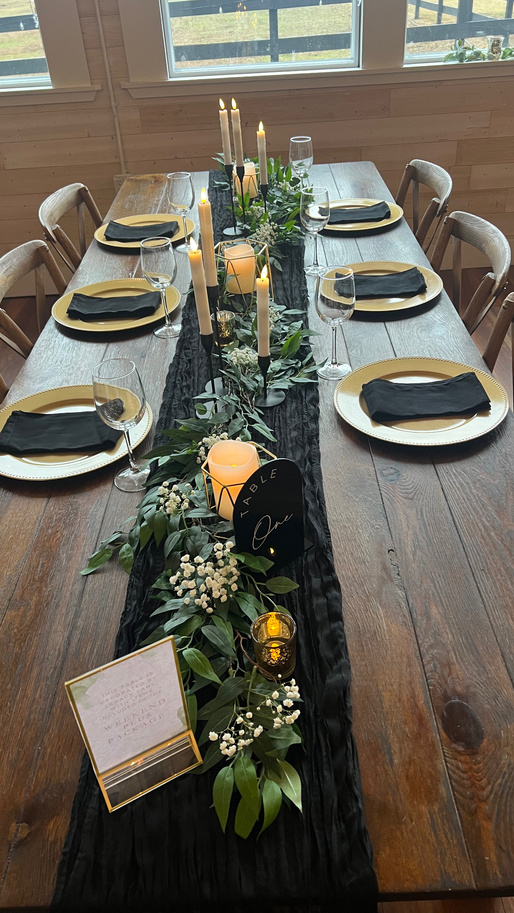
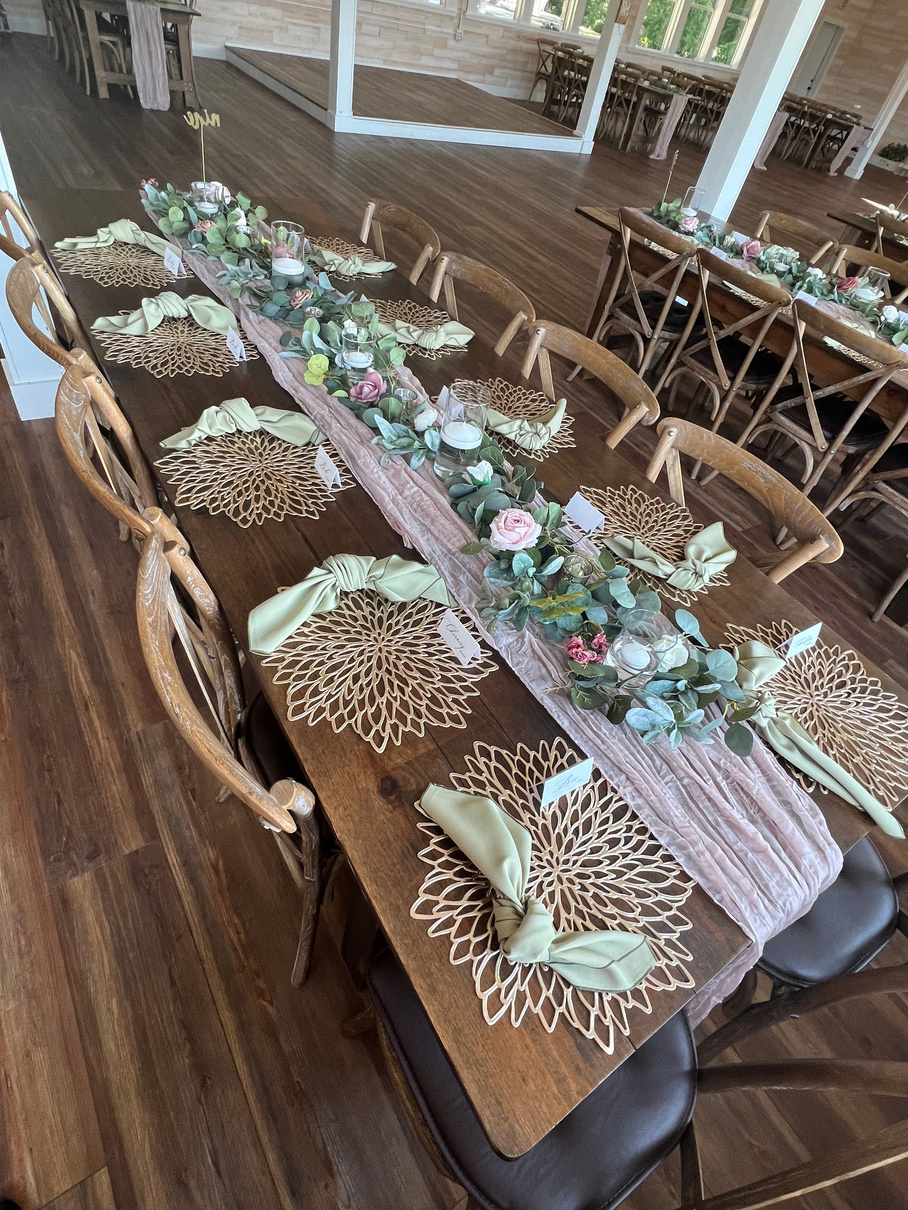

A full reference of all available décor items, including pieces not shown elsewhere in this guide.
| Item | Details |
|---|---|
| Table runners | White, ivory, black, beige, champagne, pink, nude, mauve, baby blue, maroon, lace |
| Silk florals | Colors: white, ivory, pink, blush, red, blues, peach, purple, burnt orange, yellow, taupe |
| Silk greenery | Silver dollar eucalyptus, seeded eucalyptus, willow eucalyptus, lamb's ear, fern & evergreen |
| Charger plates | Gold, silver, rose gold, wood grain, gold bead & gold geometric |
| Candles | LED tapers, pillars, tea lights & floating — plus various candle holders |
| Bud vases | Multiple selections in clear and amber |
| Table linens | Large selection of colors for high-top, low-top & round tables |
| Table numbers | Large selection of cards, holders, frames, wood pieces & more |
| Rustic wood pieces | Multiple sizes & tea light holders |
Plan your wedding décor from ceremony to reception. Fill in your preferences for each section and save.
Shared with the Cocktail Hour tab — editing here updates it there too.
Items for Cocktail Hour:
Greenery Options:
Floral Options:
Candle Type:
Candle Holder Color:
Vases:
Lanterns:
Choose your key songs, build your must-play and do-not-play lists, and share notes with your DJ or band.
List the personal items, favors, signs, and supplies you are bringing so the day-of team knows where each item goes and what to do with extras.
Upload any documents related to your wedding.
Review pricing, property guidelines, and complete any required agreements for your event at Legacy Lane Weddings.
All prices are subject to change at any time. Contact your coordinator with questions about availability and booking windows.
We wish you safe travels home! If you enjoyed your stay, please consider leaving us a review. When someone you refer books with us and mentions your name, we’ll send you a special thank you!
Approved cart makes: Icon · Star · Yamaha · Club Car. Please read all terms carefully before signing.
Do not drive through:
Please complete all fields and draw your signature below.
For any additional driver not on the primary contract.
It is expressly understood and agreed by and between the parties that the following terms apply. Please initial each section to acknowledge your understanding, then sign below.
The use of a golf cart is inherently dangerous and may result in serious personal injury or death. The lessor shall not be held responsible for any injury or death resulting from the use of a rented vehicle. The lessee assumes full responsibility for any injury sustained by themselves or others while operating or occupying the vehicle.
The lessee agrees that the golf cart will not be used, operated, or loaned to any person who:
The lessee accepts full financial responsibility for:
Improper use of the golf cart, as determined solely by the lessor or its representatives, will result in immediate confiscation of the vehicle. No refunds will be issued in such cases.
I have read, understand, and agree to all terms outlined in this waiver.
Hotels, Airbnb options, and RV parks near Legacy Lane. Distances are approximate from 120 Legacy Lane, Brooksville, FL.
This Pet Agreement is incorporated into and forms part of the Venue Rental Contract between Montzka Realty, LLC, doing business as Legacy Lane Weddings, and the Renters listed below. As pets are otherwise prohibited without prior approval, all parties must agree to the following terms and conditions.
A designated pet handler is required during the ceremony. The handler must be responsible for the pet at all times during event activities.
Both renters must sign below. Legacy Lane’s signature will be completed by our team at time of execution.
Navigation Settings
Keep the sections you use most in view and tuck away anything you do not need right now.
Overview and Settings always stay available.
Update the password you use to sign in to this portal.
Your portal doesn't have a couple photo yet. Adding one helps our team put faces to your wedding as they plan with you, and makes this space feel like yours.